23 Jan
In many field teams, the last mile of communication is still manual.
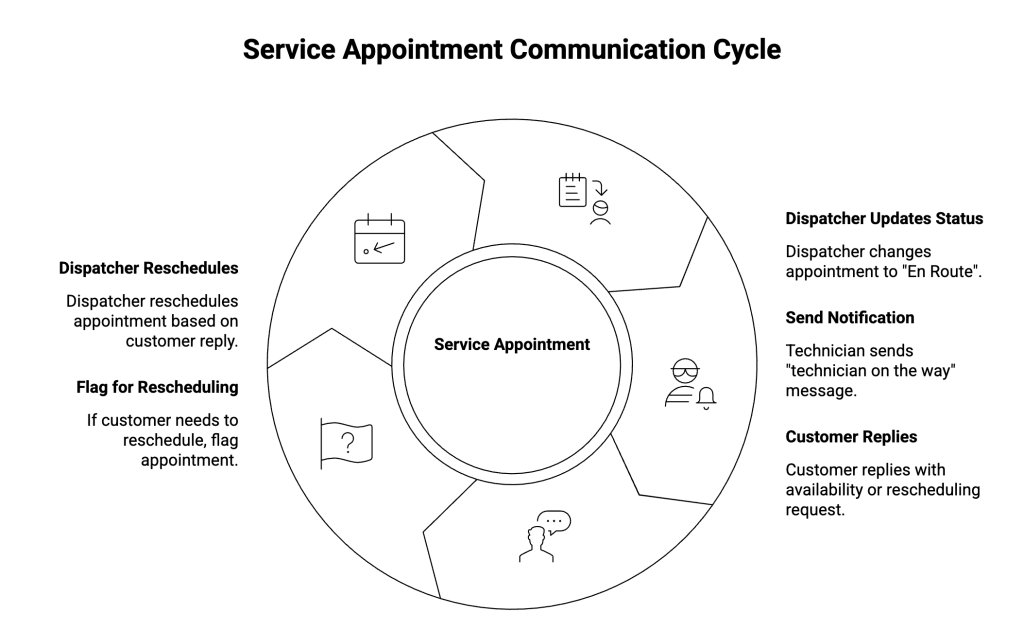
The dispatcher changes a Service Appointment to En Route, then someone:
- calls the customer,
- sends a quick WhatsApp or SMS from their personal phone,
- and hopes the person is actually at the address.
When the customer is not available, the technician often finds out at the door. Then everyone scrambles to reschedule, and the day’s plan falls apart.
This how-to covers one very specific outcome:
When a Service Appointment moves to En Route, send a “technician on the way” message by WhatsApp/SMS.
If the customer replies that they need to change the time, flag the appointment for rescheduling instead of moving it automatically.
The idea is simple: Salesforce sends the message and captures the reply, while your dispatch team still controls the final schedule.
Step 1: Decide when the message should go out
First, agree on the trigger.
Most teams use the moment when the Service Appointment status changes to something like:
- En Route
- On the Way
- or your equivalent status
This is usually when:
- the technician has accepted the job,
- they are actually traveling,
- and you want to give the customer a short heads-up (for example, “We’ll be there in 30–45 minutes”).
You can add extra conditions later (for example, only during business hours), but this status change is the core event you will use.
Step 2: Standardise the “technician on the way” message
Next, decide what the customer should receive.
For WhatsApp, a simple template works well:
“Hi {{FirstName}}, this is {{CompanyName}}.
Your technician is on the way for your appointment today.
If you are not available at this time, reply RESCHEDULE and our team will call you to arrange a new slot.”
For SMS, you can use a similar version with fewer line breaks.
A few practical considerations:
- Keep the keyword simple, for example RESCHEDULE.
- Avoid giving a full rescheduling menu in the first message. Instead, let the reply trigger a callback.
- Make sure the message clearly confirms who is coming and what will happen next.
Once this is written once and stored in your messaging app, every appointment uses the same, approved wording.
Step 3: Decide what happens when the customer replies
Now decide the behaviour behind “reply to reschedule”.
A safe pattern is:
- The customer replies RESCHEDULE.
- Salesforce links that reply to the open Service Appointment.
- The appointment gets a clear flag, such as Needs Reschedule.
- A work item (for example, a Task or work queue entry) is created for the dispatcher to call the customer and agree on a new time.
In other words:
- The system does not move the appointment time on its own.
- Instead, it clearly tells the dispatch team: “This customer can’t make it; please call and adjust.”
This avoids automated changes that the field team can’t realistically honour.
Step 4: Outline the automation in plain language
With the rules clear, you can describe the automation in simple steps. An Admin or partner can then implement this with standard Salesforce tools.
When the Service Appointment status changes to En Route:
- Check basic conditions
- The appointment has a related Contact with a mobile or WhatsApp-capable number.
- The customer has given permission to receive messages.
- A “technician on the way” notification has not already been sent for this appointment.
- Check consent and quiet-hours rules Use the same consent and quiet-hours logic you already have for WhatsApp/SMS. If the rules say “do not send” (for example, no consent or outside allowed hours), skip the message and, if needed, create a Task instead.
- Send the WhatsApp/SMS Salesforce passes the appointment and contact details to your messaging app. The app sends the template defined in Step 2 and logs the conversation back on the related records.
- Mark that the notification was sent Add a simple field on the appointment like “On the way message sent” and set it to true. This prevents duplicate messages if the status changes back and forth.
When a reply comes in from the customer:
- Salesforce or your messaging app checks if it matches the keyword (for example, RESCHEDULE).
- It finds the active Service Appointment for this customer (for example, the one scheduled for today that is not yet completed).
- It flags that appointment as Needs Reschedule (or your preferred status) and creates a Task for the dispatch team to follow up.
This way, the logic stays easy to explain: status change sends the message; reply flags the appointment for human handling.
Step 5: Run a quick end-to-end test
Before rolling this out to your entire field team, walk through one simple scenario.
- Create a Service Appointment in a test environment.
- Set a Contact with a valid WhatsApp/SMS number and consent.
- Change the status to En Route.
Then check:
- The customer receives the “technician on the way” message.
- The message is stored on the correct Contact and Service Appointment in Salesforce.
- The “On the way message sent” flag is set on the appointment.
Next, reply RESCHEDULE from the test number and confirm:
- The reply is logged on the same conversation.
- The correct Service Appointment is marked as needing reschedule.
- A Task or queue item is created for dispatch.
If any part doesn’t behave as expected, it is easier to adjust now than after field teams start relying on it.
Common mistakes to watch for
Even in a simple pattern like this, a few issues show up again and again:
- Customers receive the message more than once
- Cause: the appointment status moves in and out of En Route and there is no “already sent” flag.
- Fix: always check the “On the way message sent” field before sending.
- Messages are sent without consent
- Cause: this automation uses different rules than your other messaging journeys.
- Fix: reuse the same consent and quiet-hours logic you already use elsewhere, instead of building a special case.
- Replies are not linked to the right appointment
- Cause: replies only link to the Contact, not to the active appointment.
- Fix: define a simple rule, such as “today’s open appointment for this Contact”, and use it consistently.
- Rescheduling happens silently, without anyone noticing
- Cause: an automation updates the appointment time directly when the customer replies.
- Fix: treat rescheduling as a hand-off to dispatch. The system should flag and create work, not move times on its own.
If you keep these four pitfalls in mind, the pattern stays reliable at scale.
How this fits with ValueText
In this design, Salesforce decides:
- when the message should go out,
- which customers are allowed to receive it,
- and how replies should affect the appointment.
A native messaging app such as ValueText can then:
- send the WhatsApp/SMS using the standard template,
- log the conversation on the Contact and Service Appointment,
- and pass replies back into Salesforce so the right appointment is flagged.
That way, your “technician on the way” experience becomes consistent, auditable, and easy to adjust without your team needing to manage messages from personal phones.
If you’d like to map this “technician on the way” pattern to your own org, you can 👉🏻 Talk to the ValueText team for a short walkthrough.
You can implement this approach natively with ValueText, which is listed on AppExchange.
Author : Nikhil – Senior Client Consultant, ValueText
I lead global marketing and Salesforce integration initiatives for ValueText’s SaaS messaging platform. I writes high-impact blogs, guides new users through onboarding and training, and drives adoption of SMS / WhatsApp automation across industries. Passionate about the crossroads of marketing, technology, and client success.
Other useful articles
Learn how to improve customer communication in Salesforce