Guides·24 Nov 2026·15 min read

WhatsApp Templates in Salesforce: Approval Rules, Categories and Design Types

Salesforce WhatsApp templates explained: Meta categories, carousel, quick reply and OTP designs, approval rules and how to send them with ValueText.

If your team sends WhatsApp from Salesforce, templates decide what you can send, when you can send it and what it costs. Outside the 24-hour customer service window, an approved template is the only way to reach a customer. Choose the wrong category and Meta can recategorise or reject it. This guide puts everything about Salesforce WhatsApp templates in one place: Meta's three categories, every design type from quick reply buttons to carousels, the approval rules, and how to create and send templates in Salesforce with ValueText.

Everything here follows Meta's official documentation as of November 2026, linked so you can check the source.

What are WhatsApp templates?

WhatsApp templates are message formats that Meta reviews and approves before you can use them. They're the only messages a business can send outside the 24-hour customer service window, so Salesforce teams use them for first contact, reminders, alerts and campaigns. Every template is marketing, utility or authentication.

When a customer messages you, a 24-hour customer service window opens, and each new message from them resets it. Inside it, reps reply freely. Once it closes, only an approved template can restart the conversation.

Each template has a name (lowercase letters, numbers and underscores), a language, a category and a set of components. See Meta's template overview for the full mechanics, or our WhatsApp Salesforce integration guide if you're just getting started.
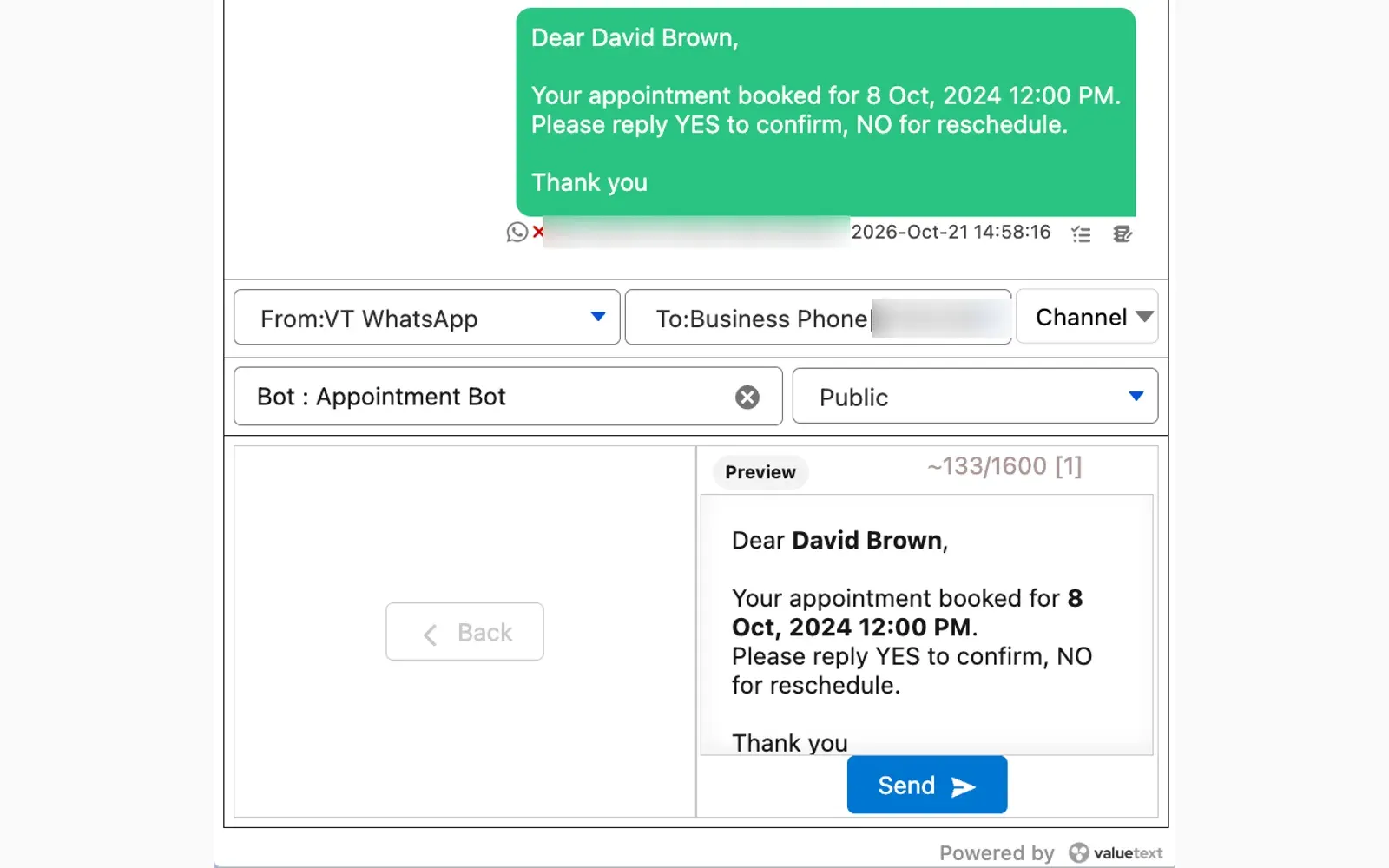
Fig 01 · RecordChat console
Salesforce WhatsApp templates: approved template sent from a Contact record in ValueText
Fig 01 · Salesforce WhatsApp templates: approved template sent from a Contact record in ValueText

The three WhatsApp template categories

Meta requires every template to be marketing, utility or authentication, and the category also sets the price. You suggest a category when you submit; Meta has the final say. Here's how the WhatsApp template categories work in practice.

Marketing templates

Marketing covers offers, launches, re-engagement and anything meant to drive sales. Meta treats any template with mixed content (an order update with a discount line, for example) or unclear content (just "{{1}}" or "Congratulations!") as marketing. Renewal reminders and retargeting messages count as marketing even when the customer asked for them.

Meta may also cap how many marketing templates a person receives, and as of November 2026 it doesn't deliver marketing templates to WhatsApp users with US phone numbers. See the per-user marketing limits page.

Utility templates

Utility templates follow up on something the customer did or asked for. To qualify, a template must be non-promotional and either specific to the user (their order, appointment, account or case) or essential to them, such as a safety alert. If you create or edit a utility template that includes marketing material, Meta recategorises it as marketing automatically.

Authentication templates

Authentication templates send one-time passcodes and are the strictest category: Meta's preset text, an optional security disclaimer and expiry warning, and a one-time password button. No URLs, media or emojis, and parameters max out at 15 characters. Use a WhatsApp authentication template only for codes; anything else belongs in utility or marketing.

How Meta recategorises templates

If Meta disagrees with your category at review, it can reject the template. After approval, it can still change the category if messages don't fit the guidelines; you're notified and can request a review. The template categorization guide has Meta's full examples for each category.

WhatsApp template categories at a glance

CategoryUse it forSalesforce exampleWatch out for
MarketingOffers, launches, renewals, re-engagementWebinar invite to a Campaign MemberMixed or vague content counts as marketing; US delivery restriction
UtilityNon-promotional updates tied to the userCase status, appointment reminder, invoice dueAny promo line flips it to marketing
AuthenticationOne-time passcodesCustomer portal login codeFixed format; no URLs, media or emojis

How template categories affect pricing (as of November 2026)

Meta's WhatsApp Business Platform pricing page sets the rules. As of November 2026:

  • Meta charges per delivered message, and the rate depends on the category and the recipient's country calling code.
  • Messages customers send to you are free.
  • Volume tiers apply only to utility and authentication messages.
  • Since 1 October 2026, service messages (free-form replies inside the customer service window) are charged, but each business phone number gets its first 1,000 service messages free every month.
  • If a customer messages you from a Click-to-WhatsApp ad on the mobile app and you reply within the window, a free entry point window opens for up to 7 days, and marketing, utility, authentication and service messages in it aren't charged.

For what this means for your bill, read our breakdown of the WhatsApp pricing changes in October 2026, check SMS and WhatsApp rates by country and see ValueText pricing. If you use WhatsApp coexistence in Salesforce, messages sent from the WhatsApp Business app itself stay free.

WhatsApp template design types

Category is what a message is for. Design type is how it looks and what the customer can tap. Templates are built from four components: a header (optional), a body (required), a footer (optional) and buttons (optional). Meta's template components reference lists every option; here are the ones Salesforce teams use most.

Text templates and text headers

A body of up to 1,024 characters, plus an optional text header and footer (60 characters each). Most utility templates start here.

Media header templates: image, video and document

A media header adds an image, video, GIF or document (such as a PDF invoice) above the body. You upload a sample when you submit.
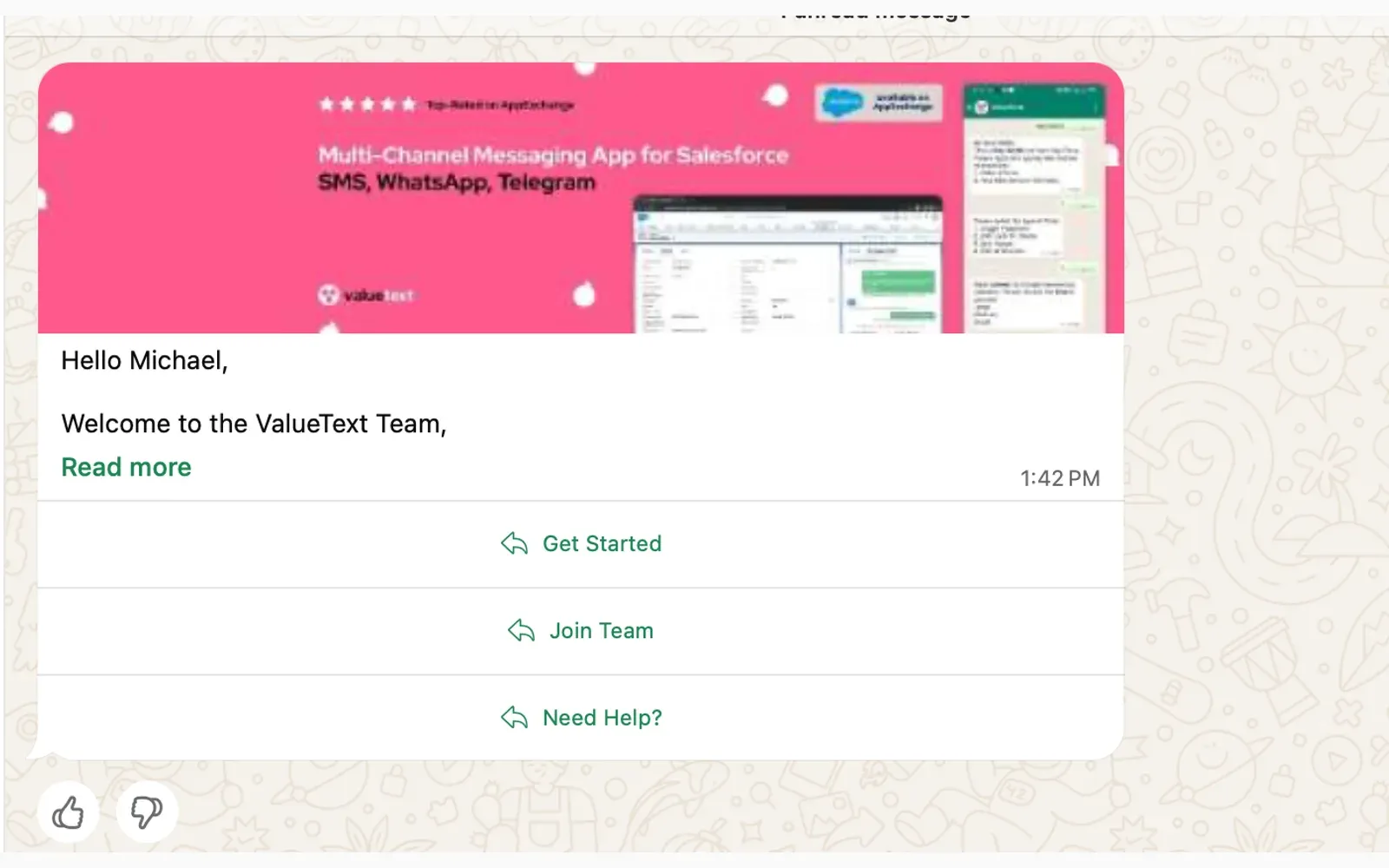
Fig 02 · Media headerTemplate
WhatsApp template with an image header, body text and call-to-action buttons
Fig 02 · WhatsApp template with an image header, body text and call-to-action buttons

Location header templates

Location templates show a map header that opens the customer's map app. The location is set when you send, so one template works for every site visit or delivery.

WhatsApp quick reply buttons

WhatsApp quick reply buttons send a preset reply when tapped, such as "Confirm" or "Stop promotions". You can add up to 10 (labels up to 25 characters). With more than three buttons, WhatsApp shows two plus "See all options", so put the important ones first.
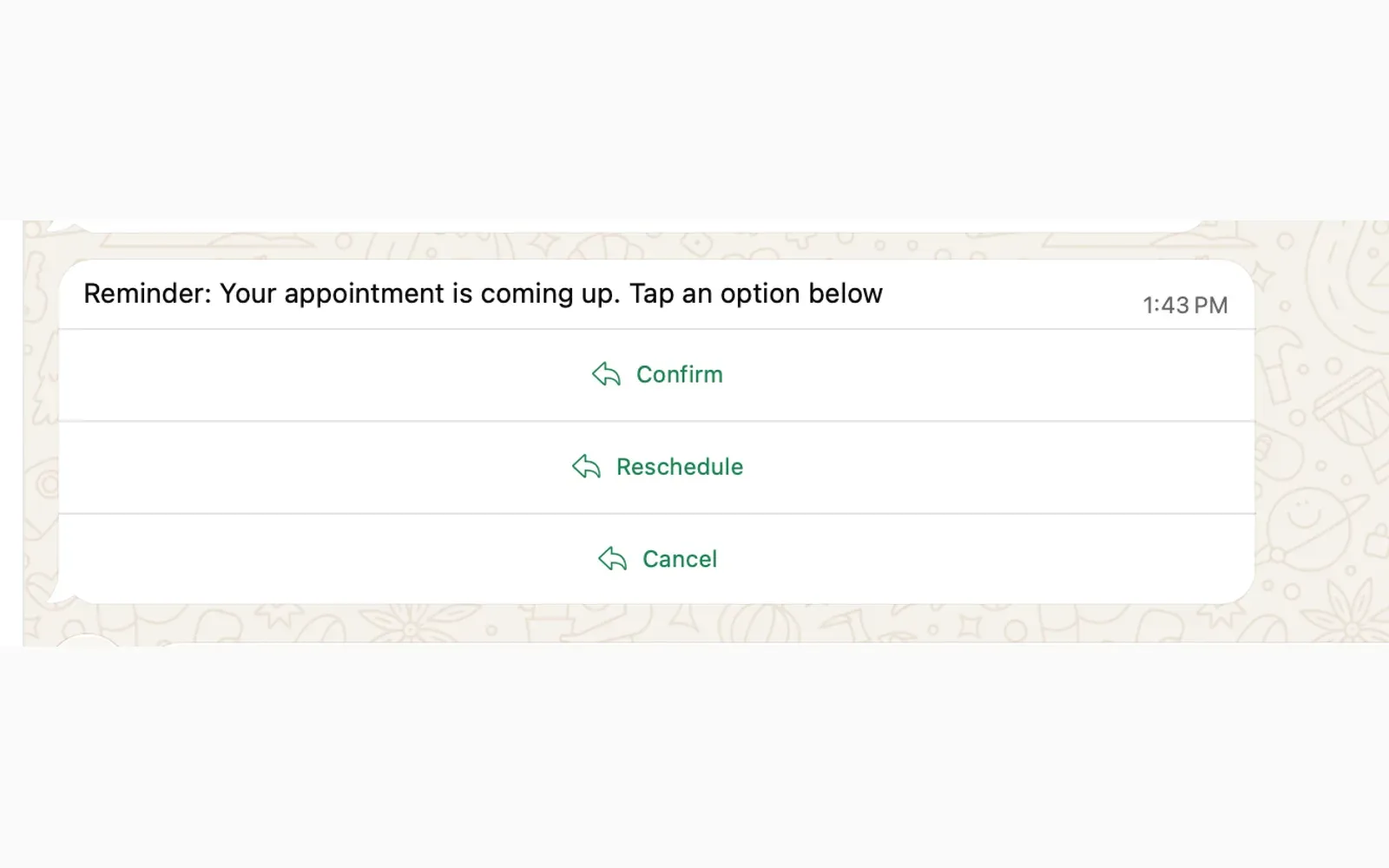
Fig 03 · Quick repliesTemplate
WhatsApp quick reply buttons Confirm and Reschedule on an appointment reminder template
Fig 03 · WhatsApp quick reply buttons Confirm and Reschedule on an appointment reminder template

Call-to-action buttons: URL and phone number

URL buttons open a web page (up to two; the URL can end with a variable such as an order ID). A phone button calls your business (one per template).

Copy code (coupon) templates

Coupon code templates are marketing templates with one copy code button (codes up to 20 characters). Meta notes they aren't supported on WhatsApp Web.
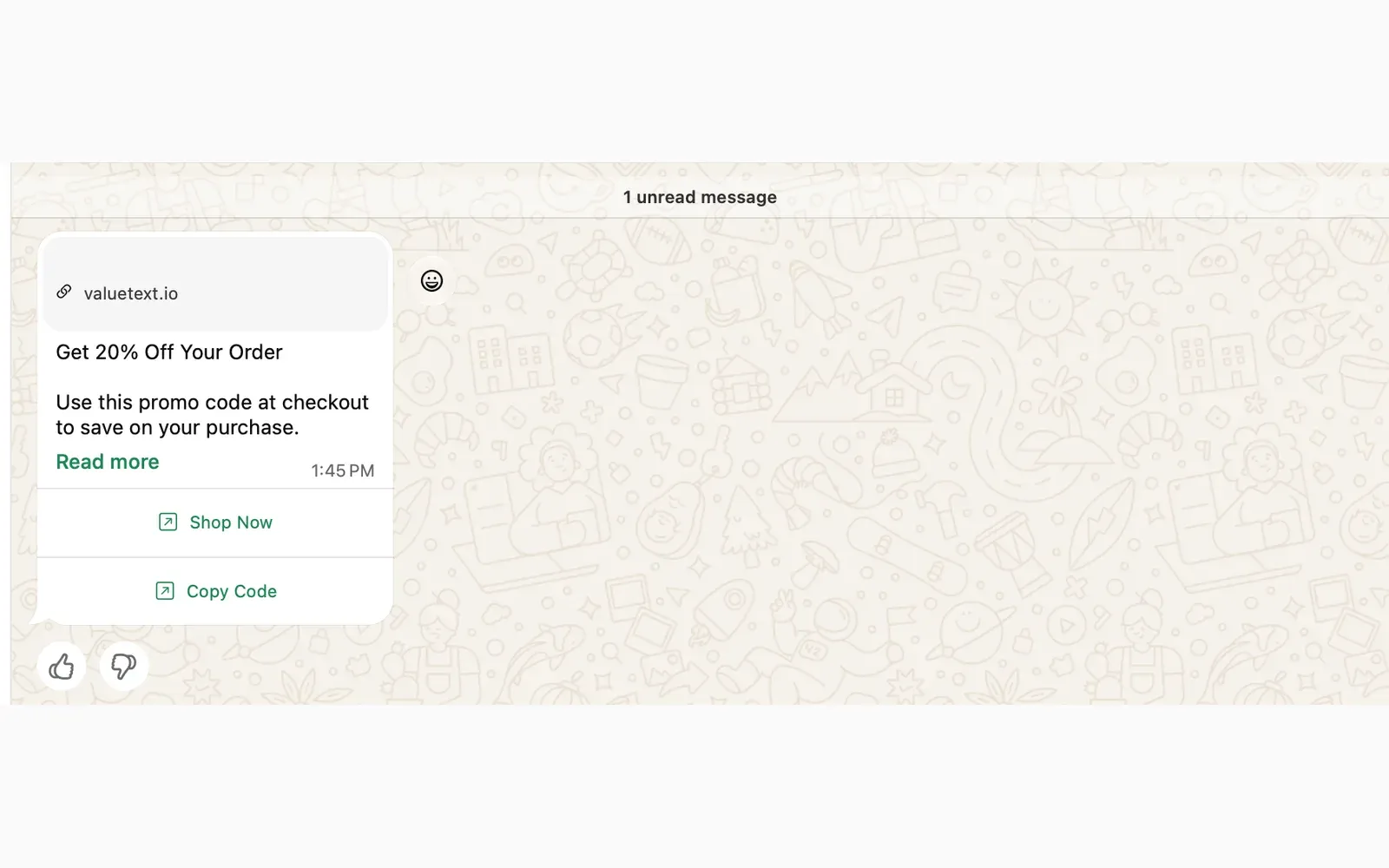
Fig 04 · Copy codeTemplate
WhatsApp marketing template with a copy code coupon button
Fig 04 · WhatsApp marketing template with a copy code coupon button

Limited-time offer templates

Limited-time offer templates add a short offer line, an optional expiry countdown, a copy code button and a URL button. No footer is allowed.

Authentication buttons: copy code, one-tap and zero-tap

A WhatsApp authentication template uses one of three OTP buttons: copy code (works everywhere), one-tap autofill (fills the code into your Android app) or zero-tap (passes the code with no tap). Where one-tap or zero-tap isn't supported, WhatsApp falls back to copy code.

A WhatsApp carousel template sends one message with horizontally scrolling cards. Media card carousels have 2 to 10 cards, each with an image or video, optional text and up to two buttons. Every card uses the same components, and the card count is fixed at creation.

Product card carousels pull up to 10 products from your connected Meta catalog, so customers can shop without leaving WhatsApp.
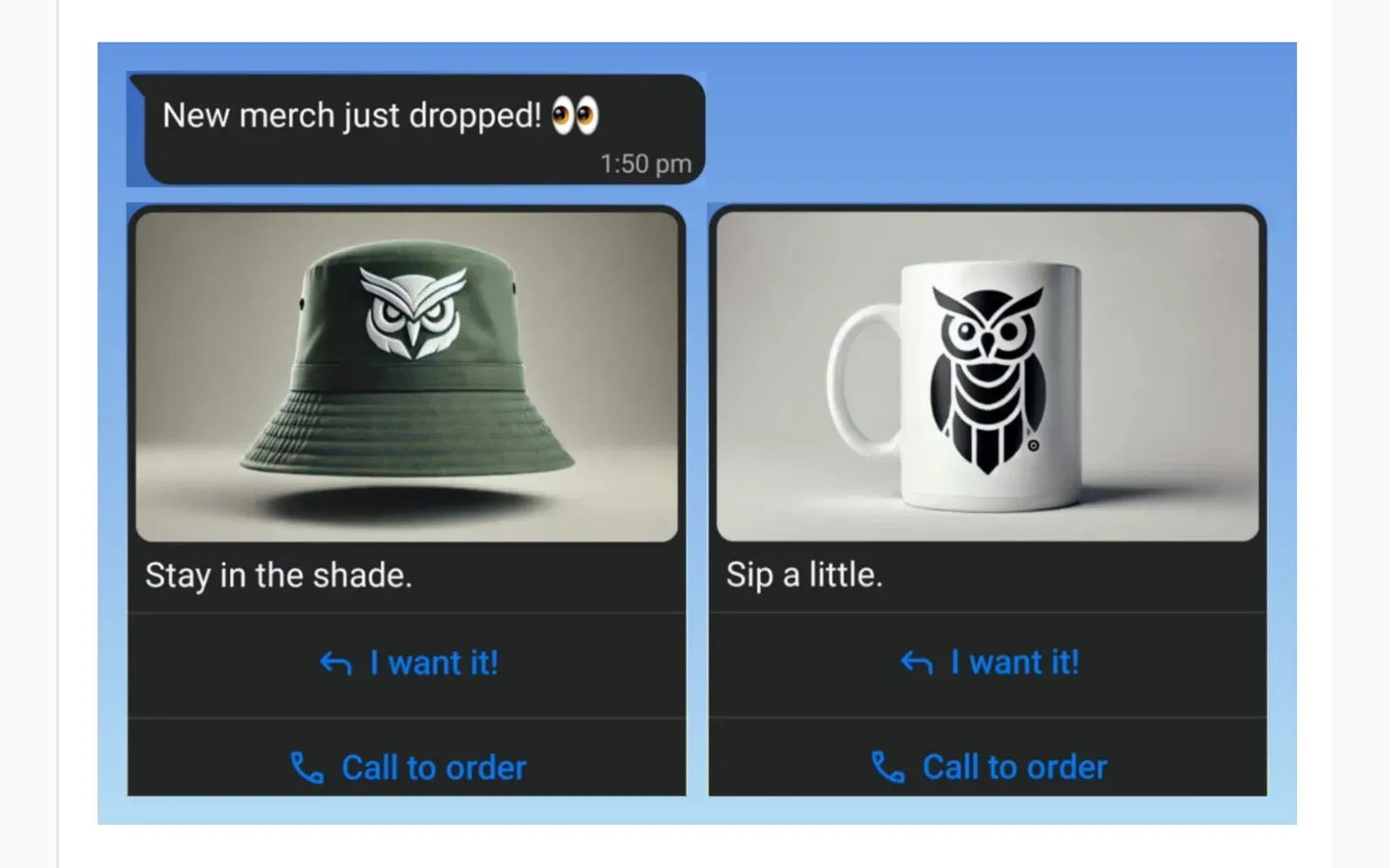
Fig 05 · CarouselTemplate
WhatsApp carousel template with swipeable media cards and buttons
Fig 05 · WhatsApp carousel template with swipeable media cards and buttons

Catalog, multi-product and single-product templates

With a Meta product catalog you also get: Catalog templates (a "View catalog" button), Multi-product message (MPM) templates (up to 30 products in 10 sections) and Single-product message (SPM) templates (one product).

WhatsApp Flows templates

A FLOW button opens a WhatsApp Flow, a short form inside the chat, for surveys, bookings or lead qualification. See Meta's guide to sending a Flow in a message template.

Order details and order status templates

For businesses using WhatsApp payments (Meta's guide covers India), Meta documents order details templates (with an "Open order details" payment button) and order status templates. Check availability in your country first.

Call permission request templates

If you use WhatsApp calling, a call permission request template asks the customer for permission to call them. It can't be combined with other interactive components.

WhatsApp template design types compared

Design typeBest forKey componentsLimits (per Meta)Usual category
TextUpdates, remindersBody, optional text header and footerBody 1,024 chars; header and footer 60Any
Media headerInvoices, product shots, ticketsImage, video, GIF or document headerSample asset reviewedMarketing or utility
Location headerDeliveries, visit confirmationsMap header + bodyLocation set at send time; no live locationUtility or marketing
Quick reply buttonsConfirmations, opt-outs, simple choicesUp to 10 reply buttonsLabels 25 chars; 2 shown + "See all options" if more than 3Any except authentication
Call-to-actionTracking, payments, callsURL and phone number buttonsMax 2 URL, 1 phone; up to 10 buttons totalMarketing or utility
Copy code (coupon)Discount codesOne copy code buttonCode up to 20 chars; not on WhatsApp WebMarketing
Limited-time offerTime-bound promotionsOffer text, expiry countdown, copy code + URLOffer text 16 chars; no footerMarketing only
Authentication OTPLogins, verificationCopy code, one-tap or zero-tap buttonNo URLs, media or emojis; params 15 charsAuthentication
Media card carouselProduct or offer showcases2-10 cards, image/video, up to 2 buttons eachAll cards identical; card count fixedMarketing
Product card carouselIn-WhatsApp shoppingCatalog product cards with View buttonUp to 10 cards; catalog requiredMarketing
Catalog / MPM / SPMCatalog browsing and orderingView catalog, product sections, single productMPM up to 30 products in 10 sectionsMarketing
FlowsSurveys, bookings, formsFLOW button opening a WhatsApp FlowFlow built separatelyDepends on content
Call permission requestAsking to call a customerBody + call permission componentNo other interactive componentsMarketing or utility

WhatsApp template approval: rules, statuses and fixes

How review works

Meta reviews every new or edited template with automated checks and manual review, and a decision can take up to 24 hours. If your template uses variables or a media header, you must include sample values or a sample file. Approved templates start as "Active - Quality pending". Details are in Meta's template review guide.

Statuses, quality rating and pausing

  • Statuses: In review, Rejected, Active (quality pending, high, medium or low), Paused, Disabled and Appeal requested.
  • Quality rating: based on customer feedback and read rates. A low rating puts the template at risk (see template quality rating).
  • Pausing: a template that hits low quality is paused for 3 hours the first time, 6 hours the second time, and disabled the third time.
  • Archival: templates unused for 12 months are archived and then deleted after 28 days unless you unarchive them.
  • Limits: an unverified business portfolio can hold 250 templates per account; a verified portfolio with an approved display name can hold up to 6,000.

Naming and WhatsApp template variables

  • Names use lowercase letters, numbers and underscores (up to 512 characters).
  • Variables are positional ({{1}}, {{2}}) or named ({{first_name}}). Keep positional variables in order with no gaps.
  • Don't start or end the body with a variable, and don't use more variables than the message length can carry.
  • Avoid special characters such as #, $ or % inside variables.

Common rejection reasons and fixes

ReasonExampleFix
Variable formattingMismatched braces, {{1}} then {{3}}Use correctly formatted, sequential variables
Dangling or too many variablesBody starts with {{1}} or is mostly variablesAdd fixed text around each variable
Policy violationAsking for full card or ID numbers; threatening toneRemove sensitive requests and follow WhatsApp policies
DuplicateSame body and footer as an existing templateReword it or reuse the existing template
Wrong categoryA promo line in a utility templateSplit it into a utility and a marketing template

If a template is rejected, edit and resubmit it, or file an appeal with a sample. Meta says appeals are decided within 24 hours.

Tips by category

  • Marketing: one clear offer per template, and an easy way to stop, such as a "Stop promotions" quick reply.
  • Utility: reference the specific order, appointment or case, and leave out anything promotional. See Meta's utility template guide.
  • Authentication: use Meta's preset format exactly; don't add links or extra text.

How to create and send WhatsApp templates in Salesforce with ValueText

ValueText lets you submit templates to Meta and send them from Salesforce without leaving your org. The steps below follow our WhatsApp approved templates documentation.
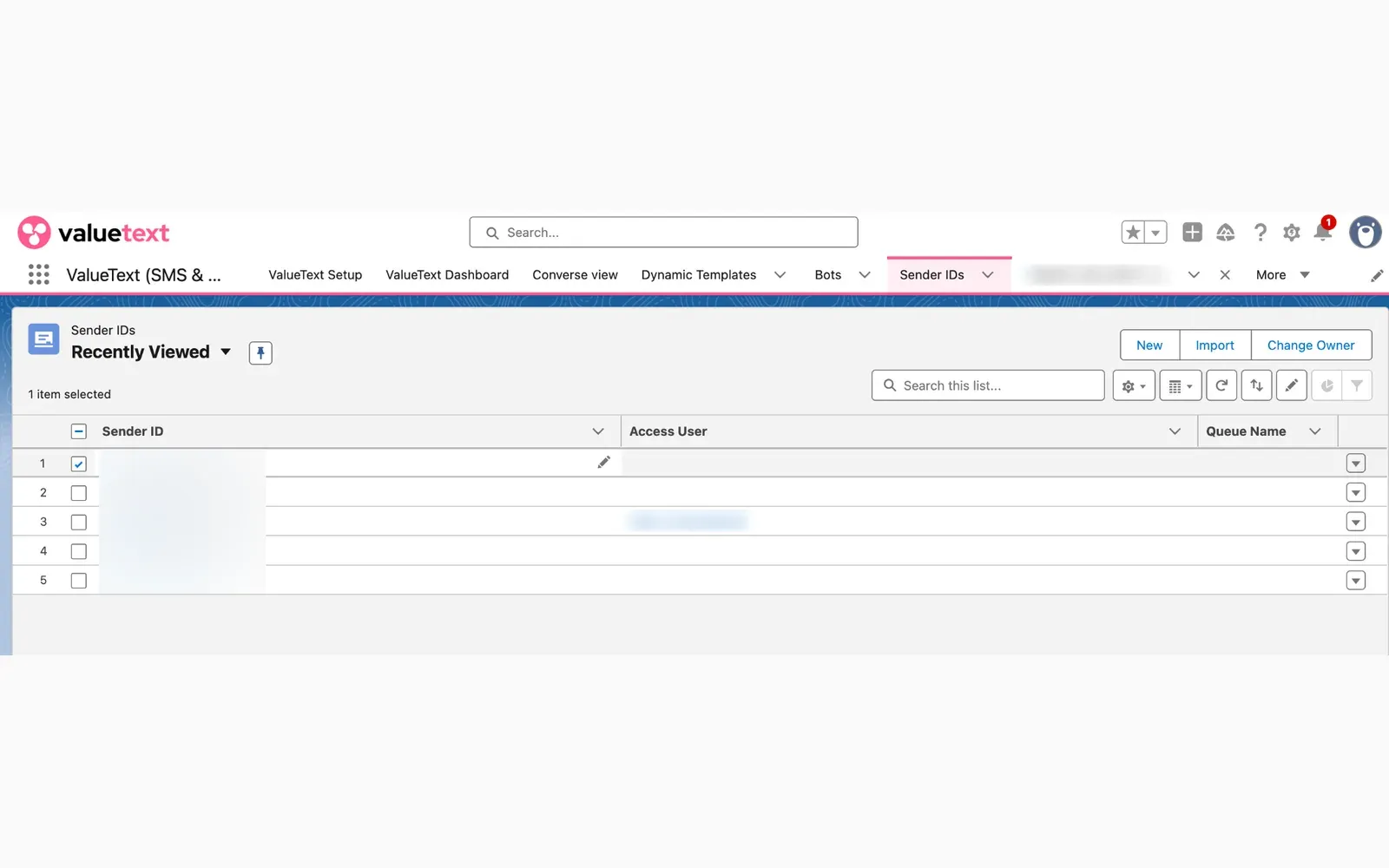
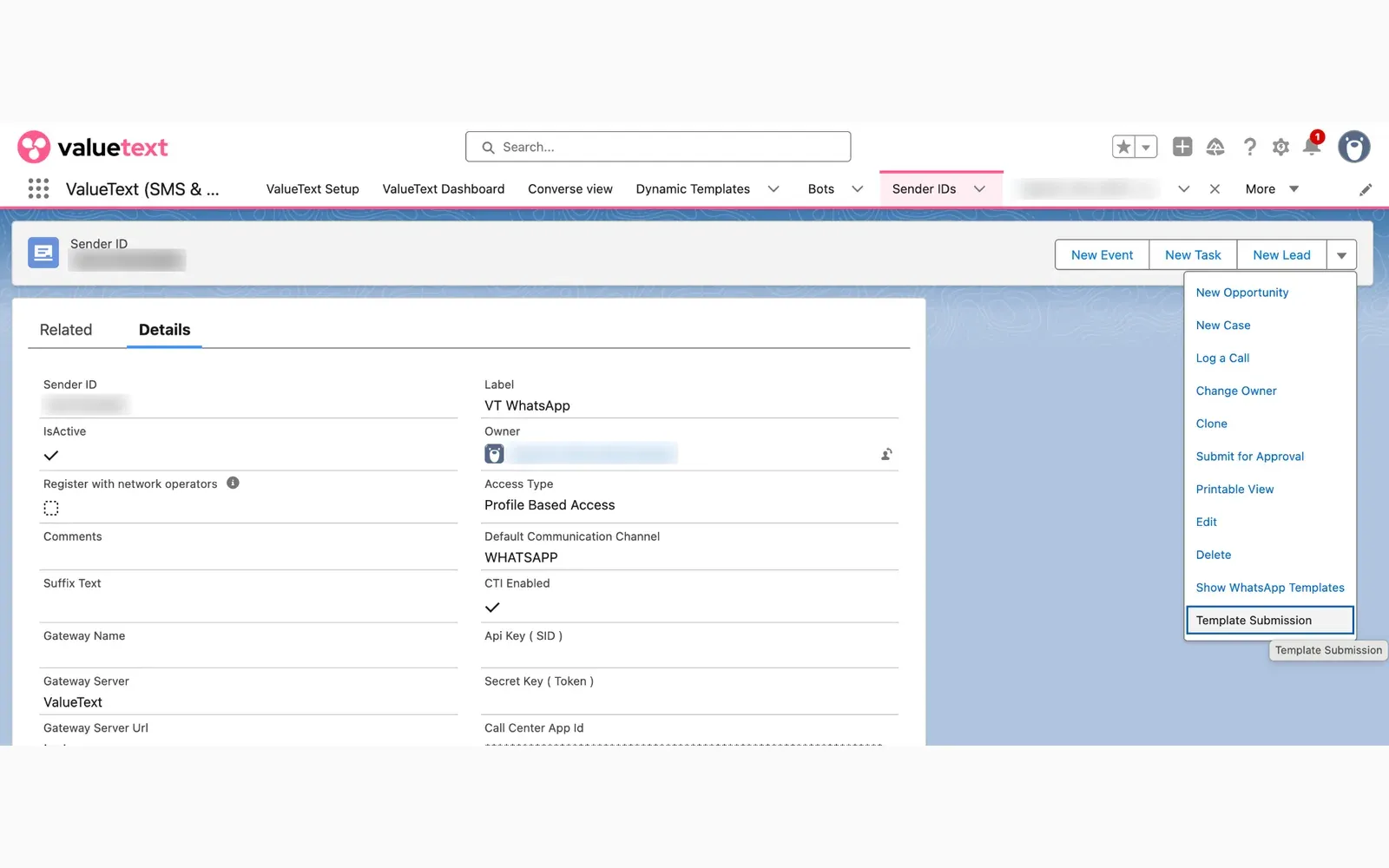
Fig 06 · Sender IDsList view
ValueText Sender IDs object in Salesforce used to submit WhatsApp templates
Fig 06 · ValueText Sender IDs object in Salesforce used to submit WhatsApp templates
Fig 07 · Sender IDRecord
A ValueText Sender ID record in Salesforce with Template Submission in its actions menu
Fig 07 · A ValueText Sender ID record in Salesforce with Template Submission in its actions menu
Fig 08 · SubmitTemplate
Submit Templates window in ValueText for creating Salesforce WhatsApp templates
Fig 08 · Submit Templates window in ValueText for creating Salesforce WhatsApp templates

Create and submit a template

  1. Open the ValueText Sender IDs object in Salesforce (see what a Sender ID is).
  2. Select the Sender ID you want to submit the template for.
  3. Click the arrow at the top right and choose Submit Templates.
  4. Enter a Template Name and Category, then choose the language.
  5. Optionally add a header: text, an image, a document or a video.
  6. Write the body, adding merge fields in the format [Full Name].
  7. Optionally add a footer, for example an opt-out line.
  8. Add buttons: Call to Action (URL) or Quick Reply.
  9. Submit the template to WhatsApp for approval.
Fig 09 · NameCategory
The Create Template window with a template name, the Utility category and the sender selected
Fig 09 · The Create Template window with a template name, the Utility category and the sender selected
Fig 10 · HeaderLanguage
Uploading a media file, choosing the message language and an image header in the ValueText template window
Fig 10 · Uploading a media file, choosing the message language and an image header in the ValueText template window
Fig 11 · BodyButtons
Writing the template body with variables, a footer and three quick reply buttons in ValueText
Fig 11 · Writing the template body with variables, a footer and three quick reply buttons in ValueText

Our docs list three button layouts in the template form: Quick Replies, Call to Action (URL), and URL & Phone Number.

Track the status and use Dynamic Templates

Click Status at the top right of the template window to see where Meta's review stands. While you wait, you can click Dynamic Template at the bottom left to add the template to dynamic templates.

Fig 12 · StatusTemplate
WhatsApp template approval status shown in ValueText inside Salesforce
Fig 12 · WhatsApp template approval status shown in ValueText inside Salesforce

Send a WhatsApp template from a Salesforce record

In the chat console, if the customer's session is inactive (no message from them in the last 24 hours), send an approved template to start the conversation. When they reply, the session becomes active and your rep can chat freely. Here's how to send from the chat console.

Send templates in bulk from a list view

Select records in a list view, choose the template and WhatsApp as the channel, and send now or schedule it. Merge fields fill in from each record. See bulk messaging from list views.

Send WhatsApp template from Salesforce Flow

ValueText can send a template from a Flow using a Create Records element, with the template name in the Template ID field. For example, when a lead's status changes, the right template goes out without anyone clicking Send. Our Flow documentation walks through it.

Fig 13 · FlowCanvas
A record-triggered Flow in Salesforce Flow Builder with a Send Message element
Fig 13 · A record-triggered Flow in Salesforce Flow Builder with a Send Message element
Fig 14 · FlowCreate Records
Send WhatsApp template from Salesforce Flow using ValueText
Fig 14 · Send WhatsApp template from Salesforce Flow using ValueText

Using WhatsApp coexistence? Templates and Flow triggers still apply while your team keeps using the WhatsApp Business app on the same number.

Try it on your own Salesforce org: Start your free trial → | Install from AppExchange →

Best-practice checklist for Salesforce WhatsApp templates

  • Choose the honest category; don't hide offers in utility templates.
  • Give each template one job, and name it clearly (for example appointment_reminder_24h).
  • Add sample values for every variable and media header before you submit.
  • Put the most important buttons first; only two show before "See all options".
  • Give marketing messages an easy opt-out button.
  • Create a template per language your customers use.
  • Watch quality ratings, and pause sends that get negative feedback.
  • Review unused templates before Meta archives them.

Get started

Salesforce WhatsApp templates work best when the category is honest, the design fits the job and the template is wired to the right record or Flow. Pick two or three templates to start with and submit them from your Sender ID. Meta's review can take up to 24 hours, so give yourself a day's lead time before any campaign.

Send your first approved template from Salesforce: Start free trial → | Book a demo → | Install from AppExchange →

Want more? See WhatsApp in Salesforce, compare Salesforce WhatsApp apps and template types, or connect your WhatsApp number.

Frequently asked questions

What are Salesforce WhatsApp templates?

They're WhatsApp message templates approved by Meta that you send from Salesforce records, list views or Flows. You need them to message a customer outside the 24-hour customer service window, and each one is categorised as marketing, utility or authentication.

How long does WhatsApp template approval take?

Meta says a review decision can take up to 24 hours. Including sample values for variables and media speeds things up and avoids rejections.

What are the WhatsApp template categories?

Marketing (promotions, offers, renewals), utility (non-promotional updates tied to the user's order, appointment or account) and authentication (one-time passcodes). The category affects both the review rules and the price.

Can Meta change my template's category?

Yes. Meta can reject a template whose category it disagrees with, and it can update an approved template's category if its messages don't meet the guidelines. You're notified and can request a review.

How many buttons can a WhatsApp template have?

Up to 10 in total. That can include up to 10 quick reply buttons, up to two URL buttons, one phone number button and one copy code button. If there are more than three, WhatsApp shows two and a "See all options" button.

A marketing template that sends one message with 2 to 10 horizontally scrolling cards, each with an image or video and up to two buttons. Product card carousels pull items from your Meta catalog instead.

Do I need a template to reply to a customer on WhatsApp?

Not inside the 24-hour customer service window; your team can reply freely. Once the window has closed, you need an approved template to start the conversation again.

Can I send WhatsApp templates from Salesforce Flow?

Yes. With ValueText, a Flow can send an approved template using a Create Records element, so reminders and updates go out automatically when a record changes.

Questions about this guide? Write to us. Talk to us→

Keep reading

All posts→
Guides RevOps Automation: What's Worth It in 2025? A breakdown of what RevOps automation actually pays off: messaging, lead scoring, forecasting, and what to skip. 20 May 2025 · 3 min read Guides Top 5 Trends in Communication Technologies in Salesforce Discover the top 5 trends for communication technologies in salesforce that are transforming business operations 7 Aug 2024 · 5 min read Guides Document Signature and Messaging in Salesforce: Use Cases See how pairing e-signature workflows with SMS and WhatsApp messaging in Salesforce keeps signers moving and logs replies to the record. 7 Aug 2024 · 4 min read
Guides·24 Nov 2026·15 min read

WhatsApp Templates in Salesforce: Approval Rules, Categories and Design Types

Salesforce WhatsApp templates explained: Meta categories, carousel, quick reply and OTP designs, approval rules and how to send them with ValueText.

If your team sends WhatsApp from Salesforce, templates decide what you can send, when you can send it and what it costs. Outside the 24-hour customer service window, an approved template is the only way to reach a customer. Choose the wrong category and Meta can recategorise or reject it. This guide puts everything about Salesforce WhatsApp templates in one place: Meta's three categories, every design type from quick reply buttons to carousels, the approval rules, and how to create and send templates in Salesforce with ValueText.

Everything here follows Meta's official documentation as of November 2026, linked so you can check the source.

What are WhatsApp templates?

WhatsApp templates are message formats that Meta reviews and approves before you can use them. They're the only messages a business can send outside the 24-hour customer service window, so Salesforce teams use them for first contact, reminders, alerts and campaigns. Every template is marketing, utility or authentication.

When a customer messages you, a 24-hour customer service window opens, and each new message from them resets it. Inside it, reps reply freely. Once it closes, only an approved template can restart the conversation.

Each template has a name (lowercase letters, numbers and underscores), a language, a category and a set of components. See Meta's template overview for the full mechanics, or our WhatsApp Salesforce integration guide if you're just getting started.

Fig 01 · RecordChat console
Salesforce WhatsApp templates: approved template sent from a Contact record in ValueText
Fig 01 · Salesforce WhatsApp templates: approved template sent from a Contact record in ValueText

The three WhatsApp template categories

Meta requires every template to be marketing, utility or authentication, and the category also sets the price. You suggest a category when you submit; Meta has the final say. Here's how the WhatsApp template categories work in practice.

Marketing templates

Marketing covers offers, launches, re-engagement and anything meant to drive sales. Meta treats any template with mixed content (an order update with a discount line, for example) or unclear content (just "{{1}}" or "Congratulations!") as marketing. Renewal reminders and retargeting messages count as marketing even when the customer asked for them.

Meta may also cap how many marketing templates a person receives, and as of November 2026 it doesn't deliver marketing templates to WhatsApp users with US phone numbers. See the per-user marketing limits page.

Utility templates

Utility templates follow up on something the customer did or asked for. To qualify, a template must be non-promotional and either specific to the user (their order, appointment, account or case) or essential to them, such as a safety alert. If you create or edit a utility template that includes marketing material, Meta recategorises it as marketing automatically.

Authentication templates

Authentication templates send one-time passcodes and are the strictest category: Meta's preset text, an optional security disclaimer and expiry warning, and a one-time password button. No URLs, media or emojis, and parameters max out at 15 characters. Use a WhatsApp authentication template only for codes; anything else belongs in utility or marketing.

How Meta recategorises templates

If Meta disagrees with your category at review, it can reject the template. After approval, it can still change the category if messages don't fit the guidelines; you're notified and can request a review. The template categorization guide has Meta's full examples for each category.

WhatsApp template categories at a glance

CategoryUse it forSalesforce exampleWatch out for
MarketingOffers, launches, renewals, re-engagementWebinar invite to a Campaign MemberMixed or vague content counts as marketing; US delivery restriction
UtilityNon-promotional updates tied to the userCase status, appointment reminder, invoice dueAny promo line flips it to marketing
AuthenticationOne-time passcodesCustomer portal login codeFixed format; no URLs, media or emojis

How template categories affect pricing (as of November 2026)

Meta's WhatsApp Business Platform pricing page sets the rules. As of November 2026:

  • Meta charges per delivered message, and the rate depends on the category and the recipient's country calling code.
  • Messages customers send to you are free.
  • Volume tiers apply only to utility and authentication messages.
  • Since 1 October 2026, service messages (free-form replies inside the customer service window) are charged, but each business phone number gets its first 1,000 service messages free every month.
  • If a customer messages you from a Click-to-WhatsApp ad on the mobile app and you reply within the window, a free entry point window opens for up to 7 days, and marketing, utility, authentication and service messages in it aren't charged.

For what this means for your bill, read our breakdown of the WhatsApp pricing changes in October 2026, check SMS and WhatsApp rates by country and see ValueText pricing. If you use WhatsApp coexistence in Salesforce, messages sent from the WhatsApp Business app itself stay free.

WhatsApp template design types

Category is what a message is for. Design type is how it looks and what the customer can tap. Templates are built from four components: a header (optional), a body (required), a footer (optional) and buttons (optional). Meta's template components reference lists every option; here are the ones Salesforce teams use most.

Text templates and text headers

A body of up to 1,024 characters, plus an optional text header and footer (60 characters each). Most utility templates start here.

Media header templates: image, video and document

A media header adds an image, video, GIF or document (such as a PDF invoice) above the body. You upload a sample when you submit.

Fig 02 · Media headerTemplate
WhatsApp template with an image header, body text and call-to-action buttons
Fig 02 · WhatsApp template with an image header, body text and call-to-action buttons

Location header templates

Location templates show a map header that opens the customer's map app. The location is set when you send, so one template works for every site visit or delivery.

WhatsApp quick reply buttons

WhatsApp quick reply buttons send a preset reply when tapped, such as "Confirm" or "Stop promotions". You can add up to 10 (labels up to 25 characters). With more than three buttons, WhatsApp shows two plus "See all options", so put the important ones first.

Fig 03 · Quick repliesTemplate
WhatsApp quick reply buttons Confirm and Reschedule on an appointment reminder template
Fig 03 · WhatsApp quick reply buttons Confirm and Reschedule on an appointment reminder template

Call-to-action buttons: URL and phone number

URL buttons open a web page (up to two; the URL can end with a variable such as an order ID). A phone button calls your business (one per template).

Copy code (coupon) templates

Coupon code templates are marketing templates with one copy code button (codes up to 20 characters). Meta notes they aren't supported on WhatsApp Web.

Fig 04 · Copy codeTemplate
WhatsApp marketing template with a copy code coupon button
Fig 04 · WhatsApp marketing template with a copy code coupon button

Limited-time offer templates

Limited-time offer templates add a short offer line, an optional expiry countdown, a copy code button and a URL button. No footer is allowed.

Authentication buttons: copy code, one-tap and zero-tap

A WhatsApp authentication template uses one of three OTP buttons: copy code (works everywhere), one-tap autofill (fills the code into your Android app) or zero-tap (passes the code with no tap). Where one-tap or zero-tap isn't supported, WhatsApp falls back to copy code.

A WhatsApp carousel template sends one message with horizontally scrolling cards. Media card carousels have 2 to 10 cards, each with an image or video, optional text and up to two buttons. Every card uses the same components, and the card count is fixed at creation.

Product card carousels pull up to 10 products from your connected Meta catalog, so customers can shop without leaving WhatsApp.

Fig 05 · CarouselTemplate
WhatsApp carousel template with swipeable media cards and buttons
Fig 05 · WhatsApp carousel template with swipeable media cards and buttons

Catalog, multi-product and single-product templates

With a Meta product catalog you also get: Catalog templates (a "View catalog" button), Multi-product message (MPM) templates (up to 30 products in 10 sections) and Single-product message (SPM) templates (one product).

WhatsApp Flows templates

A FLOW button opens a WhatsApp Flow, a short form inside the chat, for surveys, bookings or lead qualification. See Meta's guide to sending a Flow in a message template.

Order details and order status templates

For businesses using WhatsApp payments (Meta's guide covers India), Meta documents order details templates (with an "Open order details" payment button) and order status templates. Check availability in your country first.

Call permission request templates

If you use WhatsApp calling, a call permission request template asks the customer for permission to call them. It can't be combined with other interactive components.

WhatsApp template design types compared

Design typeBest forKey componentsLimits (per Meta)Usual category
TextUpdates, remindersBody, optional text header and footerBody 1,024 chars; header and footer 60Any
Media headerInvoices, product shots, ticketsImage, video, GIF or document headerSample asset reviewedMarketing or utility
Location headerDeliveries, visit confirmationsMap header + bodyLocation set at send time; no live locationUtility or marketing
Quick reply buttonsConfirmations, opt-outs, simple choicesUp to 10 reply buttonsLabels 25 chars; 2 shown + "See all options" if more than 3Any except authentication
Call-to-actionTracking, payments, callsURL and phone number buttonsMax 2 URL, 1 phone; up to 10 buttons totalMarketing or utility
Copy code (coupon)Discount codesOne copy code buttonCode up to 20 chars; not on WhatsApp WebMarketing
Limited-time offerTime-bound promotionsOffer text, expiry countdown, copy code + URLOffer text 16 chars; no footerMarketing only
Authentication OTPLogins, verificationCopy code, one-tap or zero-tap buttonNo URLs, media or emojis; params 15 charsAuthentication
Media card carouselProduct or offer showcases2-10 cards, image/video, up to 2 buttons eachAll cards identical; card count fixedMarketing
Product card carouselIn-WhatsApp shoppingCatalog product cards with View buttonUp to 10 cards; catalog requiredMarketing
Catalog / MPM / SPMCatalog browsing and orderingView catalog, product sections, single productMPM up to 30 products in 10 sectionsMarketing
FlowsSurveys, bookings, formsFLOW button opening a WhatsApp FlowFlow built separatelyDepends on content
Call permission requestAsking to call a customerBody + call permission componentNo other interactive componentsMarketing or utility

WhatsApp template approval: rules, statuses and fixes

How review works

Meta reviews every new or edited template with automated checks and manual review, and a decision can take up to 24 hours. If your template uses variables or a media header, you must include sample values or a sample file. Approved templates start as "Active - Quality pending". Details are in Meta's template review guide.

Statuses, quality rating and pausing

  • Statuses: In review, Rejected, Active (quality pending, high, medium or low), Paused, Disabled and Appeal requested.
  • Quality rating: based on customer feedback and read rates. A low rating puts the template at risk (see template quality rating).
  • Pausing: a template that hits low quality is paused for 3 hours the first time, 6 hours the second time, and disabled the third time.
  • Archival: templates unused for 12 months are archived and then deleted after 28 days unless you unarchive them.
  • Limits: an unverified business portfolio can hold 250 templates per account; a verified portfolio with an approved display name can hold up to 6,000.

Naming and WhatsApp template variables

  • Names use lowercase letters, numbers and underscores (up to 512 characters).
  • Variables are positional ({{1}}, {{2}}) or named ({{first_name}}). Keep positional variables in order with no gaps.
  • Don't start or end the body with a variable, and don't use more variables than the message length can carry.
  • Avoid special characters such as #, $ or % inside variables.

Common rejection reasons and fixes

ReasonExampleFix
Variable formattingMismatched braces, {{1}} then {{3}}Use correctly formatted, sequential variables
Dangling or too many variablesBody starts with {{1}} or is mostly variablesAdd fixed text around each variable
Policy violationAsking for full card or ID numbers; threatening toneRemove sensitive requests and follow WhatsApp policies
DuplicateSame body and footer as an existing templateReword it or reuse the existing template
Wrong categoryA promo line in a utility templateSplit it into a utility and a marketing template

If a template is rejected, edit and resubmit it, or file an appeal with a sample. Meta says appeals are decided within 24 hours.

Tips by category

  • Marketing: one clear offer per template, and an easy way to stop, such as a "Stop promotions" quick reply.
  • Utility: reference the specific order, appointment or case, and leave out anything promotional. See Meta's utility template guide.
  • Authentication: use Meta's preset format exactly; don't add links or extra text.

How to create and send WhatsApp templates in Salesforce with ValueText

ValueText lets you submit templates to Meta and send them from Salesforce without leaving your org. The steps below follow our WhatsApp approved templates documentation.
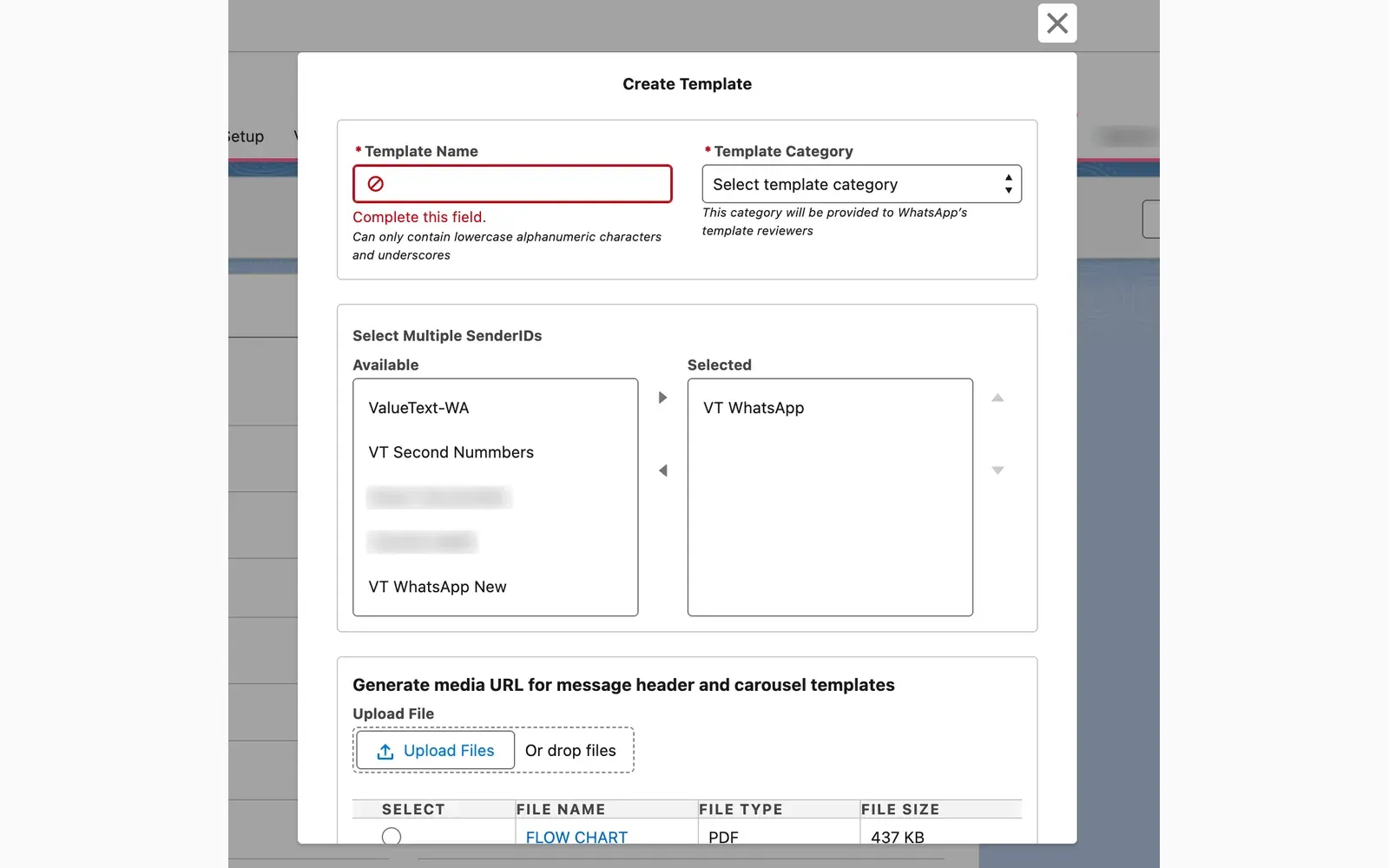
Fig 06 · Sender IDsList view
ValueText Sender IDs object in Salesforce used to submit WhatsApp templates
Fig 06 · ValueText Sender IDs object in Salesforce used to submit WhatsApp templates
Fig 07 · Sender IDRecord
A ValueText Sender ID record in Salesforce with Template Submission in its actions menu
Fig 07 · A ValueText Sender ID record in Salesforce with Template Submission in its actions menu
Fig 08 · SubmitTemplate
Submit Templates window in ValueText for creating Salesforce WhatsApp templates
Fig 08 · Submit Templates window in ValueText for creating Salesforce WhatsApp templates

Create and submit a template

  1. Open the ValueText Sender IDs object in Salesforce (see what a Sender ID is).
  2. Select the Sender ID you want to submit the template for.
  3. Click the arrow at the top right and choose Submit Templates.
  4. Enter a Template Name and Category, then choose the language.
  5. Optionally add a header: text, an image, a document or a video.
  6. Write the body, adding merge fields in the format [Full Name].
  7. Optionally add a footer, for example an opt-out line.
  8. Add buttons: Call to Action (URL) or Quick Reply.
  9. Submit the template to WhatsApp for approval.
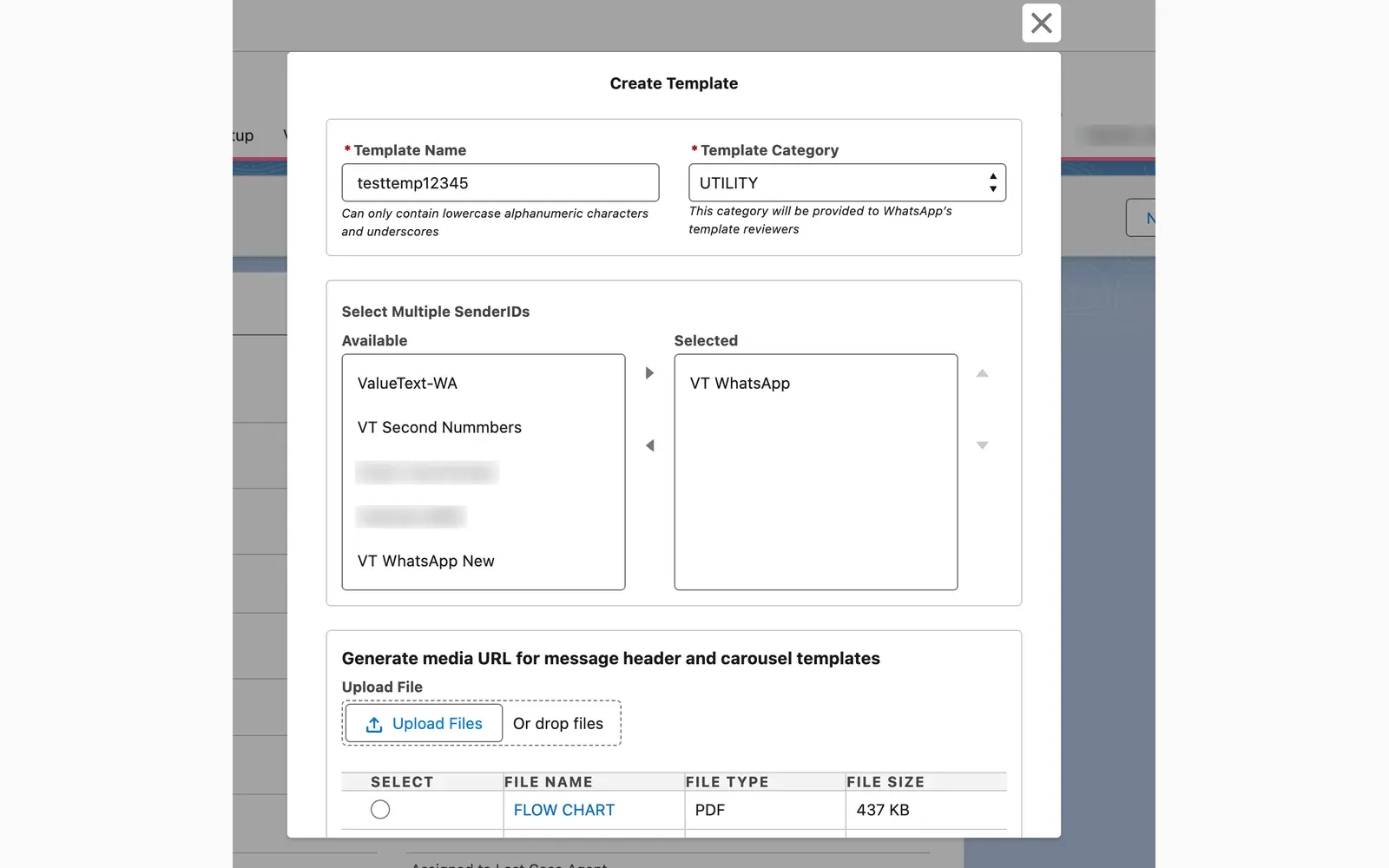
Fig 09 · NameCategory
The Create Template window with a template name, the Utility category and the sender selected
Fig 09 · The Create Template window with a template name, the Utility category and the sender selected
Fig 10 · HeaderLanguage
Uploading a media file, choosing the message language and an image header in the ValueText template window
Fig 10 · Uploading a media file, choosing the message language and an image header in the ValueText template window
Fig 11 · BodyButtons
Writing the template body with variables, a footer and three quick reply buttons in ValueText
Fig 11 · Writing the template body with variables, a footer and three quick reply buttons in ValueText

Our docs list three button layouts in the template form: Quick Replies, Call to Action (URL), and URL & Phone Number.

Track the status and use Dynamic Templates

Click Status at the top right of the template window to see where Meta's review stands. While you wait, you can click Dynamic Template at the bottom left to add the template to dynamic templates.

Fig 12 · StatusTemplate
WhatsApp template approval status shown in ValueText inside Salesforce
Fig 12 · WhatsApp template approval status shown in ValueText inside Salesforce

Send a WhatsApp template from a Salesforce record

In the chat console, if the customer's session is inactive (no message from them in the last 24 hours), send an approved template to start the conversation. When they reply, the session becomes active and your rep can chat freely. Here's how to send from the chat console.

Send templates in bulk from a list view

Select records in a list view, choose the template and WhatsApp as the channel, and send now or schedule it. Merge fields fill in from each record. See bulk messaging from list views.

Send WhatsApp template from Salesforce Flow

ValueText can send a template from a Flow using a Create Records element, with the template name in the Template ID field. For example, when a lead's status changes, the right template goes out without anyone clicking Send. Our Flow documentation walks through it.

Fig 13 · FlowCanvas
A record-triggered Flow in Salesforce Flow Builder with a Send Message element
Fig 13 · A record-triggered Flow in Salesforce Flow Builder with a Send Message element
Fig 14 · FlowCreate Records
Send WhatsApp template from Salesforce Flow using ValueText
Fig 14 · Send WhatsApp template from Salesforce Flow using ValueText

Using WhatsApp coexistence? Templates and Flow triggers still apply while your team keeps using the WhatsApp Business app on the same number.

Try it on your own Salesforce org: Start your free trial → | Install from AppExchange →

Best-practice checklist for Salesforce WhatsApp templates

  • Choose the honest category; don't hide offers in utility templates.
  • Give each template one job, and name it clearly (for example appointment_reminder_24h).
  • Add sample values for every variable and media header before you submit.
  • Put the most important buttons first; only two show before "See all options".
  • Give marketing messages an easy opt-out button.
  • Create a template per language your customers use.
  • Watch quality ratings, and pause sends that get negative feedback.
  • Review unused templates before Meta archives them.

Get started

Salesforce WhatsApp templates work best when the category is honest, the design fits the job and the template is wired to the right record or Flow. Pick two or three templates to start with and submit them from your Sender ID. Meta's review can take up to 24 hours, so give yourself a day's lead time before any campaign.

Send your first approved template from Salesforce: Start free trial → | Book a demo → | Install from AppExchange →

Want more? See WhatsApp in Salesforce, compare Salesforce WhatsApp apps and template types, or connect your WhatsApp number.

Frequently asked questions

What are Salesforce WhatsApp templates?

They're WhatsApp message templates approved by Meta that you send from Salesforce records, list views or Flows. You need them to message a customer outside the 24-hour customer service window, and each one is categorised as marketing, utility or authentication.

How long does WhatsApp template approval take?

Meta says a review decision can take up to 24 hours. Including sample values for variables and media speeds things up and avoids rejections.

What are the WhatsApp template categories?

Marketing (promotions, offers, renewals), utility (non-promotional updates tied to the user's order, appointment or account) and authentication (one-time passcodes). The category affects both the review rules and the price.

Can Meta change my template's category?

Yes. Meta can reject a template whose category it disagrees with, and it can update an approved template's category if its messages don't meet the guidelines. You're notified and can request a review.

How many buttons can a WhatsApp template have?

Up to 10 in total. That can include up to 10 quick reply buttons, up to two URL buttons, one phone number button and one copy code button. If there are more than three, WhatsApp shows two and a "See all options" button.

A marketing template that sends one message with 2 to 10 horizontally scrolling cards, each with an image or video and up to two buttons. Product card carousels pull items from your Meta catalog instead.

Do I need a template to reply to a customer on WhatsApp?

Not inside the 24-hour customer service window; your team can reply freely. Once the window has closed, you need an approved template to start the conversation again.

Can I send WhatsApp templates from Salesforce Flow?

Yes. With ValueText, a Flow can send an approved template using a Create Records element, so reminders and updates go out automatically when a record changes.

Questions about this guide? Write to us. Talk to us→

Keep reading

All posts→
Guides RevOps Automation: What's Worth It in 2025? A breakdown of what RevOps automation actually pays off: messaging, lead scoring, forecasting, and what to skip. 20 May 2025 · 3 min read Guides Top 5 Trends in Communication Technologies in Salesforce Discover the top 5 trends for communication technologies in salesforce that are transforming business operations 7 Aug 2024 · 5 min read Guides Document Signature and Messaging in Salesforce: Use Cases See how pairing e-signature workflows with SMS and WhatsApp messaging in Salesforce keeps signers moving and logs replies to the record. 7 Aug 2024 · 4 min read
Guides·24 Nov 2026·15 min read

WhatsApp Templates in Salesforce: Approval Rules, Categories and Design Types

Salesforce WhatsApp templates explained: Meta categories, carousel, quick reply and OTP designs, approval rules and how to send them with ValueText.

If your team sends WhatsApp from Salesforce, templates decide what you can send, when you can send it and what it costs. Outside the 24-hour customer service window, an approved template is the only way to reach a customer. Choose the wrong category and Meta can recategorise or reject it. This guide puts everything about Salesforce WhatsApp templates in one place: Meta's three categories, every design type from quick reply buttons to carousels, the approval rules, and how to create and send templates in Salesforce with ValueText.

Everything here follows Meta's official documentation as of November 2026, linked so you can check the source.

What are WhatsApp templates?

WhatsApp templates are message formats that Meta reviews and approves before you can use them. They're the only messages a business can send outside the 24-hour customer service window, so Salesforce teams use them for first contact, reminders, alerts and campaigns. Every template is marketing, utility or authentication.

When a customer messages you, a 24-hour customer service window opens, and each new message from them resets it. Inside it, reps reply freely. Once it closes, only an approved template can restart the conversation.

Each template has a name (lowercase letters, numbers and underscores), a language, a category and a set of components. See Meta's template overview for the full mechanics, or our WhatsApp Salesforce integration guide if you're just getting started.

Fig 01 · RecordChat console
Salesforce WhatsApp templates: approved template sent from a Contact record in ValueText
Fig 01 · Salesforce WhatsApp templates: approved template sent from a Contact record in ValueText

The three WhatsApp template categories

Meta requires every template to be marketing, utility or authentication, and the category also sets the price. You suggest a category when you submit; Meta has the final say. Here's how the WhatsApp template categories work in practice.

Marketing templates

Marketing covers offers, launches, re-engagement and anything meant to drive sales. Meta treats any template with mixed content (an order update with a discount line, for example) or unclear content (just "{{1}}" or "Congratulations!") as marketing. Renewal reminders and retargeting messages count as marketing even when the customer asked for them.

Meta may also cap how many marketing templates a person receives, and as of November 2026 it doesn't deliver marketing templates to WhatsApp users with US phone numbers. See the per-user marketing limits page.

Utility templates

Utility templates follow up on something the customer did or asked for. To qualify, a template must be non-promotional and either specific to the user (their order, appointment, account or case) or essential to them, such as a safety alert. If you create or edit a utility template that includes marketing material, Meta recategorises it as marketing automatically.

Authentication templates

Authentication templates send one-time passcodes and are the strictest category: Meta's preset text, an optional security disclaimer and expiry warning, and a one-time password button. No URLs, media or emojis, and parameters max out at 15 characters. Use a WhatsApp authentication template only for codes; anything else belongs in utility or marketing.

How Meta recategorises templates

If Meta disagrees with your category at review, it can reject the template. After approval, it can still change the category if messages don't fit the guidelines; you're notified and can request a review. The template categorization guide has Meta's full examples for each category.

WhatsApp template categories at a glance

CategoryUse it forSalesforce exampleWatch out for
MarketingOffers, launches, renewals, re-engagementWebinar invite to a Campaign MemberMixed or vague content counts as marketing; US delivery restriction
UtilityNon-promotional updates tied to the userCase status, appointment reminder, invoice dueAny promo line flips it to marketing
AuthenticationOne-time passcodesCustomer portal login codeFixed format; no URLs, media or emojis

How template categories affect pricing (as of November 2026)

Meta's WhatsApp Business Platform pricing page sets the rules. As of November 2026:

  • Meta charges per delivered message, and the rate depends on the category and the recipient's country calling code.
  • Messages customers send to you are free.
  • Volume tiers apply only to utility and authentication messages.
  • Since 1 October 2026, service messages (free-form replies inside the customer service window) are charged, but each business phone number gets its first 1,000 service messages free every month.
  • If a customer messages you from a Click-to-WhatsApp ad on the mobile app and you reply within the window, a free entry point window opens for up to 7 days, and marketing, utility, authentication and service messages in it aren't charged.

For what this means for your bill, read our breakdown of the WhatsApp pricing changes in October 2026, check SMS and WhatsApp rates by country and see ValueText pricing. If you use WhatsApp coexistence in Salesforce, messages sent from the WhatsApp Business app itself stay free.

WhatsApp template design types

Category is what a message is for. Design type is how it looks and what the customer can tap. Templates are built from four components: a header (optional), a body (required), a footer (optional) and buttons (optional). Meta's template components reference lists every option; here are the ones Salesforce teams use most.

Text templates and text headers

A body of up to 1,024 characters, plus an optional text header and footer (60 characters each). Most utility templates start here.

Media header templates: image, video and document

A media header adds an image, video, GIF or document (such as a PDF invoice) above the body. You upload a sample when you submit.

Fig 02 · Media headerTemplate
WhatsApp template with an image header, body text and call-to-action buttons
Fig 02 · WhatsApp template with an image header, body text and call-to-action buttons

Location header templates

Location templates show a map header that opens the customer's map app. The location is set when you send, so one template works for every site visit or delivery.

WhatsApp quick reply buttons

WhatsApp quick reply buttons send a preset reply when tapped, such as "Confirm" or "Stop promotions". You can add up to 10 (labels up to 25 characters). With more than three buttons, WhatsApp shows two plus "See all options", so put the important ones first.

Fig 03 · Quick repliesTemplate
WhatsApp quick reply buttons Confirm and Reschedule on an appointment reminder template
Fig 03 · WhatsApp quick reply buttons Confirm and Reschedule on an appointment reminder template

Call-to-action buttons: URL and phone number

URL buttons open a web page (up to two; the URL can end with a variable such as an order ID). A phone button calls your business (one per template).

Copy code (coupon) templates

Coupon code templates are marketing templates with one copy code button (codes up to 20 characters). Meta notes they aren't supported on WhatsApp Web.

Fig 04 · Copy codeTemplate
WhatsApp marketing template with a copy code coupon button
Fig 04 · WhatsApp marketing template with a copy code coupon button

Limited-time offer templates

Limited-time offer templates add a short offer line, an optional expiry countdown, a copy code button and a URL button. No footer is allowed.

Authentication buttons: copy code, one-tap and zero-tap

A WhatsApp authentication template uses one of three OTP buttons: copy code (works everywhere), one-tap autofill (fills the code into your Android app) or zero-tap (passes the code with no tap). Where one-tap or zero-tap isn't supported, WhatsApp falls back to copy code.

A WhatsApp carousel template sends one message with horizontally scrolling cards. Media card carousels have 2 to 10 cards, each with an image or video, optional text and up to two buttons. Every card uses the same components, and the card count is fixed at creation.

Product card carousels pull up to 10 products from your connected Meta catalog, so customers can shop without leaving WhatsApp.

Fig 05 · CarouselTemplate
WhatsApp carousel template with swipeable media cards and buttons
Fig 05 · WhatsApp carousel template with swipeable media cards and buttons

Catalog, multi-product and single-product templates

With a Meta product catalog you also get: Catalog templates (a "View catalog" button), Multi-product message (MPM) templates (up to 30 products in 10 sections) and Single-product message (SPM) templates (one product).

WhatsApp Flows templates

A FLOW button opens a WhatsApp Flow, a short form inside the chat, for surveys, bookings or lead qualification. See Meta's guide to sending a Flow in a message template.

Order details and order status templates

For businesses using WhatsApp payments (Meta's guide covers India), Meta documents order details templates (with an "Open order details" payment button) and order status templates. Check availability in your country first.

Call permission request templates

If you use WhatsApp calling, a call permission request template asks the customer for permission to call them. It can't be combined with other interactive components.

WhatsApp template design types compared

Design typeBest forKey componentsLimits (per Meta)Usual category
TextUpdates, remindersBody, optional text header and footerBody 1,024 chars; header and footer 60Any
Media headerInvoices, product shots, ticketsImage, video, GIF or document headerSample asset reviewedMarketing or utility
Location headerDeliveries, visit confirmationsMap header + bodyLocation set at send time; no live locationUtility or marketing
Quick reply buttonsConfirmations, opt-outs, simple choicesUp to 10 reply buttonsLabels 25 chars; 2 shown + "See all options" if more than 3Any except authentication
Call-to-actionTracking, payments, callsURL and phone number buttonsMax 2 URL, 1 phone; up to 10 buttons totalMarketing or utility
Copy code (coupon)Discount codesOne copy code buttonCode up to 20 chars; not on WhatsApp WebMarketing
Limited-time offerTime-bound promotionsOffer text, expiry countdown, copy code + URLOffer text 16 chars; no footerMarketing only
Authentication OTPLogins, verificationCopy code, one-tap or zero-tap buttonNo URLs, media or emojis; params 15 charsAuthentication
Media card carouselProduct or offer showcases2-10 cards, image/video, up to 2 buttons eachAll cards identical; card count fixedMarketing
Product card carouselIn-WhatsApp shoppingCatalog product cards with View buttonUp to 10 cards; catalog requiredMarketing
Catalog / MPM / SPMCatalog browsing and orderingView catalog, product sections, single productMPM up to 30 products in 10 sectionsMarketing
FlowsSurveys, bookings, formsFLOW button opening a WhatsApp FlowFlow built separatelyDepends on content
Call permission requestAsking to call a customerBody + call permission componentNo other interactive componentsMarketing or utility

WhatsApp template approval: rules, statuses and fixes

How review works

Meta reviews every new or edited template with automated checks and manual review, and a decision can take up to 24 hours. If your template uses variables or a media header, you must include sample values or a sample file. Approved templates start as "Active - Quality pending". Details are in Meta's template review guide.

Statuses, quality rating and pausing

  • Statuses: In review, Rejected, Active (quality pending, high, medium or low), Paused, Disabled and Appeal requested.
  • Quality rating: based on customer feedback and read rates. A low rating puts the template at risk (see template quality rating).
  • Pausing: a template that hits low quality is paused for 3 hours the first time, 6 hours the second time, and disabled the third time.
  • Archival: templates unused for 12 months are archived and then deleted after 28 days unless you unarchive them.
  • Limits: an unverified business portfolio can hold 250 templates per account; a verified portfolio with an approved display name can hold up to 6,000.

Naming and WhatsApp template variables

  • Names use lowercase letters, numbers and underscores (up to 512 characters).
  • Variables are positional ({{1}}, {{2}}) or named ({{first_name}}). Keep positional variables in order with no gaps.
  • Don't start or end the body with a variable, and don't use more variables than the message length can carry.
  • Avoid special characters such as #, $ or % inside variables.

Common rejection reasons and fixes

ReasonExampleFix
Variable formattingMismatched braces, {{1}} then {{3}}Use correctly formatted, sequential variables
Dangling or too many variablesBody starts with {{1}} or is mostly variablesAdd fixed text around each variable
Policy violationAsking for full card or ID numbers; threatening toneRemove sensitive requests and follow WhatsApp policies
DuplicateSame body and footer as an existing templateReword it or reuse the existing template
Wrong categoryA promo line in a utility templateSplit it into a utility and a marketing template

If a template is rejected, edit and resubmit it, or file an appeal with a sample. Meta says appeals are decided within 24 hours.

Tips by category

  • Marketing: one clear offer per template, and an easy way to stop, such as a "Stop promotions" quick reply.
  • Utility: reference the specific order, appointment or case, and leave out anything promotional. See Meta's utility template guide.
  • Authentication: use Meta's preset format exactly; don't add links or extra text.

How to create and send WhatsApp templates in Salesforce with ValueText

ValueText lets you submit templates to Meta and send them from Salesforce without leaving your org. The steps below follow our WhatsApp approved templates documentation.

Fig 06 · Sender IDsList view
ValueText Sender IDs object in Salesforce used to submit WhatsApp templates
Fig 06 · ValueText Sender IDs object in Salesforce used to submit WhatsApp templates
Fig 07 · Sender IDRecord
A ValueText Sender ID record in Salesforce with Template Submission in its actions menu
Fig 07 · A ValueText Sender ID record in Salesforce with Template Submission in its actions menu
Fig 08 · SubmitTemplate
Submit Templates window in ValueText for creating Salesforce WhatsApp templates
Fig 08 · Submit Templates window in ValueText for creating Salesforce WhatsApp templates

Create and submit a template

  1. Open the ValueText Sender IDs object in Salesforce (see what a Sender ID is).
  2. Select the Sender ID you want to submit the template for.
  3. Click the arrow at the top right and choose Submit Templates.
  4. Enter a Template Name and Category, then choose the language.
  5. Optionally add a header: text, an image, a document or a video.
  6. Write the body, adding merge fields in the format [Full Name].
  7. Optionally add a footer, for example an opt-out line.
  8. Add buttons: Call to Action (URL) or Quick Reply.
  9. Submit the template to WhatsApp for approval.
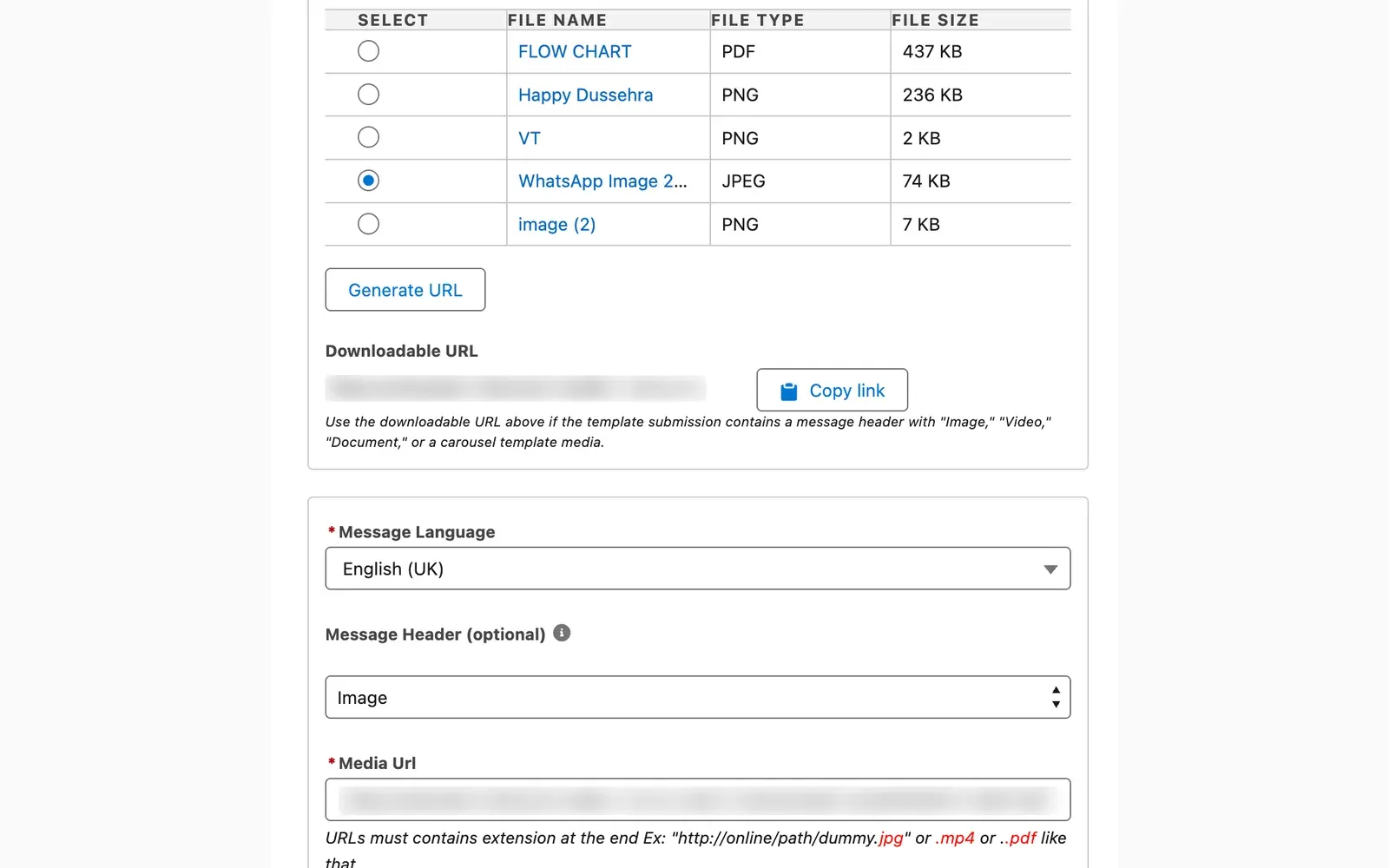
Fig 09 · NameCategory
The Create Template window with a template name, the Utility category and the sender selected
Fig 09 · The Create Template window with a template name, the Utility category and the sender selected
Fig 10 · HeaderLanguage
Uploading a media file, choosing the message language and an image header in the ValueText template window
Fig 10 · Uploading a media file, choosing the message language and an image header in the ValueText template window
Fig 11 · BodyButtons
Writing the template body with variables, a footer and three quick reply buttons in ValueText
Fig 11 · Writing the template body with variables, a footer and three quick reply buttons in ValueText

Our docs list three button layouts in the template form: Quick Replies, Call to Action (URL), and URL & Phone Number.

Track the status and use Dynamic Templates

Click Status at the top right of the template window to see where Meta's review stands. While you wait, you can click Dynamic Template at the bottom left to add the template to dynamic templates.

Fig 12 · StatusTemplate
WhatsApp template approval status shown in ValueText inside Salesforce
Fig 12 · WhatsApp template approval status shown in ValueText inside Salesforce

Send a WhatsApp template from a Salesforce record

In the chat console, if the customer's session is inactive (no message from them in the last 24 hours), send an approved template to start the conversation. When they reply, the session becomes active and your rep can chat freely. Here's how to send from the chat console.

Send templates in bulk from a list view

Select records in a list view, choose the template and WhatsApp as the channel, and send now or schedule it. Merge fields fill in from each record. See bulk messaging from list views.

Send WhatsApp template from Salesforce Flow

ValueText can send a template from a Flow using a Create Records element, with the template name in the Template ID field. For example, when a lead's status changes, the right template goes out without anyone clicking Send. Our Flow documentation walks through it.

Fig 13 · FlowCanvas
A record-triggered Flow in Salesforce Flow Builder with a Send Message element
Fig 13 · A record-triggered Flow in Salesforce Flow Builder with a Send Message element
Fig 14 · FlowCreate Records
Send WhatsApp template from Salesforce Flow using ValueText
Fig 14 · Send WhatsApp template from Salesforce Flow using ValueText

Using WhatsApp coexistence? Templates and Flow triggers still apply while your team keeps using the WhatsApp Business app on the same number.

Try it on your own Salesforce org: Start your free trial → | Install from AppExchange →

Best-practice checklist for Salesforce WhatsApp templates

  • Choose the honest category; don't hide offers in utility templates.
  • Give each template one job, and name it clearly (for example appointment_reminder_24h).
  • Add sample values for every variable and media header before you submit.
  • Put the most important buttons first; only two show before "See all options".
  • Give marketing messages an easy opt-out button.
  • Create a template per language your customers use.
  • Watch quality ratings, and pause sends that get negative feedback.
  • Review unused templates before Meta archives them.

Get started

Salesforce WhatsApp templates work best when the category is honest, the design fits the job and the template is wired to the right record or Flow. Pick two or three templates to start with and submit them from your Sender ID. Meta's review can take up to 24 hours, so give yourself a day's lead time before any campaign.

Send your first approved template from Salesforce: Start free trial → | Book a demo → | Install from AppExchange →

Want more? See WhatsApp in Salesforce, compare Salesforce WhatsApp apps and template types, or connect your WhatsApp number.

Frequently asked questions

What are Salesforce WhatsApp templates?

They're WhatsApp message templates approved by Meta that you send from Salesforce records, list views or Flows. You need them to message a customer outside the 24-hour customer service window, and each one is categorised as marketing, utility or authentication.

How long does WhatsApp template approval take?

Meta says a review decision can take up to 24 hours. Including sample values for variables and media speeds things up and avoids rejections.

What are the WhatsApp template categories?

Marketing (promotions, offers, renewals), utility (non-promotional updates tied to the user's order, appointment or account) and authentication (one-time passcodes). The category affects both the review rules and the price.

Can Meta change my template's category?

Yes. Meta can reject a template whose category it disagrees with, and it can update an approved template's category if its messages don't meet the guidelines. You're notified and can request a review.

How many buttons can a WhatsApp template have?

Up to 10 in total. That can include up to 10 quick reply buttons, up to two URL buttons, one phone number button and one copy code button. If there are more than three, WhatsApp shows two and a "See all options" button.

A marketing template that sends one message with 2 to 10 horizontally scrolling cards, each with an image or video and up to two buttons. Product card carousels pull items from your Meta catalog instead.

Do I need a template to reply to a customer on WhatsApp?

Not inside the 24-hour customer service window; your team can reply freely. Once the window has closed, you need an approved template to start the conversation again.

Can I send WhatsApp templates from Salesforce Flow?

Yes. With ValueText, a Flow can send an approved template using a Create Records element, so reminders and updates go out automatically when a record changes.

Questions about this guide? Write to us. Talk to us→

Keep reading

All posts→
Guides RevOps Automation: What's Worth It in 2025? A breakdown of what RevOps automation actually pays off: messaging, lead scoring, forecasting, and what to skip. 20 May 2025 · 3 min read Guides Top 5 Trends in Communication Technologies in Salesforce Discover the top 5 trends for communication technologies in salesforce that are transforming business operations 7 Aug 2024 · 5 min read Guides Document Signature and Messaging in Salesforce: Use Cases See how pairing e-signature workflows with SMS and WhatsApp messaging in Salesforce keeps signers moving and logs replies to the record. 7 Aug 2024 · 4 min read
Guides·24 Nov 2026·15 min read

WhatsApp Templates in Salesforce: Approval Rules, Categories and Design Types

Salesforce WhatsApp templates explained: Meta categories, carousel, quick reply and OTP designs, approval rules and how to send them with ValueText.

If your team sends WhatsApp from Salesforce, templates decide what you can send, when you can send it and what it costs. Outside the 24-hour customer service window, an approved template is the only way to reach a customer. Choose the wrong category and Meta can recategorise or reject it. This guide puts everything about Salesforce WhatsApp templates in one place: Meta's three categories, every design type from quick reply buttons to carousels, the approval rules, and how to create and send templates in Salesforce with ValueText.

Everything here follows Meta's official documentation as of November 2026, linked so you can check the source.

What are WhatsApp templates?

WhatsApp templates are message formats that Meta reviews and approves before you can use them. They're the only messages a business can send outside the 24-hour customer service window, so Salesforce teams use them for first contact, reminders, alerts and campaigns. Every template is marketing, utility or authentication.

When a customer messages you, a 24-hour customer service window opens, and each new message from them resets it. Inside it, reps reply freely. Once it closes, only an approved template can restart the conversation.

Each template has a name (lowercase letters, numbers and underscores), a language, a category and a set of components. See Meta's template overview for the full mechanics, or our WhatsApp Salesforce integration guide if you're just getting started.

Fig 01 · RecordChat console
Salesforce WhatsApp templates: approved template sent from a Contact record in ValueText
Fig 01 · Salesforce WhatsApp templates: approved template sent from a Contact record in ValueText

The three WhatsApp template categories

Meta requires every template to be marketing, utility or authentication, and the category also sets the price. You suggest a category when you submit; Meta has the final say. Here's how the WhatsApp template categories work in practice.

Marketing templates

Marketing covers offers, launches, re-engagement and anything meant to drive sales. Meta treats any template with mixed content (an order update with a discount line, for example) or unclear content (just "{{1}}" or "Congratulations!") as marketing. Renewal reminders and retargeting messages count as marketing even when the customer asked for them.

Meta may also cap how many marketing templates a person receives, and as of November 2026 it doesn't deliver marketing templates to WhatsApp users with US phone numbers. See the per-user marketing limits page.

Utility templates

Utility templates follow up on something the customer did or asked for. To qualify, a template must be non-promotional and either specific to the user (their order, appointment, account or case) or essential to them, such as a safety alert. If you create or edit a utility template that includes marketing material, Meta recategorises it as marketing automatically.

Authentication templates

Authentication templates send one-time passcodes and are the strictest category: Meta's preset text, an optional security disclaimer and expiry warning, and a one-time password button. No URLs, media or emojis, and parameters max out at 15 characters. Use a WhatsApp authentication template only for codes; anything else belongs in utility or marketing.

How Meta recategorises templates

If Meta disagrees with your category at review, it can reject the template. After approval, it can still change the category if messages don't fit the guidelines; you're notified and can request a review. The template categorization guide has Meta's full examples for each category.

WhatsApp template categories at a glance

CategoryUse it forSalesforce exampleWatch out for
MarketingOffers, launches, renewals, re-engagementWebinar invite to a Campaign MemberMixed or vague content counts as marketing; US delivery restriction
UtilityNon-promotional updates tied to the userCase status, appointment reminder, invoice dueAny promo line flips it to marketing
AuthenticationOne-time passcodesCustomer portal login codeFixed format; no URLs, media or emojis

How template categories affect pricing (as of November 2026)

Meta's WhatsApp Business Platform pricing page sets the rules. As of November 2026:

  • Meta charges per delivered message, and the rate depends on the category and the recipient's country calling code.
  • Messages customers send to you are free.
  • Volume tiers apply only to utility and authentication messages.
  • Since 1 October 2026, service messages (free-form replies inside the customer service window) are charged, but each business phone number gets its first 1,000 service messages free every month.
  • If a customer messages you from a Click-to-WhatsApp ad on the mobile app and you reply within the window, a free entry point window opens for up to 7 days, and marketing, utility, authentication and service messages in it aren't charged.

For what this means for your bill, read our breakdown of the WhatsApp pricing changes in October 2026, check SMS and WhatsApp rates by country and see ValueText pricing. If you use WhatsApp coexistence in Salesforce, messages sent from the WhatsApp Business app itself stay free.

WhatsApp template design types

Category is what a message is for. Design type is how it looks and what the customer can tap. Templates are built from four components: a header (optional), a body (required), a footer (optional) and buttons (optional). Meta's template components reference lists every option; here are the ones Salesforce teams use most.

Text templates and text headers

A body of up to 1,024 characters, plus an optional text header and footer (60 characters each). Most utility templates start here.

Media header templates: image, video and document

A media header adds an image, video, GIF or document (such as a PDF invoice) above the body. You upload a sample when you submit.

Fig 02 · Media headerTemplate
WhatsApp template with an image header, body text and call-to-action buttons
Fig 02 · WhatsApp template with an image header, body text and call-to-action buttons

Location header templates

Location templates show a map header that opens the customer's map app. The location is set when you send, so one template works for every site visit or delivery.

WhatsApp quick reply buttons

WhatsApp quick reply buttons send a preset reply when tapped, such as "Confirm" or "Stop promotions". You can add up to 10 (labels up to 25 characters). With more than three buttons, WhatsApp shows two plus "See all options", so put the important ones first.

Fig 03 · Quick repliesTemplate
WhatsApp quick reply buttons Confirm and Reschedule on an appointment reminder template
Fig 03 · WhatsApp quick reply buttons Confirm and Reschedule on an appointment reminder template

Call-to-action buttons: URL and phone number

URL buttons open a web page (up to two; the URL can end with a variable such as an order ID). A phone button calls your business (one per template).

Copy code (coupon) templates

Coupon code templates are marketing templates with one copy code button (codes up to 20 characters). Meta notes they aren't supported on WhatsApp Web.

Fig 04 · Copy codeTemplate
WhatsApp marketing template with a copy code coupon button
Fig 04 · WhatsApp marketing template with a copy code coupon button

Limited-time offer templates

Limited-time offer templates add a short offer line, an optional expiry countdown, a copy code button and a URL button. No footer is allowed.

Authentication buttons: copy code, one-tap and zero-tap

A WhatsApp authentication template uses one of three OTP buttons: copy code (works everywhere), one-tap autofill (fills the code into your Android app) or zero-tap (passes the code with no tap). Where one-tap or zero-tap isn't supported, WhatsApp falls back to copy code.

A WhatsApp carousel template sends one message with horizontally scrolling cards. Media card carousels have 2 to 10 cards, each with an image or video, optional text and up to two buttons. Every card uses the same components, and the card count is fixed at creation.

Product card carousels pull up to 10 products from your connected Meta catalog, so customers can shop without leaving WhatsApp.

Fig 05 · CarouselTemplate
WhatsApp carousel template with swipeable media cards and buttons
Fig 05 · WhatsApp carousel template with swipeable media cards and buttons

Catalog, multi-product and single-product templates

With a Meta product catalog you also get: Catalog templates (a "View catalog" button), Multi-product message (MPM) templates (up to 30 products in 10 sections) and Single-product message (SPM) templates (one product).

WhatsApp Flows templates

A FLOW button opens a WhatsApp Flow, a short form inside the chat, for surveys, bookings or lead qualification. See Meta's guide to sending a Flow in a message template.

Order details and order status templates

For businesses using WhatsApp payments (Meta's guide covers India), Meta documents order details templates (with an "Open order details" payment button) and order status templates. Check availability in your country first.

Call permission request templates

If you use WhatsApp calling, a call permission request template asks the customer for permission to call them. It can't be combined with other interactive components.

WhatsApp template design types compared

Design typeBest forKey componentsLimits (per Meta)Usual category
TextUpdates, remindersBody, optional text header and footerBody 1,024 chars; header and footer 60Any
Media headerInvoices, product shots, ticketsImage, video, GIF or document headerSample asset reviewedMarketing or utility
Location headerDeliveries, visit confirmationsMap header + bodyLocation set at send time; no live locationUtility or marketing
Quick reply buttonsConfirmations, opt-outs, simple choicesUp to 10 reply buttonsLabels 25 chars; 2 shown + "See all options" if more than 3Any except authentication
Call-to-actionTracking, payments, callsURL and phone number buttonsMax 2 URL, 1 phone; up to 10 buttons totalMarketing or utility
Copy code (coupon)Discount codesOne copy code buttonCode up to 20 chars; not on WhatsApp WebMarketing
Limited-time offerTime-bound promotionsOffer text, expiry countdown, copy code + URLOffer text 16 chars; no footerMarketing only
Authentication OTPLogins, verificationCopy code, one-tap or zero-tap buttonNo URLs, media or emojis; params 15 charsAuthentication
Media card carouselProduct or offer showcases2-10 cards, image/video, up to 2 buttons eachAll cards identical; card count fixedMarketing
Product card carouselIn-WhatsApp shoppingCatalog product cards with View buttonUp to 10 cards; catalog requiredMarketing
Catalog / MPM / SPMCatalog browsing and orderingView catalog, product sections, single productMPM up to 30 products in 10 sectionsMarketing
FlowsSurveys, bookings, formsFLOW button opening a WhatsApp FlowFlow built separatelyDepends on content
Call permission requestAsking to call a customerBody + call permission componentNo other interactive componentsMarketing or utility

WhatsApp template approval: rules, statuses and fixes

How review works

Meta reviews every new or edited template with automated checks and manual review, and a decision can take up to 24 hours. If your template uses variables or a media header, you must include sample values or a sample file. Approved templates start as "Active - Quality pending". Details are in Meta's template review guide.

Statuses, quality rating and pausing

  • Statuses: In review, Rejected, Active (quality pending, high, medium or low), Paused, Disabled and Appeal requested.
  • Quality rating: based on customer feedback and read rates. A low rating puts the template at risk (see template quality rating).
  • Pausing: a template that hits low quality is paused for 3 hours the first time, 6 hours the second time, and disabled the third time.
  • Archival: templates unused for 12 months are archived and then deleted after 28 days unless you unarchive them.
  • Limits: an unverified business portfolio can hold 250 templates per account; a verified portfolio with an approved display name can hold up to 6,000.

Naming and WhatsApp template variables

  • Names use lowercase letters, numbers and underscores (up to 512 characters).
  • Variables are positional ({{1}}, {{2}}) or named ({{first_name}}). Keep positional variables in order with no gaps.
  • Don't start or end the body with a variable, and don't use more variables than the message length can carry.
  • Avoid special characters such as #, $ or % inside variables.

Common rejection reasons and fixes

ReasonExampleFix
Variable formattingMismatched braces, {{1}} then {{3}}Use correctly formatted, sequential variables
Dangling or too many variablesBody starts with {{1}} or is mostly variablesAdd fixed text around each variable
Policy violationAsking for full card or ID numbers; threatening toneRemove sensitive requests and follow WhatsApp policies
DuplicateSame body and footer as an existing templateReword it or reuse the existing template
Wrong categoryA promo line in a utility templateSplit it into a utility and a marketing template

If a template is rejected, edit and resubmit it, or file an appeal with a sample. Meta says appeals are decided within 24 hours.

Tips by category

  • Marketing: one clear offer per template, and an easy way to stop, such as a "Stop promotions" quick reply.
  • Utility: reference the specific order, appointment or case, and leave out anything promotional. See Meta's utility template guide.
  • Authentication: use Meta's preset format exactly; don't add links or extra text.

How to create and send WhatsApp templates in Salesforce with ValueText

ValueText lets you submit templates to Meta and send them from Salesforce without leaving your org. The steps below follow our WhatsApp approved templates documentation.

Fig 06 · Sender IDsList view
ValueText Sender IDs object in Salesforce used to submit WhatsApp templates
Fig 06 · ValueText Sender IDs object in Salesforce used to submit WhatsApp templates
Fig 07 · Sender IDRecord
A ValueText Sender ID record in Salesforce with Template Submission in its actions menu
Fig 07 · A ValueText Sender ID record in Salesforce with Template Submission in its actions menu
Fig 08 · SubmitTemplate
Submit Templates window in ValueText for creating Salesforce WhatsApp templates
Fig 08 · Submit Templates window in ValueText for creating Salesforce WhatsApp templates

Create and submit a template

  1. Open the ValueText Sender IDs object in Salesforce (see what a Sender ID is).
  2. Select the Sender ID you want to submit the template for.
  3. Click the arrow at the top right and choose Submit Templates.
  4. Enter a Template Name and Category, then choose the language.
  5. Optionally add a header: text, an image, a document or a video.
  6. Write the body, adding merge fields in the format [Full Name].
  7. Optionally add a footer, for example an opt-out line.
  8. Add buttons: Call to Action (URL) or Quick Reply.
  9. Submit the template to WhatsApp for approval.
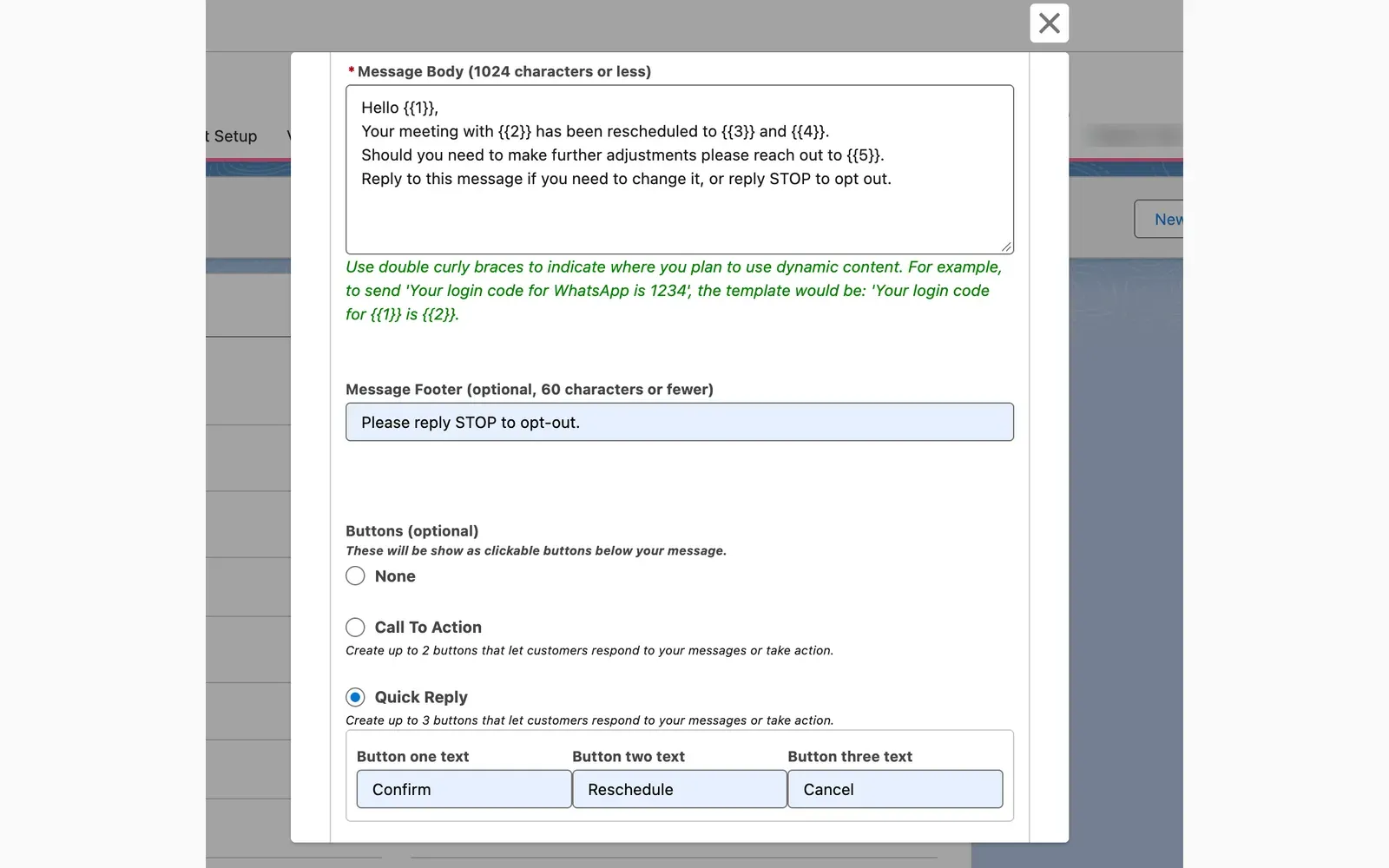
Fig 09 · NameCategory
The Create Template window with a template name, the Utility category and the sender selected
Fig 09 · The Create Template window with a template name, the Utility category and the sender selected
Fig 10 · HeaderLanguage
Uploading a media file, choosing the message language and an image header in the ValueText template window
Fig 10 · Uploading a media file, choosing the message language and an image header in the ValueText template window
Fig 11 · BodyButtons
Writing the template body with variables, a footer and three quick reply buttons in ValueText
Fig 11 · Writing the template body with variables, a footer and three quick reply buttons in ValueText

Our docs list three button layouts in the template form: Quick Replies, Call to Action (URL), and URL & Phone Number.

Track the status and use Dynamic Templates

Click Status at the top right of the template window to see where Meta's review stands. While you wait, you can click Dynamic Template at the bottom left to add the template to dynamic templates.
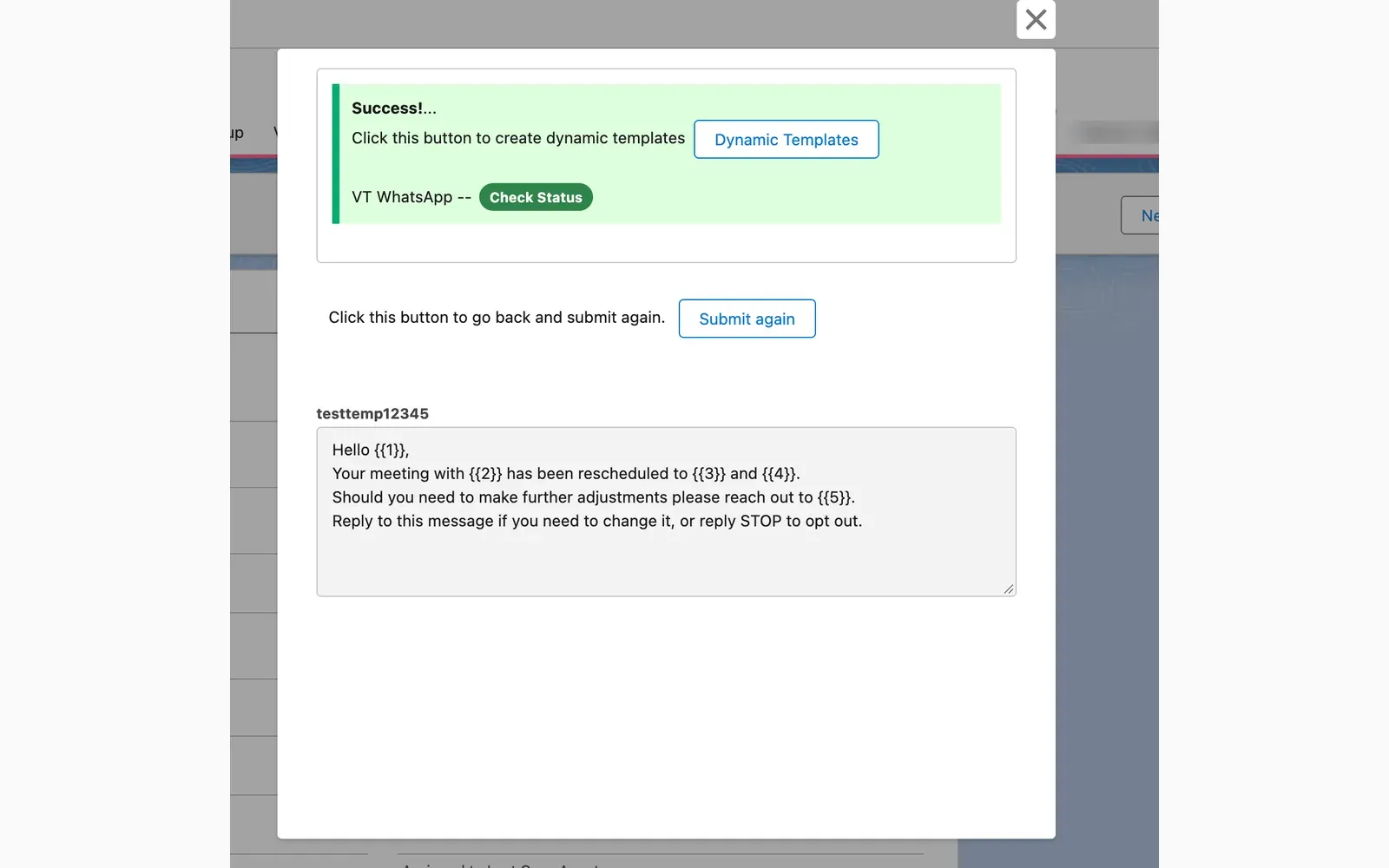
Fig 12 · StatusTemplate
WhatsApp template approval status shown in ValueText inside Salesforce
Fig 12 · WhatsApp template approval status shown in ValueText inside Salesforce

Send a WhatsApp template from a Salesforce record

In the chat console, if the customer's session is inactive (no message from them in the last 24 hours), send an approved template to start the conversation. When they reply, the session becomes active and your rep can chat freely. Here's how to send from the chat console.

Send templates in bulk from a list view

Select records in a list view, choose the template and WhatsApp as the channel, and send now or schedule it. Merge fields fill in from each record. See bulk messaging from list views.

Send WhatsApp template from Salesforce Flow

ValueText can send a template from a Flow using a Create Records element, with the template name in the Template ID field. For example, when a lead's status changes, the right template goes out without anyone clicking Send. Our Flow documentation walks through it.
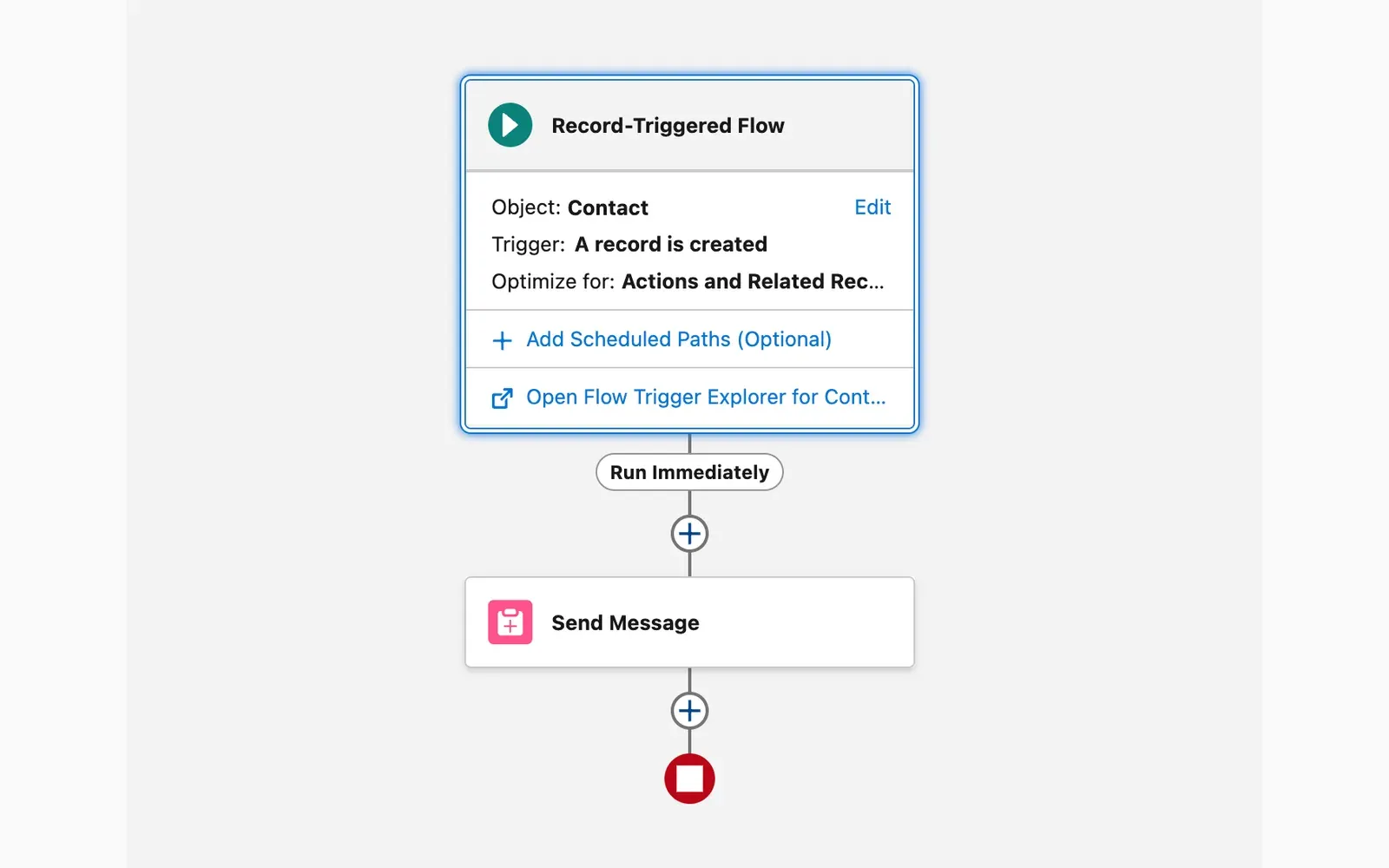
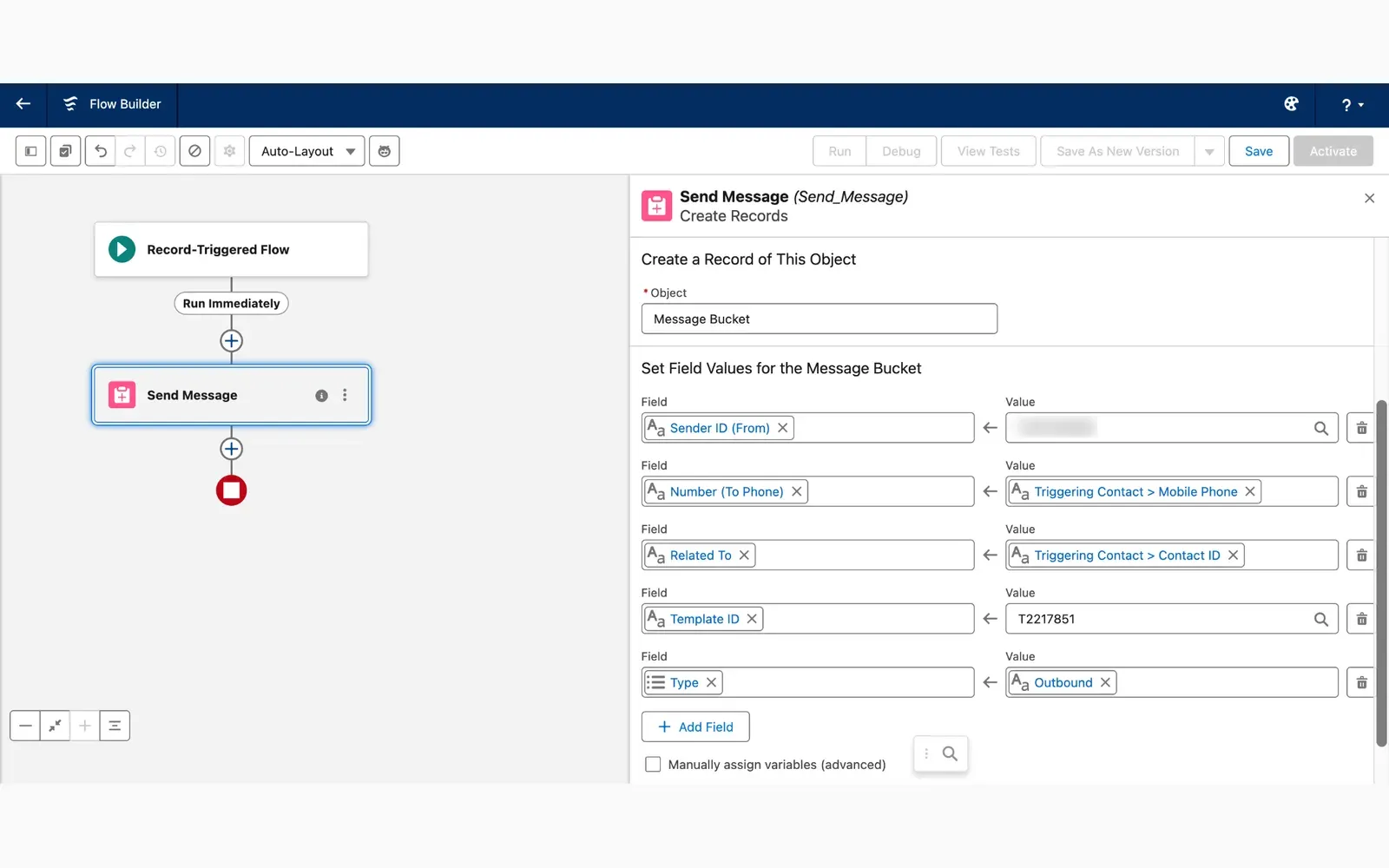
Fig 13 · FlowCanvas
A record-triggered Flow in Salesforce Flow Builder with a Send Message element
Fig 13 · A record-triggered Flow in Salesforce Flow Builder with a Send Message element
Fig 14 · FlowCreate Records
Send WhatsApp template from Salesforce Flow using ValueText
Fig 14 · Send WhatsApp template from Salesforce Flow using ValueText

Using WhatsApp coexistence? Templates and Flow triggers still apply while your team keeps using the WhatsApp Business app on the same number.

Try it on your own Salesforce org: Start your free trial → | Install from AppExchange →

Best-practice checklist for Salesforce WhatsApp templates

  • Choose the honest category; don't hide offers in utility templates.
  • Give each template one job, and name it clearly (for example appointment_reminder_24h).
  • Add sample values for every variable and media header before you submit.
  • Put the most important buttons first; only two show before "See all options".
  • Give marketing messages an easy opt-out button.
  • Create a template per language your customers use.
  • Watch quality ratings, and pause sends that get negative feedback.
  • Review unused templates before Meta archives them.

Get started

Salesforce WhatsApp templates work best when the category is honest, the design fits the job and the template is wired to the right record or Flow. Pick two or three templates to start with and submit them from your Sender ID. Meta's review can take up to 24 hours, so give yourself a day's lead time before any campaign.

Send your first approved template from Salesforce: Start free trial → | Book a demo → | Install from AppExchange →

Want more? See WhatsApp in Salesforce, compare Salesforce WhatsApp apps and template types, or connect your WhatsApp number.

Frequently asked questions

What are Salesforce WhatsApp templates?

They're WhatsApp message templates approved by Meta that you send from Salesforce records, list views or Flows. You need them to message a customer outside the 24-hour customer service window, and each one is categorised as marketing, utility or authentication.

How long does WhatsApp template approval take?

Meta says a review decision can take up to 24 hours. Including sample values for variables and media speeds things up and avoids rejections.

What are the WhatsApp template categories?

Marketing (promotions, offers, renewals), utility (non-promotional updates tied to the user's order, appointment or account) and authentication (one-time passcodes). The category affects both the review rules and the price.

Can Meta change my template's category?

Yes. Meta can reject a template whose category it disagrees with, and it can update an approved template's category if its messages don't meet the guidelines. You're notified and can request a review.

How many buttons can a WhatsApp template have?

Up to 10 in total. That can include up to 10 quick reply buttons, up to two URL buttons, one phone number button and one copy code button. If there are more than three, WhatsApp shows two and a "See all options" button.

A marketing template that sends one message with 2 to 10 horizontally scrolling cards, each with an image or video and up to two buttons. Product card carousels pull items from your Meta catalog instead.

Do I need a template to reply to a customer on WhatsApp?

Not inside the 24-hour customer service window; your team can reply freely. Once the window has closed, you need an approved template to start the conversation again.

Can I send WhatsApp templates from Salesforce Flow?

Yes. With ValueText, a Flow can send an approved template using a Create Records element, so reminders and updates go out automatically when a record changes.
Questions about this guide? Write to us. Talk to us→

Keep reading

All posts→
Guides RevOps Automation: What's Worth It in 2025? A breakdown of what RevOps automation actually pays off: messaging, lead scoring, forecasting, and what to skip. 20 May 2025 · 3 min read Guides Top 5 Trends in Communication Technologies in Salesforce Discover the top 5 trends for communication technologies in salesforce that are transforming business operations 7 Aug 2024 · 5 min read Guides Document Signature and Messaging in Salesforce: Use Cases See how pairing e-signature workflows with SMS and WhatsApp messaging in Salesforce keeps signers moving and logs replies to the record. 7 Aug 2024 · 4 min read