
Disable a Phone Field in Salesforce
Salesforce gives you multiple fields for capturing a contact's numbers, but your business may not want to send SMS to all five of them. Disable the "Home Phone" field, for example, to stop messages from being sent to it. You can also do the opposite: activate a text or formula field, such as "Account Phone Number," so it becomes available as a send-to option.
Last updated 28 Nov 2025Disable a phone field
To disable a phone field:
- Open Custom Phone Fields. Log in to Salesforce, go to the ValueText app, open the "Custom Phone Fields" tab, and click New.
- Select the object and action. Select the object where you want to disable the field, then choose "Deactivate phone field to use" from the action dropdown.
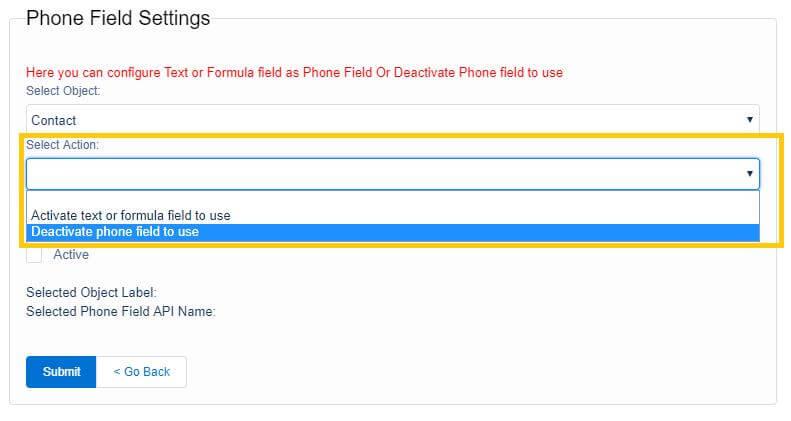
Fig 01 - Select the field to disable. Identify and select the "Home Phone" field from the available phone fields.
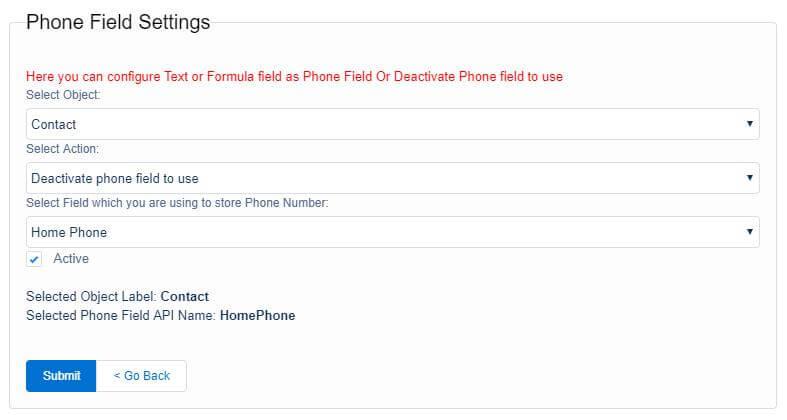
Fig 02 - Submit the configuration. Make sure the "Active" checkbox is selected, then click Submit.
After completing these steps, open a contact record in the Chat Console. The "Home Phone" field no longer appears in the phone field selection there.
This disable configuration does not apply to SMS messages sent from Workflow or Process Builder.
Activate a text or formula field as the phone field
Requirement: your business wants to add the "Account Phone Number" field for sending SMS messages.
To activate a text or formula field:
- Open Custom Phone Fields. Log in to Salesforce, go to the ValueText app, open the "Custom Phone Fields" tab, and click New.
- Select the object and action. Select the object where you want to enable the field (for example, Contact), then choose "Active text or formula field to use" from the action dropdown.
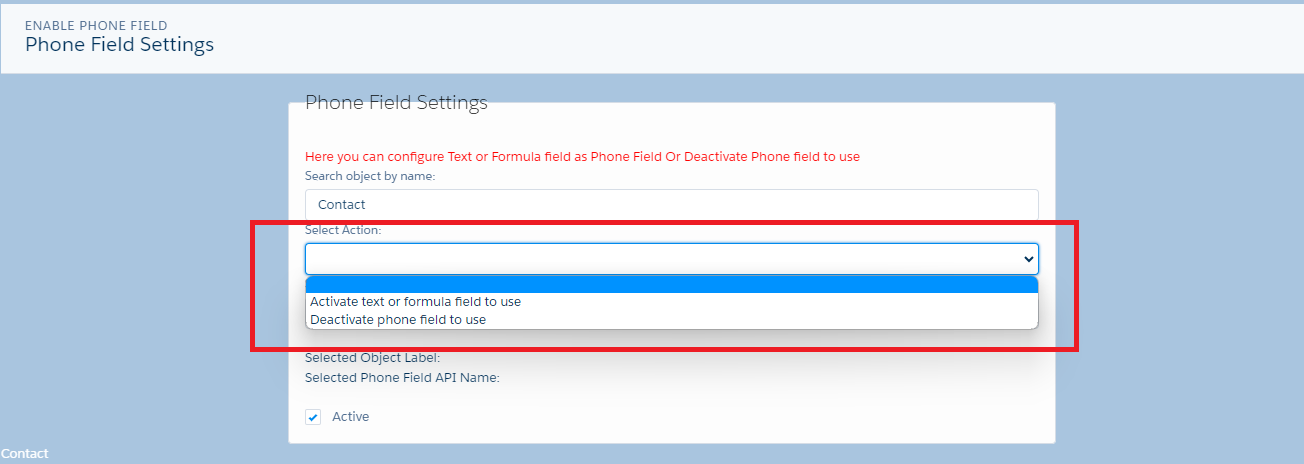
Fig 03 - Select the field to enable. Identify and select the "Account Phone Number" field from the available phone fields.
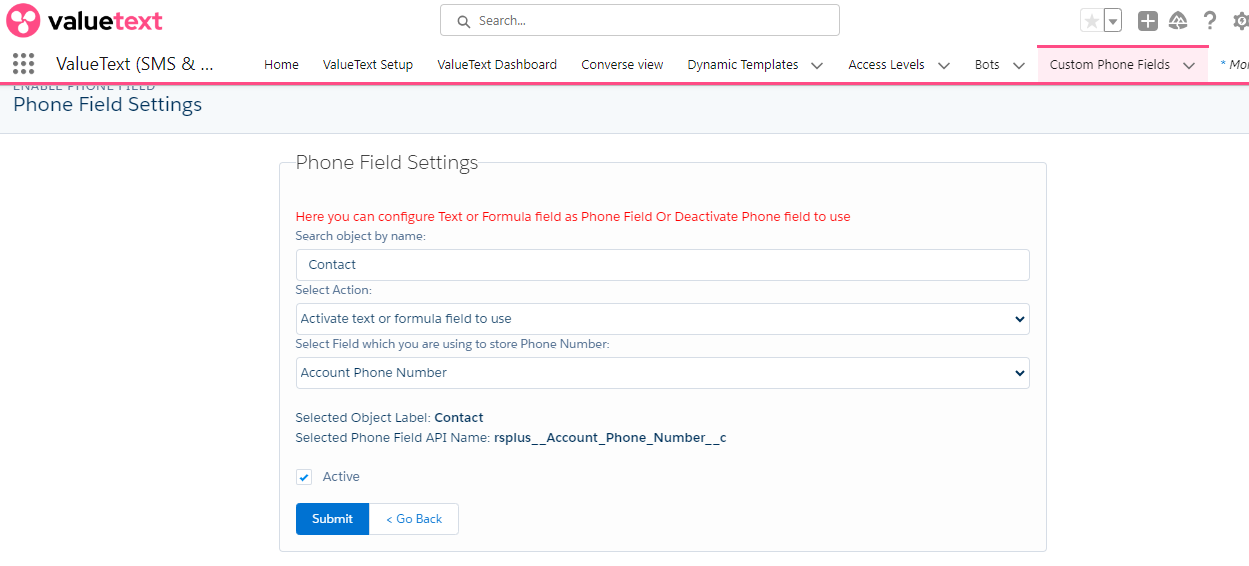
Fig 04 - Submit the configuration. Make sure the "Active" checkbox is selected, then click Submit.
After completing these steps, open a contact record in the Chat Console. The "Account Phone Number" field now appears in the phone field selection there.
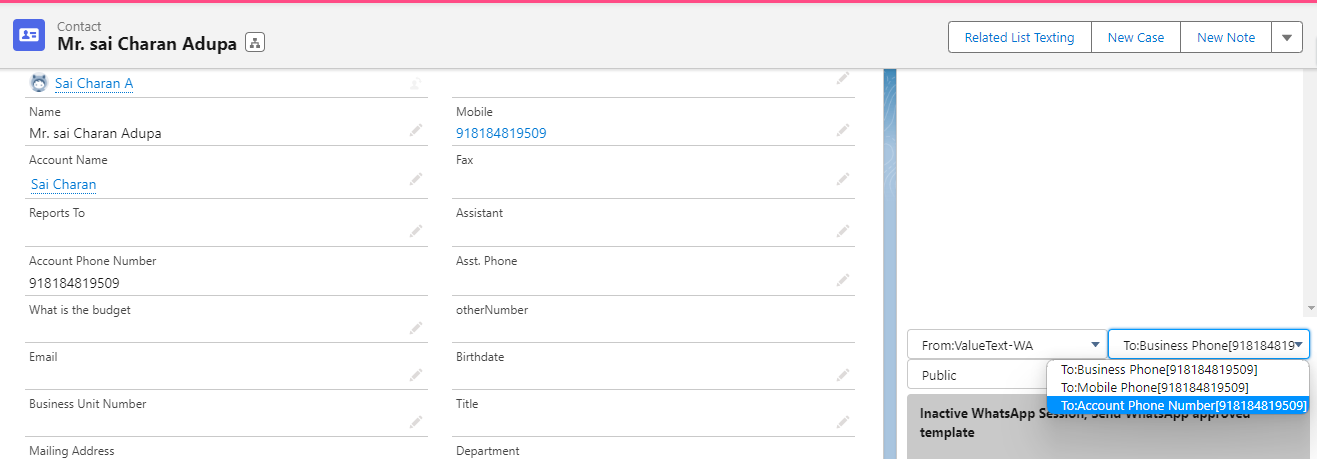
Follow the same steps to display any other text or formula field that holds a phone number in the Chat Console: choose "Active text or formula field to use" in the configuration process.