
Docs/Automation & routing/Bots for Salesforce: Automate Messaging and Workflows

Bots for Salesforce: Automate Messaging and Workflows

Bots are an advanced feature of ValueText. They can automate most business scenarios, automatically identifying the contact, updating records, creating records, and accessing records in Salesforce.

Last updated 28 Nov 2025

Use cases

  • Collect feedback when a case is closed.
  • Escalate or create a case using a bot.
  • Collect data from your customer and update it through bots.
  • Assign work orders and handle acceptance automation.
  • Convert an incomplete data lead into a complete data lead.

Sample videos:

What is a bot

A bot holds many bot elements, and the bot controls which bot element runs, and when.

What is a bot element

A bot element is the child element of the bot. Each bot element holds the templates, options, and conditions that decide when it runs and what text it sends. One bot element can hold many child bot elements, in a tree structure.

What is a Bot Form

A Bot Form holds the data (question and answer) from the chat. Across the whole bot conversation, you can store the data set you need. The Bot Form routes that data to any object, such as a lead, a contact, or a custom object record.

When the bot's actions finish, the Bot Form status becomes "Completed," based on the status logic in the process builder action you write to pass the data to the different objects.

Two types of bots

ValueText currently supports two bot types:

  • Request bot
  • Keyword-based bot

Request bot

Before you read this section, it helps to watch a 30-second video showing the use case: collecting data from a customer when a lead is created. Watch the video.

  • The flow starts in Salesforce. These bots can run from a workflow, from process builder, or be triggered manually. For example, when a case closes, you can run the bot from a workflow to collect feedback from the customer.
  • Set an Exit keyword so the customer can reply with that keyword to stop the bot at any time.
  • If you want to send a reply when the customer exits, enter it in Exit keyword reply text (the acknowledgement message for the exit keyword reply).
  • If the bot is used for omni-channel routing, choose the skill-based bot in Category.
  • If a customer starts the bot but doesn't finish answering the questions, set Minutes to automatic expiry of the bot to expire it after that many minutes.
  • You can send a reply for the bot's expiry in Automatic reply text after expiry.
  • You can also apply business hours to the bot. If the customer messages outside business hours, you can send a reply by adding a bot element (after you save the bot, the option to add a bot element for the business hours reply appears).
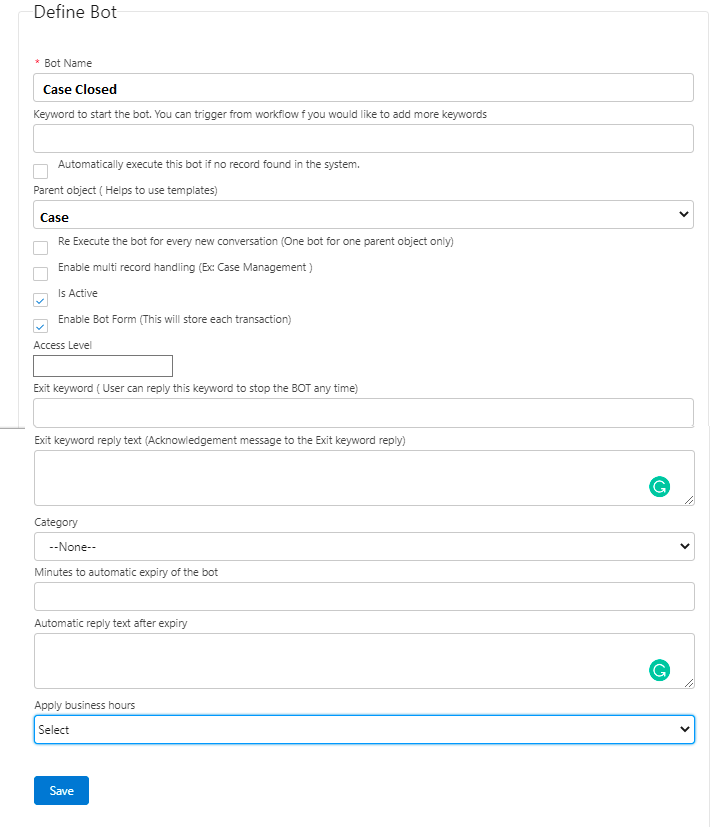
Salesforce Define Bot form named Case Closed, showing the Bot Name, keyword to start the bot, parent object, Is Active and Enable Bot Form checkboxes, Access Level, Exit keyword, Exit keyword reply text, Category, Minutes to automatic expiry of the bot, Automatic reply text after expiry, and Apply business hours fields.
Fig 01

Keyword-based bot

  • These bots run when your customer sends a keyword. When the customer replies HELP over SMS or WhatsApp, the matching bot runs.
  • You can define your own keyword, such as HELP or HI.
  • Based on the customer's input, your bot program (its set of bot elements) runs automatically and sends an automatic reply.

For example, you can publish your number on your website, and a customer can reply with a specific keyword to create a case, apply for a loan, or check the status of their last case.

  • Keyword to start the bot: when you send "Support" from your phone, that bot runs automatically.
  • Each keyword-based bot needs its own unique keyword, such as support, help, or "ok [company name]."
  • Add/view next level bot element: click this link to add the next level of bot elements.
Salesforce Define Bot form named Case Closed, showing the Bot Name, keyword to start the bot, parent object, Is Active and Enable Bot Form checkboxes, Access Level, Exit keyword, Exit keyword reply text, Category, Minutes to automatic expiry of the bot, Automatic reply text after expiry, and Apply business hours fields.
Fig 02

Bot element

  • A bot has any number of program steps. Based on the customer's reply, the matching bot element runs.
  • A bot has many sub-steps, and each step is a bot element.
  • A bot has multiple chains of bot elements, and each bot element carries a set of instructions for replying to the customer.
  • A bot element has the following options:
    • Bot element question
    • Define keyword options
    • Ignore the reply and execute the next element
    • Data validation
    • Reply text if the keyword is not matched
    • Bot Form field mapping

Bot element question

Each bot element needs a text question or template. It runs when the bot element executes.

For example: "Your case is closed, please rate the support."

Define keyword

  • You can define up to 10 keyword options (Option 1 through Option 10), each set to an integer or a string. These options are optional.
  • You can set the value to store in the Bot Form: when the customer replies with the option, the matching option value is stored in the Bot Form record.
  • Each option has a Skip exact keyword match checkbox that turns the match into a "contains" check. For example, if you set the keyword to "Stop" and the customer replies "Stop this," it still matches.
  • Each option also has an Add/view next level bot element setting. If the reply matches the keyword, it triggers the linked bot element.
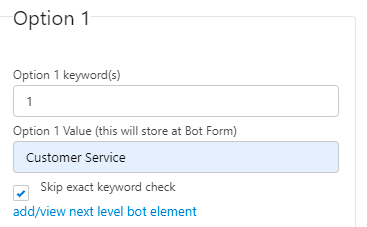
Salesforce Option 1 settings panel showing Option 1 keyword(s) set to 1, Option 1 Value set to Customer Service, the Skip exact keyword check checkbox checked, and an add/view next level bot element link.
Fig 03

No options required, or a common question for all options

In parts of the bot flow you may not need options, but you still need to move to the next bot element. For example, if the question is "Describe the issue," you don't need options.

When you enable No Options required or Common question for all options and save, you get the option to add a next-level bot element.

FAQ: Can I add options and enable "No Options required or Common question for all options" for the same bot element?

Yes. If the customer's reply matches a keyword, the matching bot element runs. If no option matches, the "Ignore reply" bot element runs instead.

Salesforce Other settings panel with the No Options required or Common question for all options checkbox checked, and a link reading add/view bot element for
Fig 04

Data validation

You can validate the data collected in the chat. For example, if the bot element question is "What is your email address?" and the customer enters an invalid email, the bot element replies "Invalid email format."

You can validate number and email data types, and you can define your own custom validation reply message.
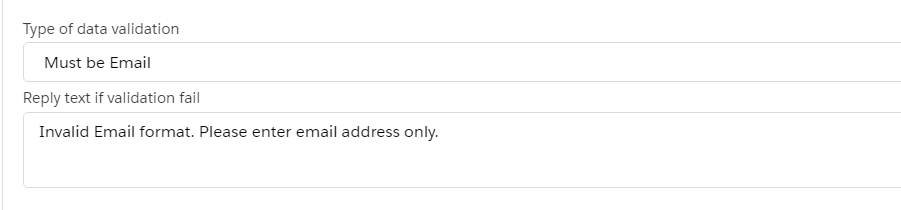
Salesforce bot element settings showing Type of data validation set to Must be Email, and Reply text if validation fail set to
Fig 05

FAQ: Can I add date validation?

Not currently. Use number validation and ask for day, month, and year in separate bot questions.

Reply text if the keyword is not matched

You can define a custom message for when the customer's reply doesn't match any of the options you set. For example, if you have options 1 through 4 and the customer replies "5," the bot can send "Please enter a value between 1 and 4."

Salesforce bot element settings showing
Fig 06

Bot Form field mapping

Map each Bot Form field to its bot question and the customer's reply. See the Bot Form section below for more.

Bot Form

  • This option is enabled when the Bot Form checkbox on the bot is set to true.
  • The Bot Form stores the bot element questions and the customer's answers.
  • A bot has a set of questions (bot elements), and the customer replies with a different answer to each one. Every question and answer is stored on the bot element, based on the mappings you set.
  • The Bot Form's Status field updates automatically:
    • Submitted: when the bot starts.
    • In Progress: when the customer starts replying, or the bot is actively serving the customer.
    • Completed: when the bot finishes (the customer has answered every bot element).
  • Each bot and Bot Form links automatically to a record: a contact, lead, case, or custom object.
  • The linked record is stored in the Related to field on both the Bot Form and the bot. The system maps that value to the matching lookup field. For example, if the related ID is a contact ID, it populates the contact lookup field on the Bot and Bot Form.
  • For keyword-based bots, the system links the contact or related record automatically based on the customer's mobile number. (Note: in some cases, the system cannot map the related record.)
  • You can write a process builder action on the Bot Form record, triggered when its status is Completed, to pass the data from the Bot Form to the related record (contact, lead, or custom object).
Salesforce bot element settings showing
Fig 07
Was this helpful?
← PreviousOmni-Channel Message Routing in Salesforce Next →WhatsApp Approved Templates
Docs/Automation & routing/Bots for Salesforce: Automate Messaging and Workflows

Bots for Salesforce: Automate Messaging and Workflows

Bots are an advanced feature of ValueText. They can automate most business scenarios, automatically identifying the contact, updating records, creating records, and accessing records in Salesforce.

Last updated 28 Nov 2025

Use cases

  • Collect feedback when a case is closed.
  • Escalate or create a case using a bot.
  • Collect data from your customer and update it through bots.
  • Assign work orders and handle acceptance automation.
  • Convert an incomplete data lead into a complete data lead.

Sample videos:

What is a bot

A bot holds many bot elements, and the bot controls which bot element runs, and when.

What is a bot element

A bot element is the child element of the bot. Each bot element holds the templates, options, and conditions that decide when it runs and what text it sends. One bot element can hold many child bot elements, in a tree structure.

What is a Bot Form

A Bot Form holds the data (question and answer) from the chat. Across the whole bot conversation, you can store the data set you need. The Bot Form routes that data to any object, such as a lead, a contact, or a custom object record.

When the bot's actions finish, the Bot Form status becomes "Completed," based on the status logic in the process builder action you write to pass the data to the different objects.

Two types of bots

ValueText currently supports two bot types:

  • Request bot
  • Keyword-based bot

Request bot

Before you read this section, it helps to watch a 30-second video showing the use case: collecting data from a customer when a lead is created. Watch the video.

  • The flow starts in Salesforce. These bots can run from a workflow, from process builder, or be triggered manually. For example, when a case closes, you can run the bot from a workflow to collect feedback from the customer.
  • Set an Exit keyword so the customer can reply with that keyword to stop the bot at any time.
  • If you want to send a reply when the customer exits, enter it in Exit keyword reply text (the acknowledgement message for the exit keyword reply).
  • If the bot is used for omni-channel routing, choose the skill-based bot in Category.
  • If a customer starts the bot but doesn't finish answering the questions, set Minutes to automatic expiry of the bot to expire it after that many minutes.
  • You can send a reply for the bot's expiry in Automatic reply text after expiry.
  • You can also apply business hours to the bot. If the customer messages outside business hours, you can send a reply by adding a bot element (after you save the bot, the option to add a bot element for the business hours reply appears).
Salesforce Define Bot form named Case Closed, showing the Bot Name, keyword to start the bot, parent object, Is Active and Enable Bot Form checkboxes, Access Level, Exit keyword, Exit keyword reply text, Category, Minutes to automatic expiry of the bot, Automatic reply text after expiry, and Apply business hours fields.
Fig 01

Keyword-based bot

  • These bots run when your customer sends a keyword. When the customer replies HELP over SMS or WhatsApp, the matching bot runs.
  • You can define your own keyword, such as HELP or HI.
  • Based on the customer's input, your bot program (its set of bot elements) runs automatically and sends an automatic reply.

For example, you can publish your number on your website, and a customer can reply with a specific keyword to create a case, apply for a loan, or check the status of their last case.

  • Keyword to start the bot: when you send "Support" from your phone, that bot runs automatically.
  • Each keyword-based bot needs its own unique keyword, such as support, help, or "ok [company name]."
  • Add/view next level bot element: click this link to add the next level of bot elements.
Salesforce Define Bot form named Case Closed, showing the Bot Name, keyword to start the bot, parent object, Is Active and Enable Bot Form checkboxes, Access Level, Exit keyword, Exit keyword reply text, Category, Minutes to automatic expiry of the bot, Automatic reply text after expiry, and Apply business hours fields.
Fig 02

Bot element

  • A bot has any number of program steps. Based on the customer's reply, the matching bot element runs.
  • A bot has many sub-steps, and each step is a bot element.
  • A bot has multiple chains of bot elements, and each bot element carries a set of instructions for replying to the customer.
  • A bot element has the following options:
    • Bot element question
    • Define keyword options
    • Ignore the reply and execute the next element
    • Data validation
    • Reply text if the keyword is not matched
    • Bot Form field mapping

Bot element question

Each bot element needs a text question or template. It runs when the bot element executes.

For example: "Your case is closed, please rate the support."

Define keyword

  • You can define up to 10 keyword options (Option 1 through Option 10), each set to an integer or a string. These options are optional.
  • You can set the value to store in the Bot Form: when the customer replies with the option, the matching option value is stored in the Bot Form record.
  • Each option has a Skip exact keyword match checkbox that turns the match into a "contains" check. For example, if you set the keyword to "Stop" and the customer replies "Stop this," it still matches.
  • Each option also has an Add/view next level bot element setting. If the reply matches the keyword, it triggers the linked bot element.
Salesforce Option 1 settings panel showing Option 1 keyword(s) set to 1, Option 1 Value set to Customer Service, the Skip exact keyword check checkbox checked, and an add/view next level bot element link.
Fig 03

No options required, or a common question for all options

In parts of the bot flow you may not need options, but you still need to move to the next bot element. For example, if the question is "Describe the issue," you don't need options.

When you enable No Options required or Common question for all options and save, you get the option to add a next-level bot element.

FAQ: Can I add options and enable "No Options required or Common question for all options" for the same bot element?

Yes. If the customer's reply matches a keyword, the matching bot element runs. If no option matches, the "Ignore reply" bot element runs instead.

Salesforce Other settings panel with the No Options required or Common question for all options checkbox checked, and a link reading add/view bot element for
Fig 04

Data validation

You can validate the data collected in the chat. For example, if the bot element question is "What is your email address?" and the customer enters an invalid email, the bot element replies "Invalid email format."

You can validate number and email data types, and you can define your own custom validation reply message.

Salesforce bot element settings showing Type of data validation set to Must be Email, and Reply text if validation fail set to
Fig 05

FAQ: Can I add date validation?

Not currently. Use number validation and ask for day, month, and year in separate bot questions.

Reply text if the keyword is not matched

You can define a custom message for when the customer's reply doesn't match any of the options you set. For example, if you have options 1 through 4 and the customer replies "5," the bot can send "Please enter a value between 1 and 4."

Salesforce bot element settings showing
Fig 06

Bot Form field mapping

Map each Bot Form field to its bot question and the customer's reply. See the Bot Form section below for more.

Bot Form

  • This option is enabled when the Bot Form checkbox on the bot is set to true.
  • The Bot Form stores the bot element questions and the customer's answers.
  • A bot has a set of questions (bot elements), and the customer replies with a different answer to each one. Every question and answer is stored on the bot element, based on the mappings you set.
  • The Bot Form's Status field updates automatically:
    • Submitted: when the bot starts.
    • In Progress: when the customer starts replying, or the bot is actively serving the customer.
    • Completed: when the bot finishes (the customer has answered every bot element).
  • Each bot and Bot Form links automatically to a record: a contact, lead, case, or custom object.
  • The linked record is stored in the Related to field on both the Bot Form and the bot. The system maps that value to the matching lookup field. For example, if the related ID is a contact ID, it populates the contact lookup field on the Bot and Bot Form.
  • For keyword-based bots, the system links the contact or related record automatically based on the customer's mobile number. (Note: in some cases, the system cannot map the related record.)
  • You can write a process builder action on the Bot Form record, triggered when its status is Completed, to pass the data from the Bot Form to the related record (contact, lead, or custom object).
Salesforce bot element settings showing
Fig 07
Was this helpful?
← PreviousOmni-Channel Message Routing in Salesforce Next →WhatsApp Approved Templates
Docs/Automation & routing/Bots for Salesforce: Automate Messaging and Workflows

Bots for Salesforce: Automate Messaging and Workflows

Bots are an advanced feature of ValueText. They can automate most business scenarios, automatically identifying the contact, updating records, creating records, and accessing records in Salesforce.

Last updated 28 Nov 2025

Use cases

  • Collect feedback when a case is closed.
  • Escalate or create a case using a bot.
  • Collect data from your customer and update it through bots.
  • Assign work orders and handle acceptance automation.
  • Convert an incomplete data lead into a complete data lead.

Sample videos:

What is a bot

A bot holds many bot elements, and the bot controls which bot element runs, and when.

What is a bot element

A bot element is the child element of the bot. Each bot element holds the templates, options, and conditions that decide when it runs and what text it sends. One bot element can hold many child bot elements, in a tree structure.

What is a Bot Form

A Bot Form holds the data (question and answer) from the chat. Across the whole bot conversation, you can store the data set you need. The Bot Form routes that data to any object, such as a lead, a contact, or a custom object record.

When the bot's actions finish, the Bot Form status becomes "Completed," based on the status logic in the process builder action you write to pass the data to the different objects.

Two types of bots

ValueText currently supports two bot types:

  • Request bot
  • Keyword-based bot

Request bot

Before you read this section, it helps to watch a 30-second video showing the use case: collecting data from a customer when a lead is created. Watch the video.

  • The flow starts in Salesforce. These bots can run from a workflow, from process builder, or be triggered manually. For example, when a case closes, you can run the bot from a workflow to collect feedback from the customer.
  • Set an Exit keyword so the customer can reply with that keyword to stop the bot at any time.
  • If you want to send a reply when the customer exits, enter it in Exit keyword reply text (the acknowledgement message for the exit keyword reply).
  • If the bot is used for omni-channel routing, choose the skill-based bot in Category.
  • If a customer starts the bot but doesn't finish answering the questions, set Minutes to automatic expiry of the bot to expire it after that many minutes.
  • You can send a reply for the bot's expiry in Automatic reply text after expiry.
  • You can also apply business hours to the bot. If the customer messages outside business hours, you can send a reply by adding a bot element (after you save the bot, the option to add a bot element for the business hours reply appears).
Salesforce Define Bot form named Case Closed, showing the Bot Name, keyword to start the bot, parent object, Is Active and Enable Bot Form checkboxes, Access Level, Exit keyword, Exit keyword reply text, Category, Minutes to automatic expiry of the bot, Automatic reply text after expiry, and Apply business hours fields.
Fig 01

Keyword-based bot

  • These bots run when your customer sends a keyword. When the customer replies HELP over SMS or WhatsApp, the matching bot runs.
  • You can define your own keyword, such as HELP or HI.
  • Based on the customer's input, your bot program (its set of bot elements) runs automatically and sends an automatic reply.

For example, you can publish your number on your website, and a customer can reply with a specific keyword to create a case, apply for a loan, or check the status of their last case.

  • Keyword to start the bot: when you send "Support" from your phone, that bot runs automatically.
  • Each keyword-based bot needs its own unique keyword, such as support, help, or "ok [company name]."
  • Add/view next level bot element: click this link to add the next level of bot elements.
Salesforce Define Bot form named Case Closed, showing the Bot Name, keyword to start the bot, parent object, Is Active and Enable Bot Form checkboxes, Access Level, Exit keyword, Exit keyword reply text, Category, Minutes to automatic expiry of the bot, Automatic reply text after expiry, and Apply business hours fields.
Fig 02

Bot element

  • A bot has any number of program steps. Based on the customer's reply, the matching bot element runs.
  • A bot has many sub-steps, and each step is a bot element.
  • A bot has multiple chains of bot elements, and each bot element carries a set of instructions for replying to the customer.
  • A bot element has the following options:
    • Bot element question
    • Define keyword options
    • Ignore the reply and execute the next element
    • Data validation
    • Reply text if the keyword is not matched
    • Bot Form field mapping

Bot element question

Each bot element needs a text question or template. It runs when the bot element executes.

For example: "Your case is closed, please rate the support."

Define keyword

  • You can define up to 10 keyword options (Option 1 through Option 10), each set to an integer or a string. These options are optional.
  • You can set the value to store in the Bot Form: when the customer replies with the option, the matching option value is stored in the Bot Form record.
  • Each option has a Skip exact keyword match checkbox that turns the match into a "contains" check. For example, if you set the keyword to "Stop" and the customer replies "Stop this," it still matches.
  • Each option also has an Add/view next level bot element setting. If the reply matches the keyword, it triggers the linked bot element.
Salesforce Option 1 settings panel showing Option 1 keyword(s) set to 1, Option 1 Value set to Customer Service, the Skip exact keyword check checkbox checked, and an add/view next level bot element link.
Fig 03

No options required, or a common question for all options

In parts of the bot flow you may not need options, but you still need to move to the next bot element. For example, if the question is "Describe the issue," you don't need options.

When you enable No Options required or Common question for all options and save, you get the option to add a next-level bot element.

FAQ: Can I add options and enable "No Options required or Common question for all options" for the same bot element?

Yes. If the customer's reply matches a keyword, the matching bot element runs. If no option matches, the "Ignore reply" bot element runs instead.

Salesforce Other settings panel with the No Options required or Common question for all options checkbox checked, and a link reading add/view bot element for
Fig 04

Data validation

You can validate the data collected in the chat. For example, if the bot element question is "What is your email address?" and the customer enters an invalid email, the bot element replies "Invalid email format."

You can validate number and email data types, and you can define your own custom validation reply message.

Salesforce bot element settings showing Type of data validation set to Must be Email, and Reply text if validation fail set to
Fig 05

FAQ: Can I add date validation?

Not currently. Use number validation and ask for day, month, and year in separate bot questions.

Reply text if the keyword is not matched

You can define a custom message for when the customer's reply doesn't match any of the options you set. For example, if you have options 1 through 4 and the customer replies "5," the bot can send "Please enter a value between 1 and 4."

Salesforce bot element settings showing
Fig 06

Bot Form field mapping

Map each Bot Form field to its bot question and the customer's reply. See the Bot Form section below for more.

Bot Form

  • This option is enabled when the Bot Form checkbox on the bot is set to true.
  • The Bot Form stores the bot element questions and the customer's answers.
  • A bot has a set of questions (bot elements), and the customer replies with a different answer to each one. Every question and answer is stored on the bot element, based on the mappings you set.
  • The Bot Form's Status field updates automatically:
    • Submitted: when the bot starts.
    • In Progress: when the customer starts replying, or the bot is actively serving the customer.
    • Completed: when the bot finishes (the customer has answered every bot element).
  • Each bot and Bot Form links automatically to a record: a contact, lead, case, or custom object.
  • The linked record is stored in the Related to field on both the Bot Form and the bot. The system maps that value to the matching lookup field. For example, if the related ID is a contact ID, it populates the contact lookup field on the Bot and Bot Form.
  • For keyword-based bots, the system links the contact or related record automatically based on the customer's mobile number. (Note: in some cases, the system cannot map the related record.)
  • You can write a process builder action on the Bot Form record, triggered when its status is Completed, to pass the data from the Bot Form to the related record (contact, lead, or custom object).
Salesforce bot element settings showing
Fig 07
Was this helpful?
← PreviousOmni-Channel Message Routing in Salesforce Next →WhatsApp Approved Templates
Docs/Automation & routing/Bots for Salesforce: Automate Messaging and Workflows

Bots for Salesforce: Automate Messaging and Workflows

Bots are an advanced feature of ValueText. They can automate most business scenarios, automatically identifying the contact, updating records, creating records, and accessing records in Salesforce.

Last updated 28 Nov 2025

Use cases

  • Collect feedback when a case is closed.
  • Escalate or create a case using a bot.
  • Collect data from your customer and update it through bots.
  • Assign work orders and handle acceptance automation.
  • Convert an incomplete data lead into a complete data lead.

Sample videos:

What is a bot

A bot holds many bot elements, and the bot controls which bot element runs, and when.

What is a bot element

A bot element is the child element of the bot. Each bot element holds the templates, options, and conditions that decide when it runs and what text it sends. One bot element can hold many child bot elements, in a tree structure.

What is a Bot Form

A Bot Form holds the data (question and answer) from the chat. Across the whole bot conversation, you can store the data set you need. The Bot Form routes that data to any object, such as a lead, a contact, or a custom object record.

When the bot's actions finish, the Bot Form status becomes "Completed," based on the status logic in the process builder action you write to pass the data to the different objects.

Two types of bots

ValueText currently supports two bot types:

  • Request bot
  • Keyword-based bot

Request bot

Before you read this section, it helps to watch a 30-second video showing the use case: collecting data from a customer when a lead is created. Watch the video.

  • The flow starts in Salesforce. These bots can run from a workflow, from process builder, or be triggered manually. For example, when a case closes, you can run the bot from a workflow to collect feedback from the customer.
  • Set an Exit keyword so the customer can reply with that keyword to stop the bot at any time.
  • If you want to send a reply when the customer exits, enter it in Exit keyword reply text (the acknowledgement message for the exit keyword reply).
  • If the bot is used for omni-channel routing, choose the skill-based bot in Category.
  • If a customer starts the bot but doesn't finish answering the questions, set Minutes to automatic expiry of the bot to expire it after that many minutes.
  • You can send a reply for the bot's expiry in Automatic reply text after expiry.
  • You can also apply business hours to the bot. If the customer messages outside business hours, you can send a reply by adding a bot element (after you save the bot, the option to add a bot element for the business hours reply appears).
Salesforce Define Bot form named Case Closed, showing the Bot Name, keyword to start the bot, parent object, Is Active and Enable Bot Form checkboxes, Access Level, Exit keyword, Exit keyword reply text, Category, Minutes to automatic expiry of the bot, Automatic reply text after expiry, and Apply business hours fields.
Fig 01

Keyword-based bot

  • These bots run when your customer sends a keyword. When the customer replies HELP over SMS or WhatsApp, the matching bot runs.
  • You can define your own keyword, such as HELP or HI.
  • Based on the customer's input, your bot program (its set of bot elements) runs automatically and sends an automatic reply.

For example, you can publish your number on your website, and a customer can reply with a specific keyword to create a case, apply for a loan, or check the status of their last case.

  • Keyword to start the bot: when you send "Support" from your phone, that bot runs automatically.
  • Each keyword-based bot needs its own unique keyword, such as support, help, or "ok [company name]."
  • Add/view next level bot element: click this link to add the next level of bot elements.
Salesforce Define Bot form named Case Closed, showing the Bot Name, keyword to start the bot, parent object, Is Active and Enable Bot Form checkboxes, Access Level, Exit keyword, Exit keyword reply text, Category, Minutes to automatic expiry of the bot, Automatic reply text after expiry, and Apply business hours fields.
Fig 02

Bot element

  • A bot has any number of program steps. Based on the customer's reply, the matching bot element runs.
  • A bot has many sub-steps, and each step is a bot element.
  • A bot has multiple chains of bot elements, and each bot element carries a set of instructions for replying to the customer.
  • A bot element has the following options:
    • Bot element question
    • Define keyword options
    • Ignore the reply and execute the next element
    • Data validation
    • Reply text if the keyword is not matched
    • Bot Form field mapping

Bot element question

Each bot element needs a text question or template. It runs when the bot element executes.

For example: "Your case is closed, please rate the support."

Define keyword

  • You can define up to 10 keyword options (Option 1 through Option 10), each set to an integer or a string. These options are optional.
  • You can set the value to store in the Bot Form: when the customer replies with the option, the matching option value is stored in the Bot Form record.
  • Each option has a Skip exact keyword match checkbox that turns the match into a "contains" check. For example, if you set the keyword to "Stop" and the customer replies "Stop this," it still matches.
  • Each option also has an Add/view next level bot element setting. If the reply matches the keyword, it triggers the linked bot element.
Salesforce Option 1 settings panel showing Option 1 keyword(s) set to 1, Option 1 Value set to Customer Service, the Skip exact keyword check checkbox checked, and an add/view next level bot element link.
Fig 03

No options required, or a common question for all options

In parts of the bot flow you may not need options, but you still need to move to the next bot element. For example, if the question is "Describe the issue," you don't need options.

When you enable No Options required or Common question for all options and save, you get the option to add a next-level bot element.

FAQ: Can I add options and enable "No Options required or Common question for all options" for the same bot element?

Yes. If the customer's reply matches a keyword, the matching bot element runs. If no option matches, the "Ignore reply" bot element runs instead.

Salesforce Other settings panel with the No Options required or Common question for all options checkbox checked, and a link reading add/view bot element for
Fig 04

Data validation

You can validate the data collected in the chat. For example, if the bot element question is "What is your email address?" and the customer enters an invalid email, the bot element replies "Invalid email format."

You can validate number and email data types, and you can define your own custom validation reply message.

Salesforce bot element settings showing Type of data validation set to Must be Email, and Reply text if validation fail set to
Fig 05

FAQ: Can I add date validation?

Not currently. Use number validation and ask for day, month, and year in separate bot questions.

Reply text if the keyword is not matched

You can define a custom message for when the customer's reply doesn't match any of the options you set. For example, if you have options 1 through 4 and the customer replies "5," the bot can send "Please enter a value between 1 and 4."

Salesforce bot element settings showing
Fig 06

Bot Form field mapping

Map each Bot Form field to its bot question and the customer's reply. See the Bot Form section below for more.

Bot Form

  • This option is enabled when the Bot Form checkbox on the bot is set to true.
  • The Bot Form stores the bot element questions and the customer's answers.
  • A bot has a set of questions (bot elements), and the customer replies with a different answer to each one. Every question and answer is stored on the bot element, based on the mappings you set.
  • The Bot Form's Status field updates automatically:
    • Submitted: when the bot starts.
    • In Progress: when the customer starts replying, or the bot is actively serving the customer.
    • Completed: when the bot finishes (the customer has answered every bot element).
  • Each bot and Bot Form links automatically to a record: a contact, lead, case, or custom object.
  • The linked record is stored in the Related to field on both the Bot Form and the bot. The system maps that value to the matching lookup field. For example, if the related ID is a contact ID, it populates the contact lookup field on the Bot and Bot Form.
  • For keyword-based bots, the system links the contact or related record automatically based on the customer's mobile number. (Note: in some cases, the system cannot map the related record.)
  • You can write a process builder action on the Bot Form record, triggered when its status is Completed, to pass the data from the Bot Form to the related record (contact, lead, or custom object).
Salesforce bot element settings showing
Fig 07
Was this helpful?
← PreviousOmni-Channel Message Routing in Salesforce Next →WhatsApp Approved Templates