
Docs/Chat console & conversations/Stay Ahead with the MiniChat Console

Stay Ahead with the MiniChat Console

ValueText has refreshed the Mini Chat Console UI. The update speeds up component loading and gives the console a new look throughout Salesforce.

Last updated 28 Nov 2025

Refreshed console design

Take a look at the image below to see the refreshed appearance of the updated Mini Chat Console.
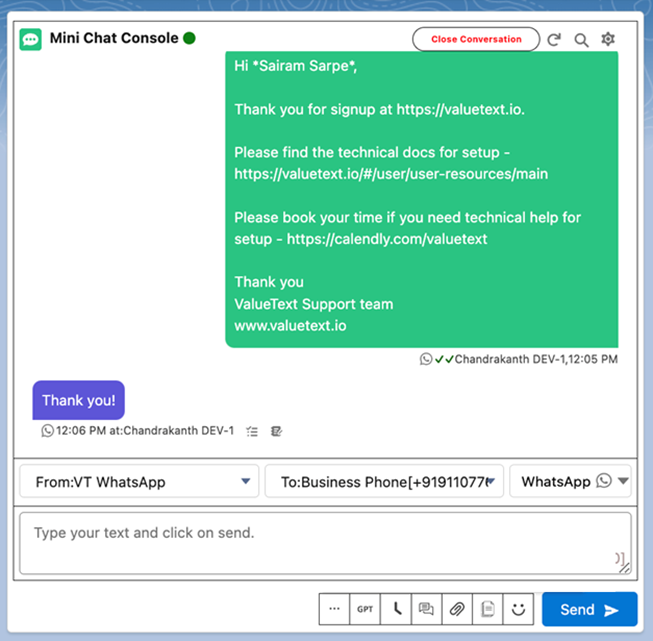
Refreshed Mini Chat Console showing an open WhatsApp conversation with an outbound message bubble, a customer reply, the From, To, and Channel dropdowns, and the message composer with a Send button.
Fig 01

Sender, Channels, Numbers, and templates

The image below shows how to modify the Sender, Channels, and Numbers, and how to select templates within the new Mini Chat Console.
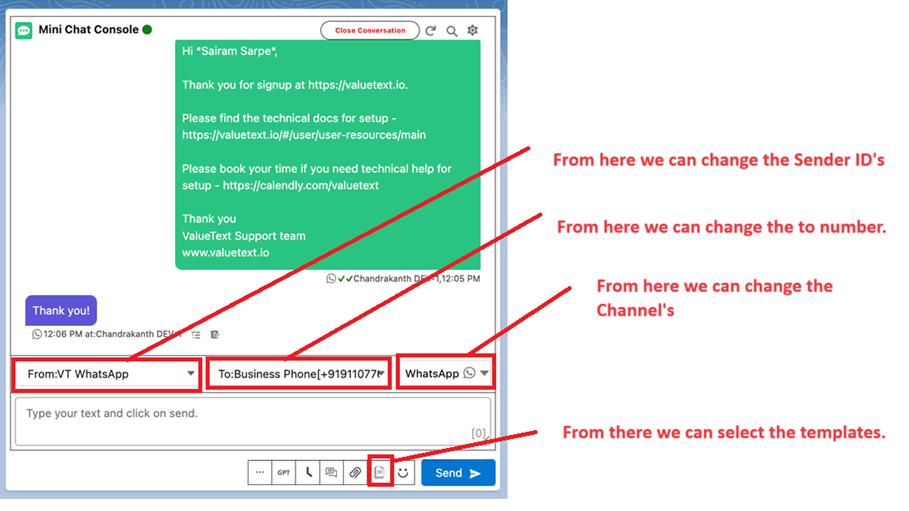
Mini Chat Console with red callouts pointing to the From dropdown for the Sender ID, the To field for the phone number, the Channel dropdown, and the template icon used to select a template.
Fig 02

Console after selecting a template

See how the console looks after selecting a template.
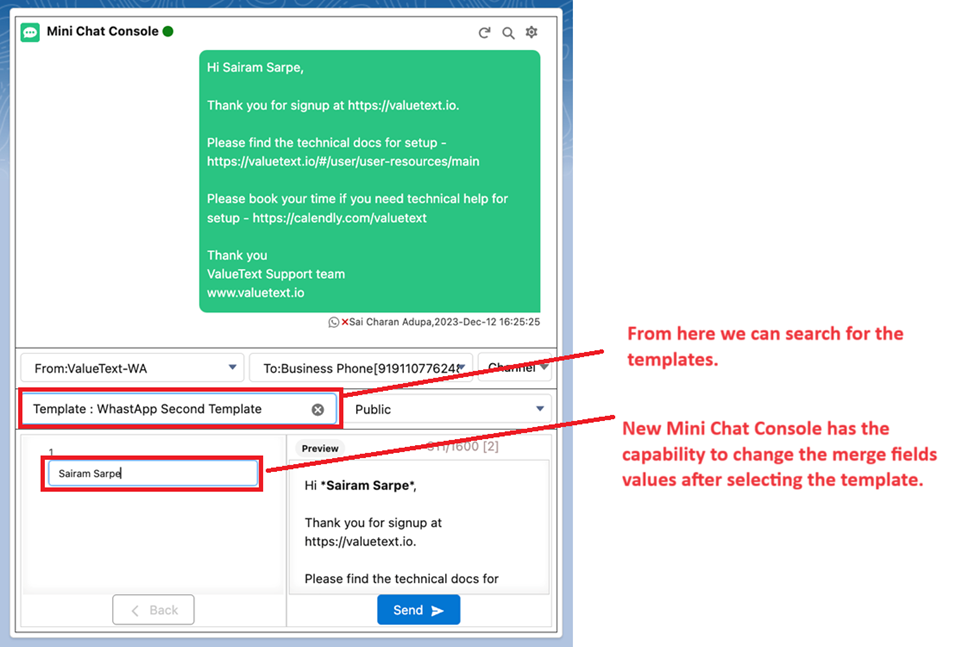
Mini Chat Console after selecting a WhatsApp template, showing the template name field, an editable merge field value, and a live preview of the message before sending.
Fig 03
Was this helpful?
← PreviousAdd Mini Chat Console to Salesforce Record Page Next →Using Converse View in Salesforce