
Docs/Sending messages/Bulk message job reporting

Bulk message job reporting

This feature lets you view a report for any bulk job you've sent, whether through bulk message, bulk message from CSV, bulk message from list view, bulk select, or texting from reports.

Last updated 28 Nov 2025

Open a bulk job's report

  1. Open the App Launcher. Search for Workflow Schedules & Follow Ups and select it.
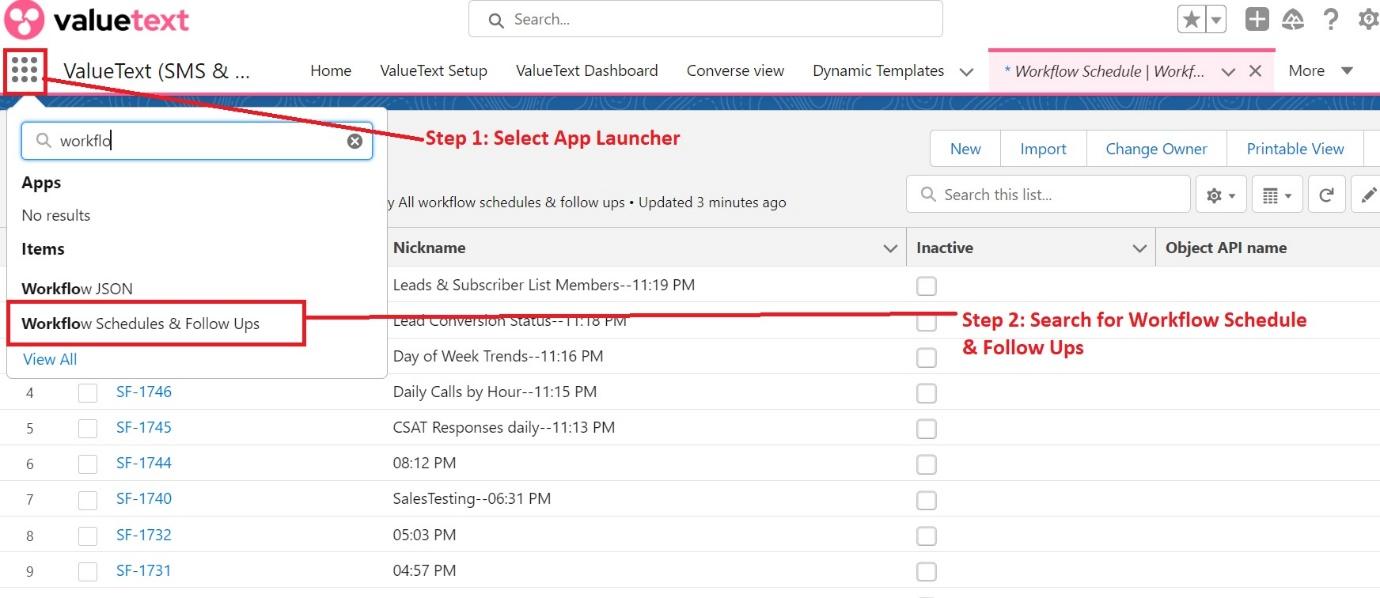
    The Salesforce App Launcher with
    Fig 01
  2. Select the bulk job. The list shows every bulk job you've sent through the different bulk processes. Select the job whose report you want to view.
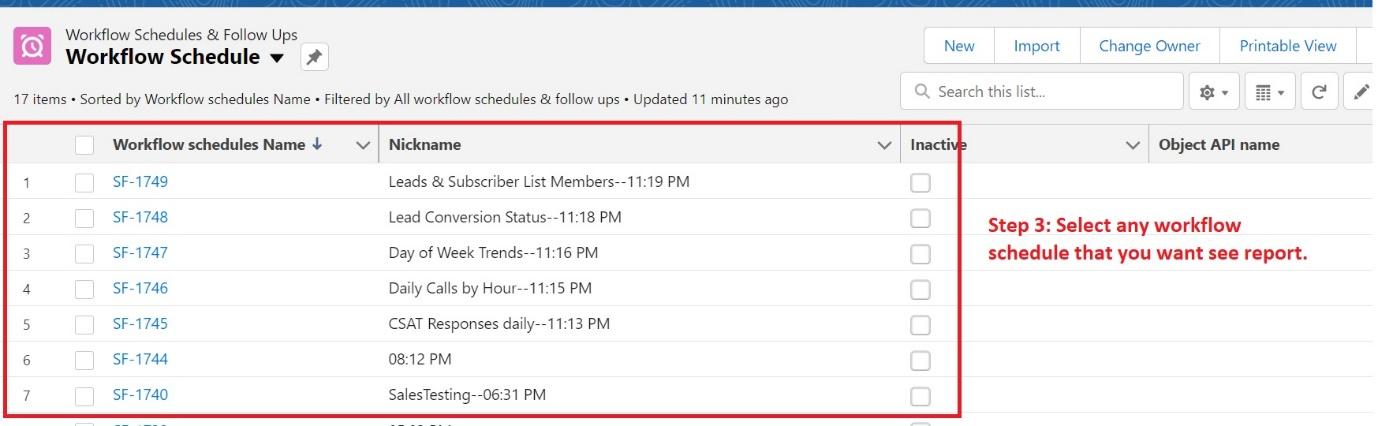
    The Workflow Schedule list view showing 17 workflow schedule records with their Workflow schedules Name, Nickname, and Inactive columns.
    Fig 02

Read the job report

The detailed report for the selected bulk job includes outbound messages, inbound messages, unknown status, undelivered messages, queued messages, sent messages, responded messages, delivered messages, failed messages, and read messages.
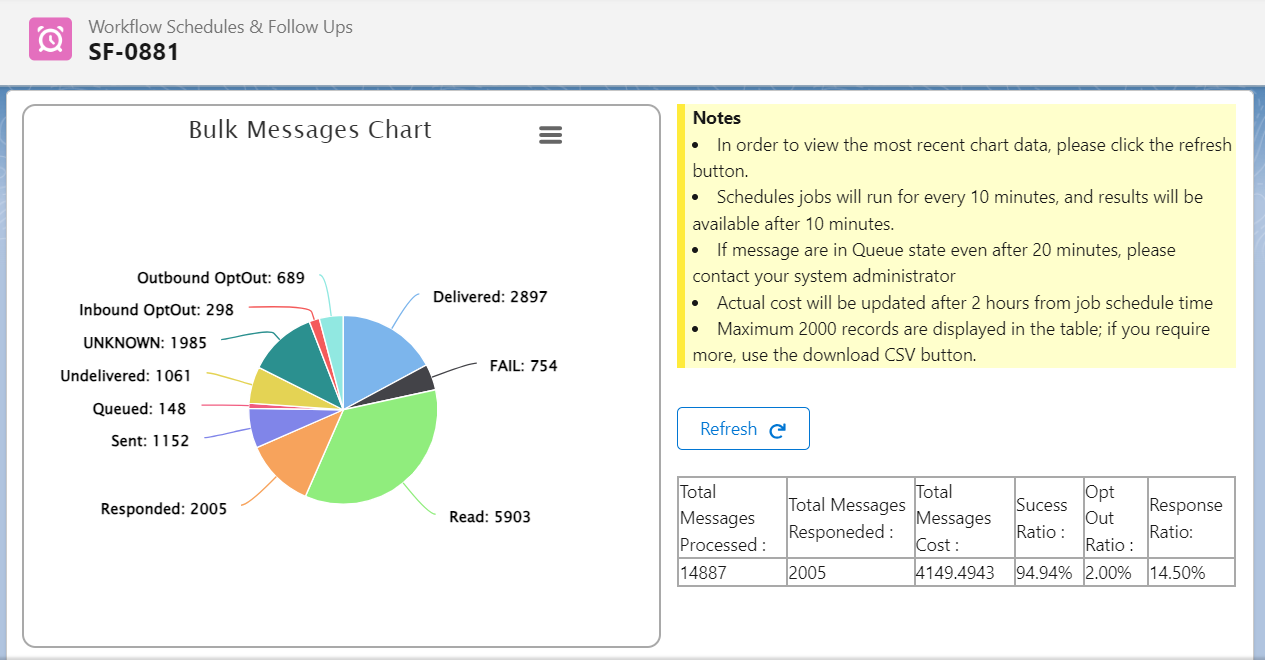
A Workflow Schedule detail record with a Bulk Messages Chart pie chart breaking down Delivered, FAIL, Read, Responded, Sent, Queued, Undelivered, UNKNOWN, Inbound OptOut, and Outbound OptOut counts, next to a Notes panel and a Refresh button.
Fig 03

Filter and export records

  1. Filter by status. Use the status selection dropdown to filter the records by their status, such as Delivered, FAIL, Read, Responded, Sent, Queued, or Undelivered.
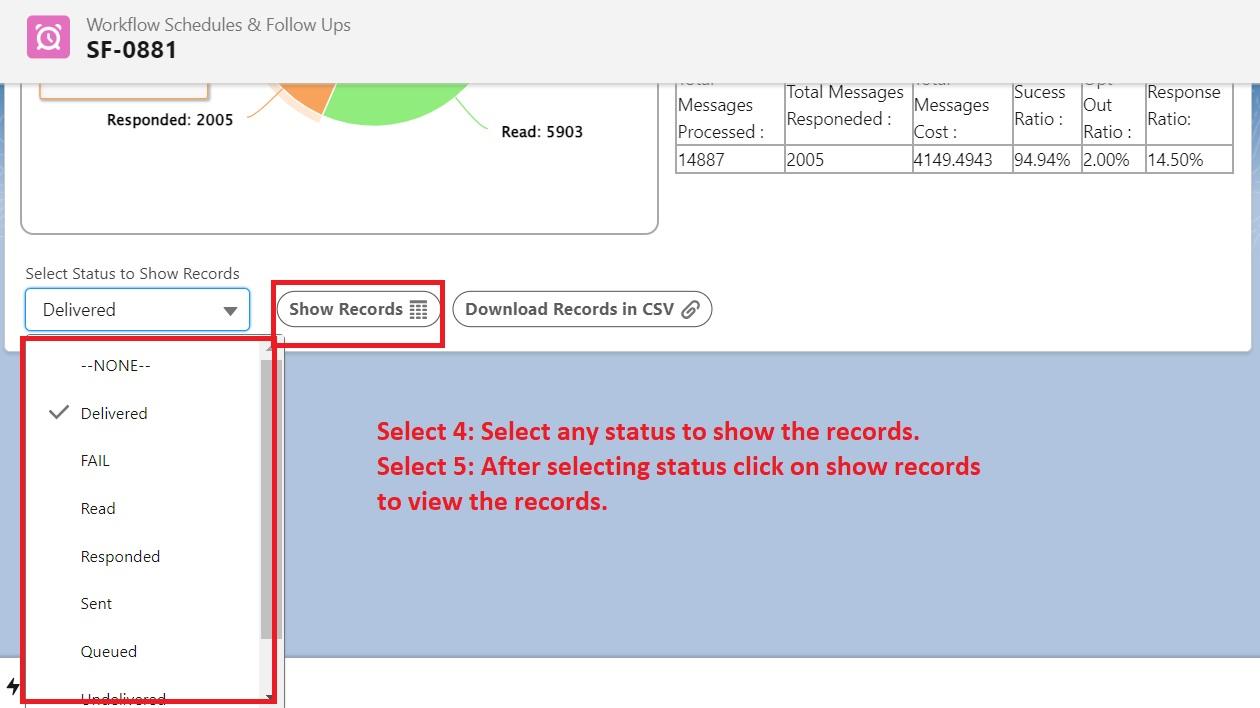
    The Select Status to Show Records dropdown open on a Workflow Schedule detail record, listing Delivered, FAIL, Read, Responded, Sent, Queued, and Undelivered options next to the Show Records and Download Records in CSV buttons.
    Fig 04
  2. Export every record. By default, the list shows up to 2000 records. To view all the records, click Download Records in CSV to download a CSV file containing every record with its status.
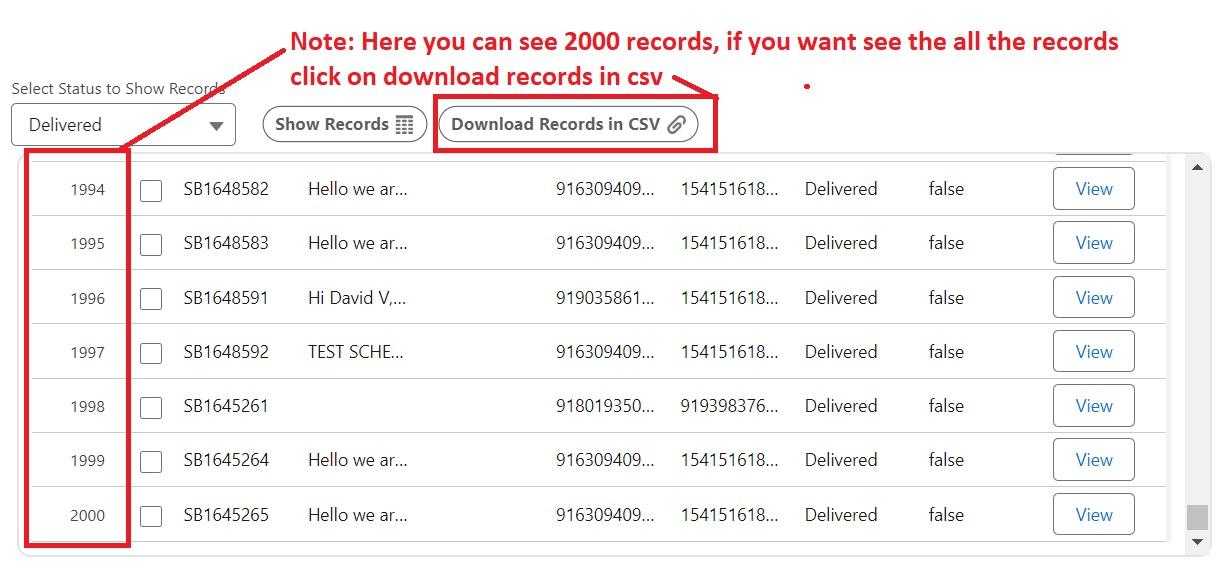
    A Workflow Schedule record list scrolled to rows 1994 through 2000, with the Select Status to Show Records dropdown set to Delivered and the Download Records in CSV button above the table.
    Fig 05

View a message bucket record

Click View on any record to open its message bucket record.
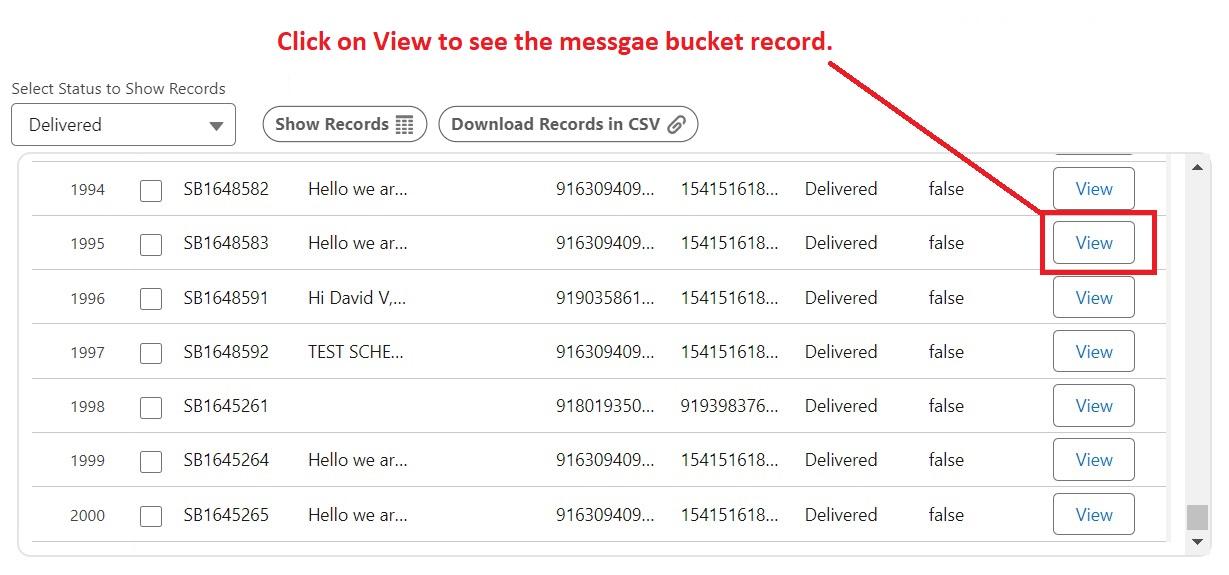
A Workflow Schedule record list with the View button on row 1995 highlighted, used to open that record's message bucket.
Fig 06

Additional metrics

  • Total Messages Processed: the total number of messages sent through the bulk job.
  • Total Messages Responded: the total number of responses received from the sent messages.
  • Total Messages Cost: the cost associated with sending the messages.
  • Success Ratio: the percentage of messages delivered out of the total messages sent (Total Messages Processed - Total Messages Failed / Total Messages Sent * 100).
  • Opt Out: In Bound Opted / Sent Messages * 100.
  • Response Ratio: the percentage of messages received out of the total messages sent (Total Messages Responded / Total Messages Sent - Un Delivered + Undelivered * 100).
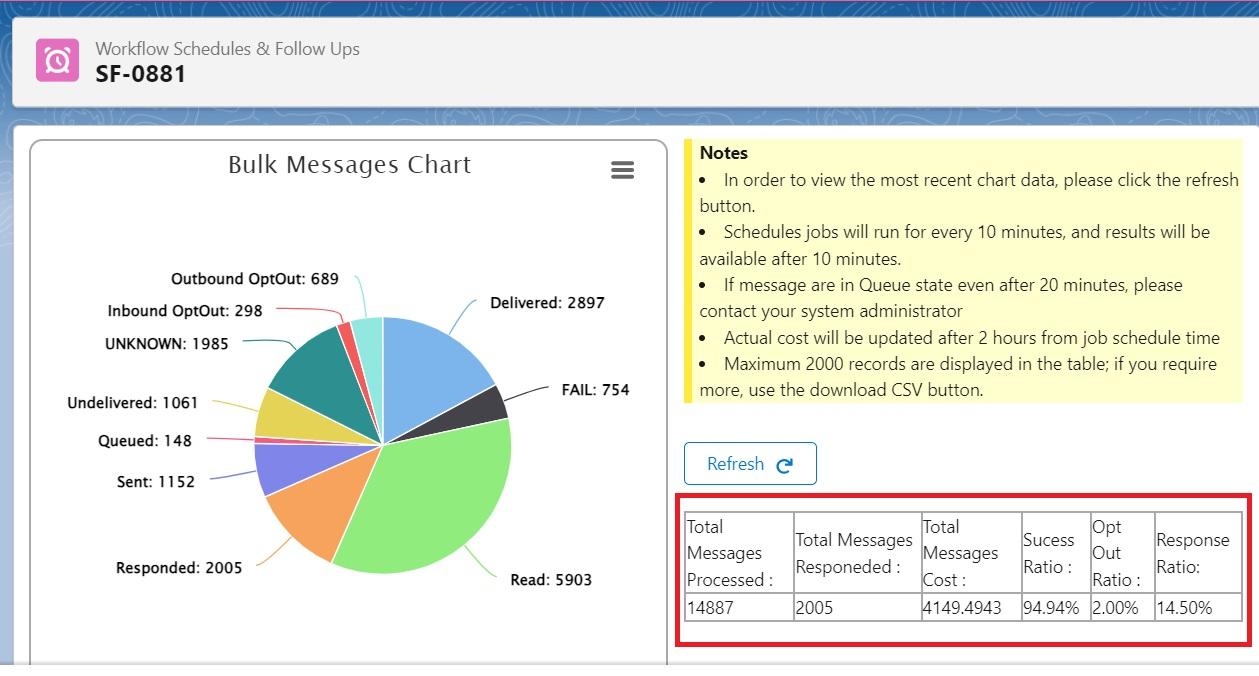
The Workflow Schedule detail record's metrics table highlighted, showing Total Messages Processed, Total Messages Responded, Total Messages Cost, Success Ratio, Opt Out Ratio, and Response Ratio for job SF-0881.
Fig 07
Was this helpful?
← PreviousBulk Text (List View) button configuration Next →Send SMS/WhatsApp from Salesforce Reports
Docs/Sending messages/Bulk message job reporting

Bulk message job reporting

This feature lets you view a report for any bulk job you've sent, whether through bulk message, bulk message from CSV, bulk message from list view, bulk select, or texting from reports.

Last updated 28 Nov 2025

Open a bulk job's report

  1. Open the App Launcher. Search for Workflow Schedules & Follow Ups and select it.
    The Salesforce App Launcher with
    Fig 01
  2. Select the bulk job. The list shows every bulk job you've sent through the different bulk processes. Select the job whose report you want to view.
    The Workflow Schedule list view showing 17 workflow schedule records with their Workflow schedules Name, Nickname, and Inactive columns.
    Fig 02

Read the job report

The detailed report for the selected bulk job includes outbound messages, inbound messages, unknown status, undelivered messages, queued messages, sent messages, responded messages, delivered messages, failed messages, and read messages.

A Workflow Schedule detail record with a Bulk Messages Chart pie chart breaking down Delivered, FAIL, Read, Responded, Sent, Queued, Undelivered, UNKNOWN, Inbound OptOut, and Outbound OptOut counts, next to a Notes panel and a Refresh button.
Fig 03

Filter and export records

  1. Filter by status. Use the status selection dropdown to filter the records by their status, such as Delivered, FAIL, Read, Responded, Sent, Queued, or Undelivered.
    The Select Status to Show Records dropdown open on a Workflow Schedule detail record, listing Delivered, FAIL, Read, Responded, Sent, Queued, and Undelivered options next to the Show Records and Download Records in CSV buttons.
    Fig 04
  2. Export every record. By default, the list shows up to 2000 records. To view all the records, click Download Records in CSV to download a CSV file containing every record with its status.
    A Workflow Schedule record list scrolled to rows 1994 through 2000, with the Select Status to Show Records dropdown set to Delivered and the Download Records in CSV button above the table.
    Fig 05

View a message bucket record

Click View on any record to open its message bucket record.

A Workflow Schedule record list with the View button on row 1995 highlighted, used to open that record's message bucket.
Fig 06

Additional metrics

  • Total Messages Processed: the total number of messages sent through the bulk job.
  • Total Messages Responded: the total number of responses received from the sent messages.
  • Total Messages Cost: the cost associated with sending the messages.
  • Success Ratio: the percentage of messages delivered out of the total messages sent (Total Messages Processed - Total Messages Failed / Total Messages Sent * 100).
  • Opt Out: In Bound Opted / Sent Messages * 100.
  • Response Ratio: the percentage of messages received out of the total messages sent (Total Messages Responded / Total Messages Sent - Un Delivered + Undelivered * 100).
The Workflow Schedule detail record's metrics table highlighted, showing Total Messages Processed, Total Messages Responded, Total Messages Cost, Success Ratio, Opt Out Ratio, and Response Ratio for job SF-0881.
Fig 07
Was this helpful?
← PreviousBulk Text (List View) button configuration Next →Send SMS/WhatsApp from Salesforce Reports
Docs/Sending messages/Bulk message job reporting

Bulk message job reporting

This feature lets you view a report for any bulk job you've sent, whether through bulk message, bulk message from CSV, bulk message from list view, bulk select, or texting from reports.

Last updated 28 Nov 2025

Open a bulk job's report

  1. Open the App Launcher. Search for Workflow Schedules & Follow Ups and select it.
    The Salesforce App Launcher with
    Fig 01
  2. Select the bulk job. The list shows every bulk job you've sent through the different bulk processes. Select the job whose report you want to view.
    The Workflow Schedule list view showing 17 workflow schedule records with their Workflow schedules Name, Nickname, and Inactive columns.
    Fig 02

Read the job report

The detailed report for the selected bulk job includes outbound messages, inbound messages, unknown status, undelivered messages, queued messages, sent messages, responded messages, delivered messages, failed messages, and read messages.

A Workflow Schedule detail record with a Bulk Messages Chart pie chart breaking down Delivered, FAIL, Read, Responded, Sent, Queued, Undelivered, UNKNOWN, Inbound OptOut, and Outbound OptOut counts, next to a Notes panel and a Refresh button.
Fig 03

Filter and export records

  1. Filter by status. Use the status selection dropdown to filter the records by their status, such as Delivered, FAIL, Read, Responded, Sent, Queued, or Undelivered.
    The Select Status to Show Records dropdown open on a Workflow Schedule detail record, listing Delivered, FAIL, Read, Responded, Sent, Queued, and Undelivered options next to the Show Records and Download Records in CSV buttons.
    Fig 04
  2. Export every record. By default, the list shows up to 2000 records. To view all the records, click Download Records in CSV to download a CSV file containing every record with its status.
    A Workflow Schedule record list scrolled to rows 1994 through 2000, with the Select Status to Show Records dropdown set to Delivered and the Download Records in CSV button above the table.
    Fig 05

View a message bucket record

Click View on any record to open its message bucket record.

A Workflow Schedule record list with the View button on row 1995 highlighted, used to open that record's message bucket.
Fig 06

Additional metrics

  • Total Messages Processed: the total number of messages sent through the bulk job.
  • Total Messages Responded: the total number of responses received from the sent messages.
  • Total Messages Cost: the cost associated with sending the messages.
  • Success Ratio: the percentage of messages delivered out of the total messages sent (Total Messages Processed - Total Messages Failed / Total Messages Sent * 100).
  • Opt Out: In Bound Opted / Sent Messages * 100.
  • Response Ratio: the percentage of messages received out of the total messages sent (Total Messages Responded / Total Messages Sent - Un Delivered + Undelivered * 100).
The Workflow Schedule detail record's metrics table highlighted, showing Total Messages Processed, Total Messages Responded, Total Messages Cost, Success Ratio, Opt Out Ratio, and Response Ratio for job SF-0881.
Fig 07
Was this helpful?
← PreviousBulk Text (List View) button configuration Next →Send SMS/WhatsApp from Salesforce Reports
Docs/Sending messages/Bulk message job reporting

Bulk message job reporting

This feature lets you view a report for any bulk job you've sent, whether through bulk message, bulk message from CSV, bulk message from list view, bulk select, or texting from reports.

Last updated 28 Nov 2025

Open a bulk job's report

  1. Open the App Launcher. Search for Workflow Schedules & Follow Ups and select it.
    The Salesforce App Launcher with
    Fig 01
  2. Select the bulk job. The list shows every bulk job you've sent through the different bulk processes. Select the job whose report you want to view.
    The Workflow Schedule list view showing 17 workflow schedule records with their Workflow schedules Name, Nickname, and Inactive columns.
    Fig 02

Read the job report

The detailed report for the selected bulk job includes outbound messages, inbound messages, unknown status, undelivered messages, queued messages, sent messages, responded messages, delivered messages, failed messages, and read messages.

A Workflow Schedule detail record with a Bulk Messages Chart pie chart breaking down Delivered, FAIL, Read, Responded, Sent, Queued, Undelivered, UNKNOWN, Inbound OptOut, and Outbound OptOut counts, next to a Notes panel and a Refresh button.
Fig 03

Filter and export records

  1. Filter by status. Use the status selection dropdown to filter the records by their status, such as Delivered, FAIL, Read, Responded, Sent, Queued, or Undelivered.
    The Select Status to Show Records dropdown open on a Workflow Schedule detail record, listing Delivered, FAIL, Read, Responded, Sent, Queued, and Undelivered options next to the Show Records and Download Records in CSV buttons.
    Fig 04
  2. Export every record. By default, the list shows up to 2000 records. To view all the records, click Download Records in CSV to download a CSV file containing every record with its status.
    A Workflow Schedule record list scrolled to rows 1994 through 2000, with the Select Status to Show Records dropdown set to Delivered and the Download Records in CSV button above the table.
    Fig 05

View a message bucket record

Click View on any record to open its message bucket record.

A Workflow Schedule record list with the View button on row 1995 highlighted, used to open that record's message bucket.
Fig 06

Additional metrics

  • Total Messages Processed: the total number of messages sent through the bulk job.
  • Total Messages Responded: the total number of responses received from the sent messages.
  • Total Messages Cost: the cost associated with sending the messages.
  • Success Ratio: the percentage of messages delivered out of the total messages sent (Total Messages Processed - Total Messages Failed / Total Messages Sent * 100).
  • Opt Out: In Bound Opted / Sent Messages * 100.
  • Response Ratio: the percentage of messages received out of the total messages sent (Total Messages Responded / Total Messages Sent - Un Delivered + Undelivered * 100).
The Workflow Schedule detail record's metrics table highlighted, showing Total Messages Processed, Total Messages Responded, Total Messages Cost, Success Ratio, Opt Out Ratio, and Response Ratio for job SF-0881.
Fig 07
Was this helpful?
← PreviousBulk Text (List View) button configuration Next →Send SMS/WhatsApp from Salesforce Reports