
Install and set up ValueText in Zoho CRM
Two-way SMS and WhatsApp inside Zoho CRM: what the extension does, what you need before installing, how to install it, and the five-step setup wizard that must be completed before the first message.
Last updated 9 Sep 2026What ValueText for Zoho CRM does
The ValueText integration for Zoho CRM enables two-way SMS and WhatsApp communication directly from within Zoho CRM, with the following key features:
Key features
- Guided installation with a setup wizard
- One-to-one and bulk messaging across SMS and WhatsApp
- Mini Chat Console on Lead, Contact, Account, Deal and Case records
- Converse View, a unified inbox for every conversation in the organization
- Dynamic templates with merge fields and media attachments
- WhatsApp template creation and approval requests from inside CRM
- Automatic inbound message routing to the matching CRM record
- Access control for sender IDs and templates by profile or user
- Advanced automation through Zoho CRM workflows
- Message history with delivery status tracking
For assistance with the extension or your ValueText account, contact support@valuetext.io
Prerequisites
Before installing, ensure you have:
What you need
- A Zoho CRM account with administrator privileges. Setup requires the ability to install extensions and configure organization-level settings.
- A ValueText account with available messaging credits. If you do not have one, you can sign up at https://valuetext.io
Installation
Follow the steps below to install the ValueText extension.
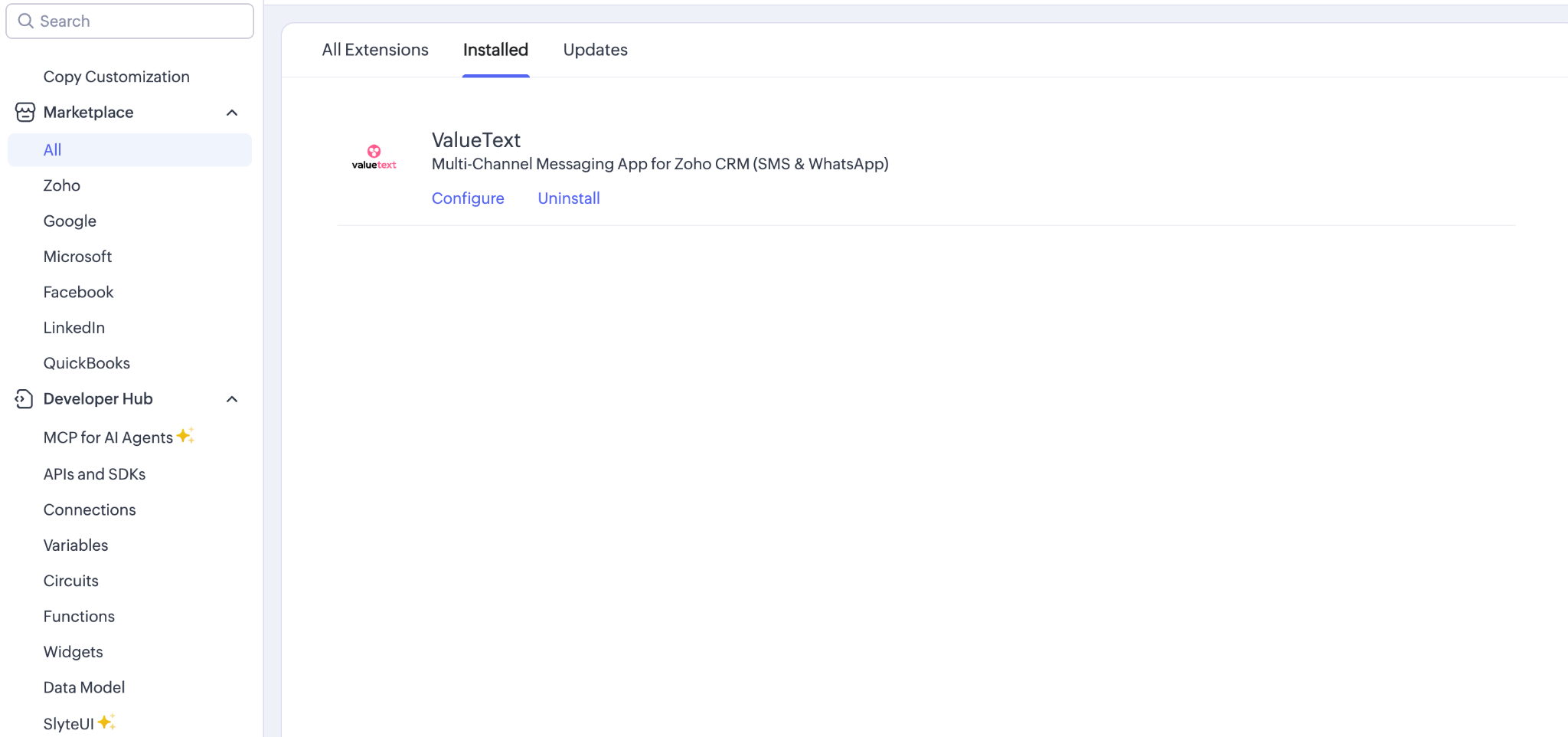
Install the extension
- Use the direct installation link shared with you.
- Paste the installation link into your browser while logged into your Zoho account.
- You will be automatically redirected to the Zoho login page (if not already logged in).
- Review the permissions requested and choose whether to install for all users, specific profiles, or only administrators.
- Follow the on-screen instructions to complete the installation.
- Once installed successfully, you will see a confirmation message indicating that the package has been installed.
What gets created
The extension adds the following to your CRM:
Tabs
- Dynamic Templates
- ValueText Setup
- Converse View
- Template Submission
- Custom Phone Fields
- Access Levels
- Sender IDs
Widget
The Mini Chat Console is added as a related list on Lead, Contact, Account, Deal and Case records.
Setup wizard
After installation, complete the setup wizard before sending any messages. To open it, click the ValueText Setup tab in Zoho CRM. The wizard opens on the first incomplete step. The wizard has five steps which must be completed in order, each unlocks the next. Your ValueText wallet balance is shown at the top right once you have signed in.
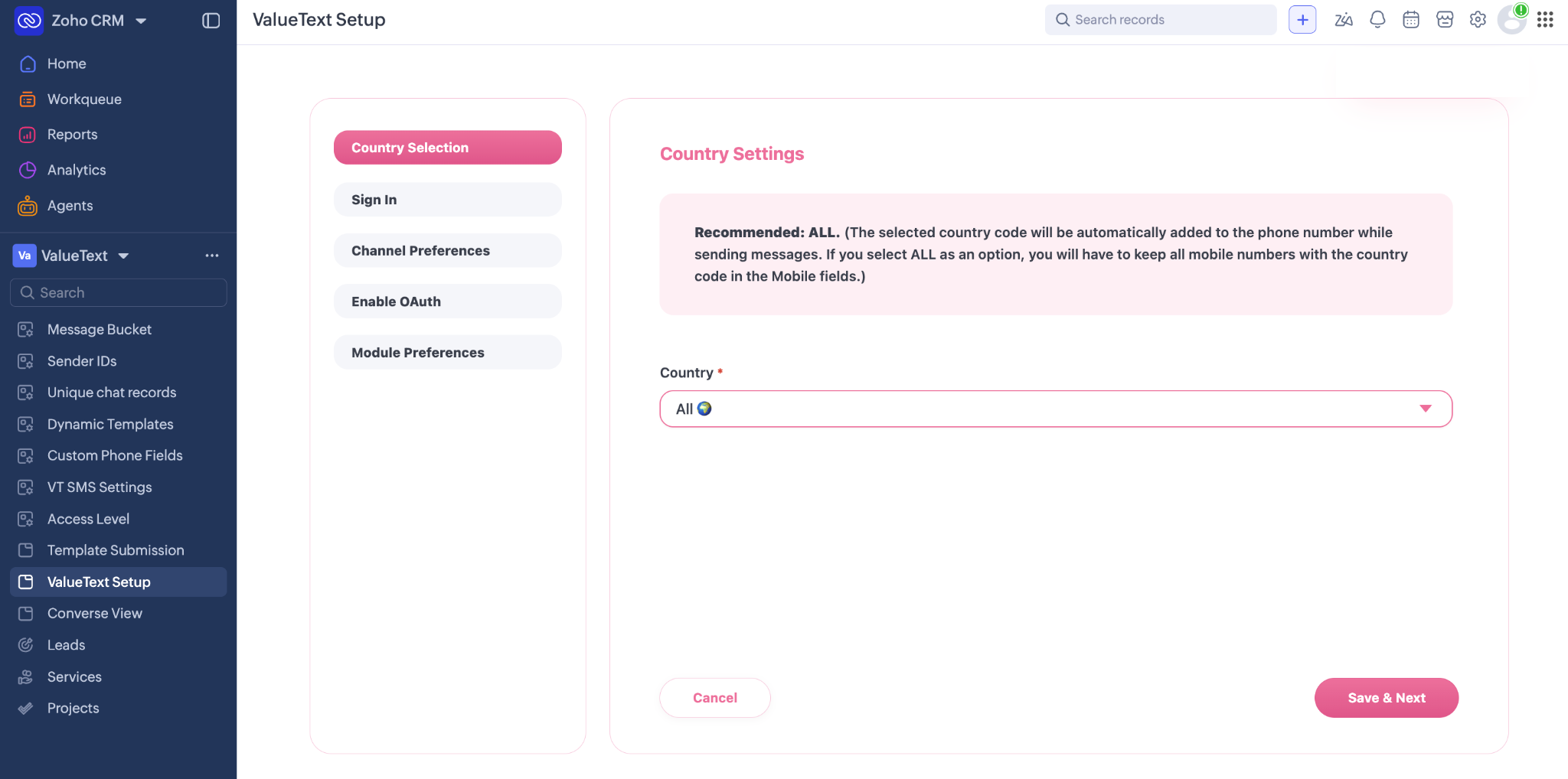
Country selection
The selected country code is automatically added to phone numbers when sending messages.
- Select your country from the dropdown.
- Click Save & Next.
Recommended: ALL. If you select ALL, no country code is added automatically. You must store every mobile number in your CRM with its full country code. Choose a specific country only if all your numbers are local and stored without a country code.
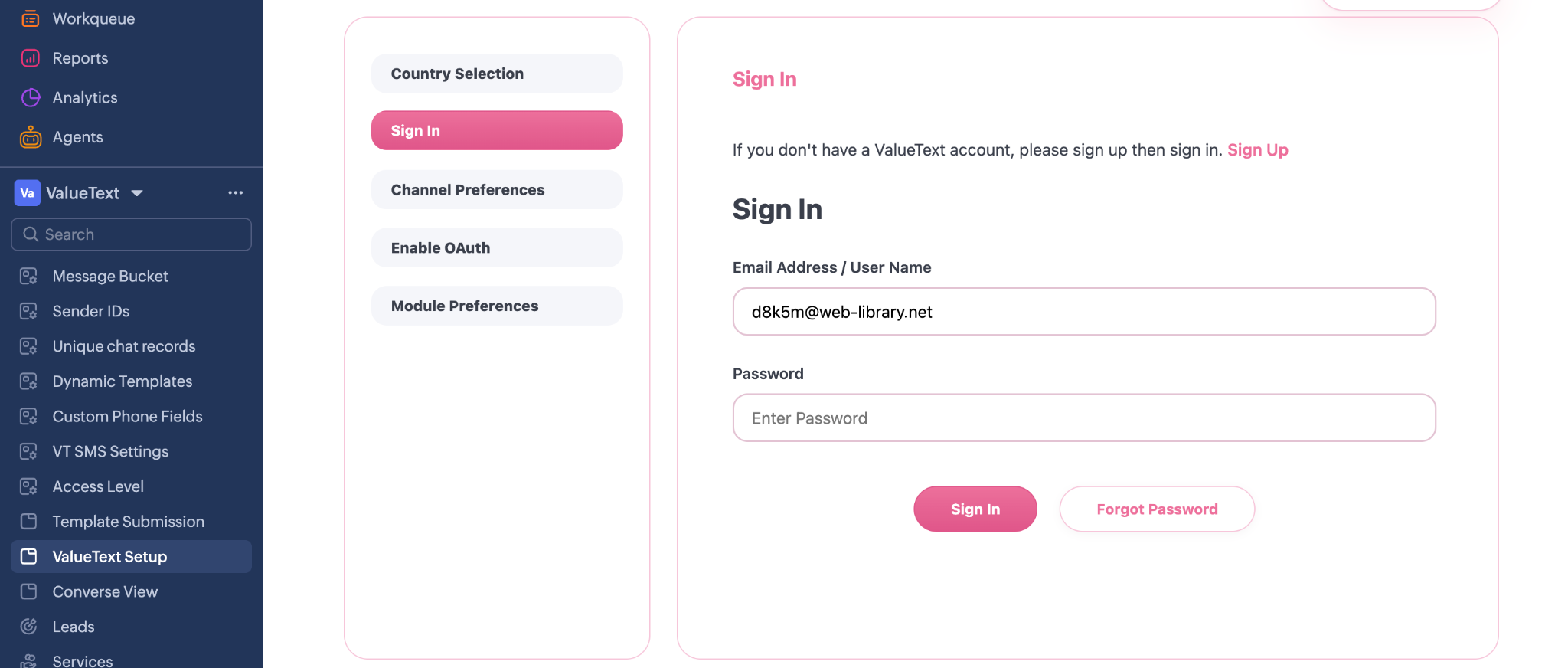
Sign in
Connect the extension to your ValueText account.
- Enter your Email Address / User Name and Password.
- Click Sign In.
On successful sign-in, your credentials are stored securely against your organization and the wizard moves to the next step.
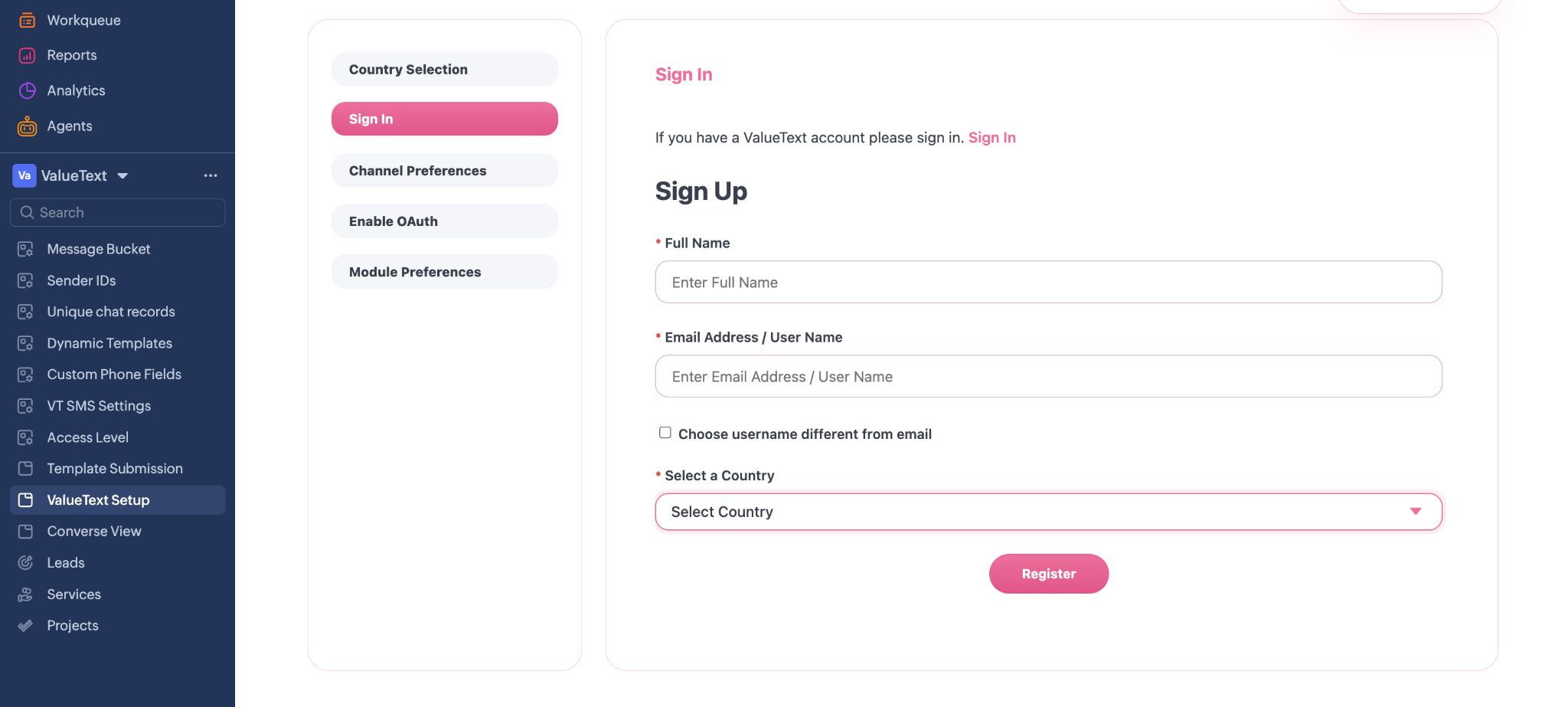
Sign up (if you do not have an account)
- On the Sign In screen, click Sign Up.
- Enter your Full Name, Email Address, and Country.
- If you want a username different from your email address, tick Choose username different from email and enter it.
- Click Register.
- Check your email for the OTP.
- Enter the OTP and set a password.
- Click Sign Up. You are returned to the Sign In screen with your username pre-filled.
Forgot password
- Enter your username or email on the Sign In screen.
- Click Forgot Password.
- Check your email for the OTP.
- Enter the OTP and your new password, then click Sign In.
Use Resend OTP if the code does not arrive.
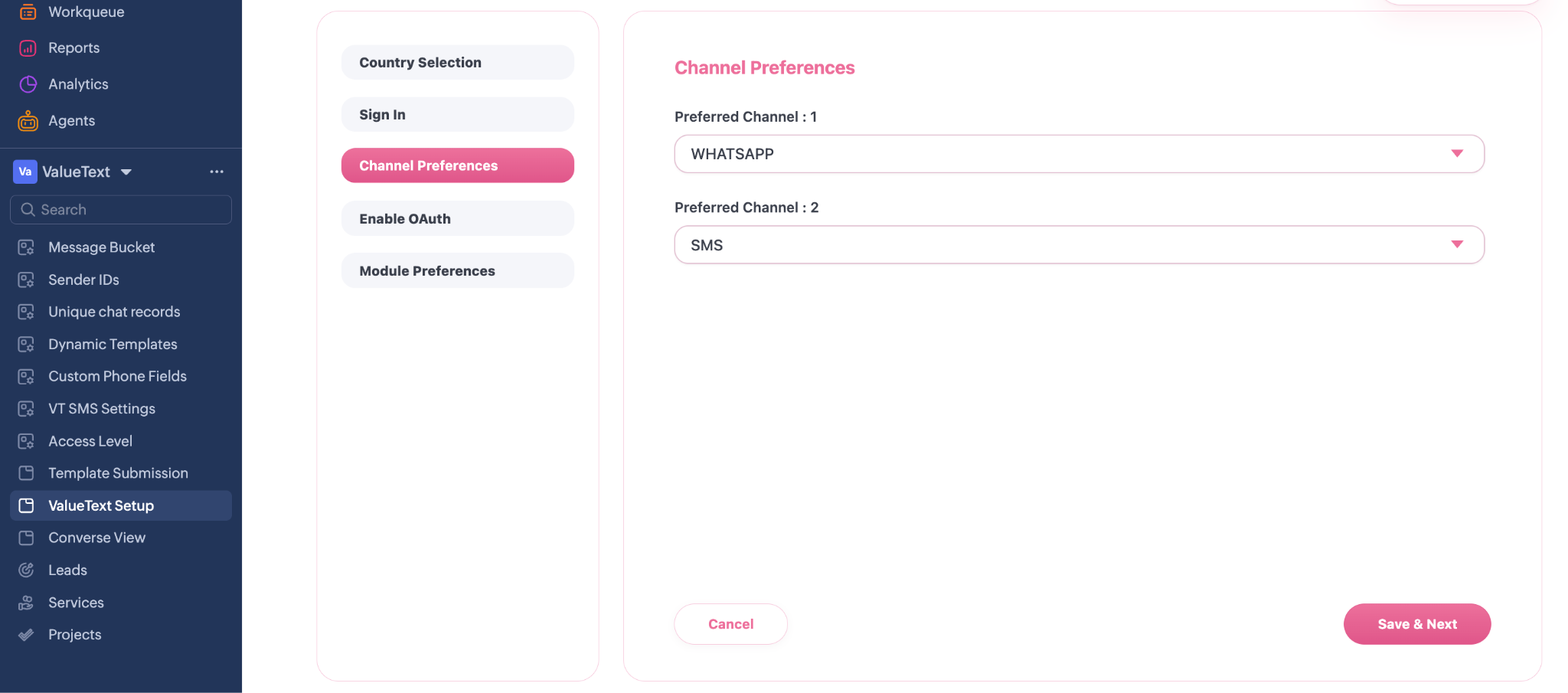
Channel preferences
Set the order in which channels are attempted when no specific channel is chosen at send time.
- Select Preferred Channel 1 (SMS or WhatsApp).
- Optionally select Preferred Channel 2 as the fallback.
- Click Save & Next.
Both fields are optional. If you set both, they must be different channels.
Enable OAuth
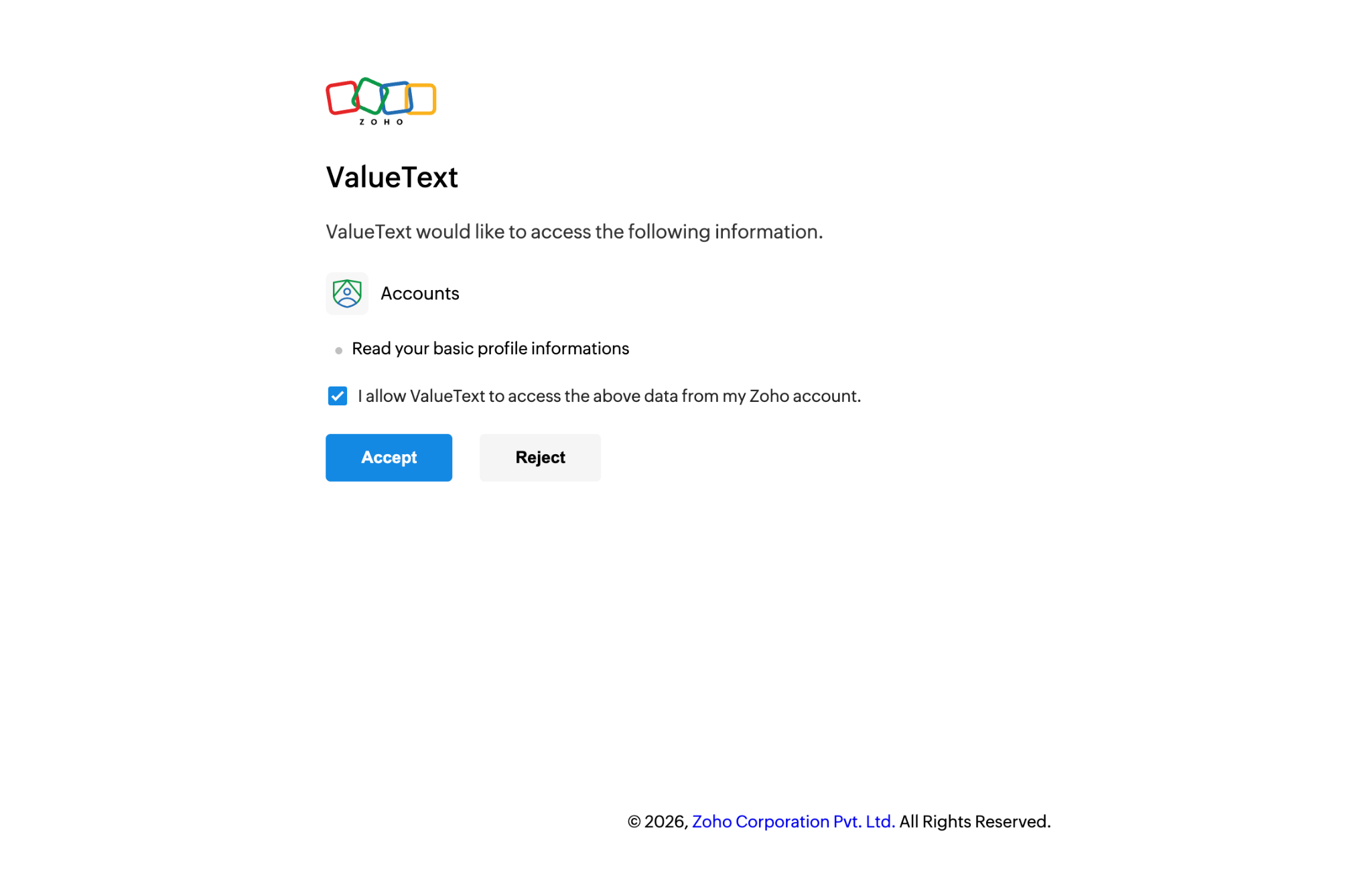
OAuth authorization allows ValueText to deliver incoming messages and delivery status updates back into your Zoho CRM.
- Click Enable OAuth.
- Read the note and click OK. An authorization page opens in a new tab.
- Sign in to your Zoho account and click Accept to grant access.
- Sign in to the ValueText account and return to the setup tab and click Finish.
Important: log out of all other Zoho organizations before starting this step, to ensure authorization is granted for the correct org.
The user who completes this step is recorded as the default owner for conversations that cannot be matched to a specific record owner.
Module preferences
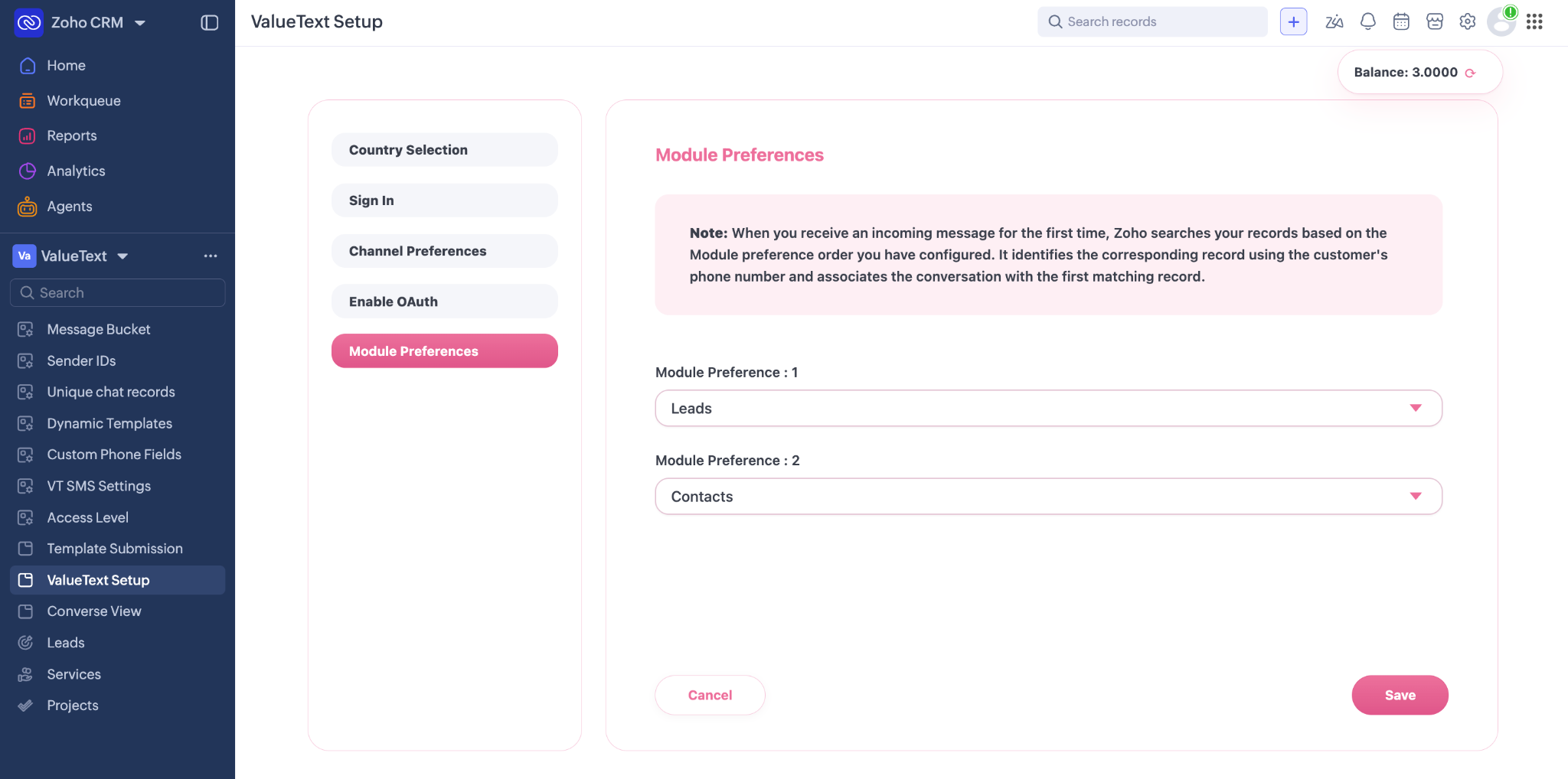
Configure which modules are searched, and in what order, when an inbound message arrives.
- Select Module Preference 1, the module searched first.
- Optionally select Module Preference 2, searched if no match is found in the first.
- Click Save.
When an incoming message arrives for the first time, ValueText searches your records in this order, identifies the record using the customer's phone number, and associates the conversation with the first matching record. Both fields are optional; if you set both, they must be different modules.
Wallet balance
Your ValueText wallet balance is shown at the top right of the ValueText Setup tab once you have signed in. Click the refresh icon beside it to fetch the current figure.
If the balance reads Balance unavailable, your stored credentials may have expired. Sign in again from the Sign In step of the setup wizard.