Docs/Automation & routing/Schedule Messages via Process Builder in Salesforce

Schedule Messages via Process Builder in Salesforce

ValueText supports two types of schedules for sending messages from a Process Builder: a schedule with no specific time, and a time-dependent schedule (with or without a time zone).

Last updated 28 Nov 2025

No time-dependent schedule

This schedule uses standard Salesforce functionality: you define a number of hours or days before or after a date value. You cannot set a specific time, such as 9 AM, with this schedule type.

To create this schedule:

  1. Create an action under the Scheduled Actions section of your process.
  2. Choose record creation, select Message Bucket, and set the four mandatory fields below.
  • Sender ID (required): for now, you can use 15415161800 for testing purposes.
  • Number / To Phone (required): reference the Mobile Number field from the contact.
  • Template ID (required): must be in the format "T00001".
  • Related To (required): the related record ID used to load merge fields.
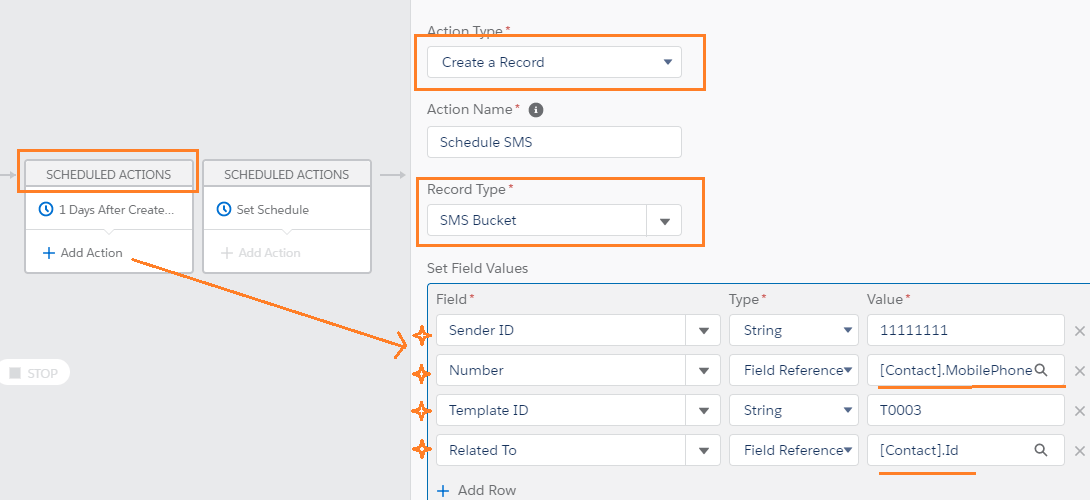
Salesforce Process Builder Edit Action panel for the no-time-dependent schedule, with Record Type set to SMS Bucket and the Sender ID, Number, Template ID, and Related To fields filled in beside the Scheduled Actions canvas.
Fig 01

Time-dependent schedule

As the name suggests, this schedule type is dependent on time. It lets you send an SMS at a specific time, such as 10:30 AM.

To create this schedule:

  1. Choose an immediate action (this must not be a Salesforce Schedule action).
  2. Choose record creation, select Text schedule & follow up, and set the mandatory fields below.
  • Sender ID (required): find your sender ID at Salesforce > ValueText from the app menu > Senders tab.
  • Mobile Number Field (required): must be an API name field. It takes the updated phone number from that API field name.
  • Template ID (required): must be in the format "T0001".
  • Related To (required): the related record ID used to load merge fields.
  • Start Time (required): choose the picklist value for the time, or write a formula to pass a dynamic value.
  • Start Date (required): choose a formula and build your own logic. For example, to send a message 2 days before a meeting date, the formula would be "API name of the field - 2".
  • Action Type (required): Schedule.
  • Frequency (required): Only once. (To set a recurring schedule, choose a different value. You must also include an end date to stop the recurring messages.)
  • End Date: required if the frequency is not "Only once".
  • Time Zone: must be a ValueText or Salesforce supported format, for example the return value of the UserInfo.getTimeZone().getID() method.
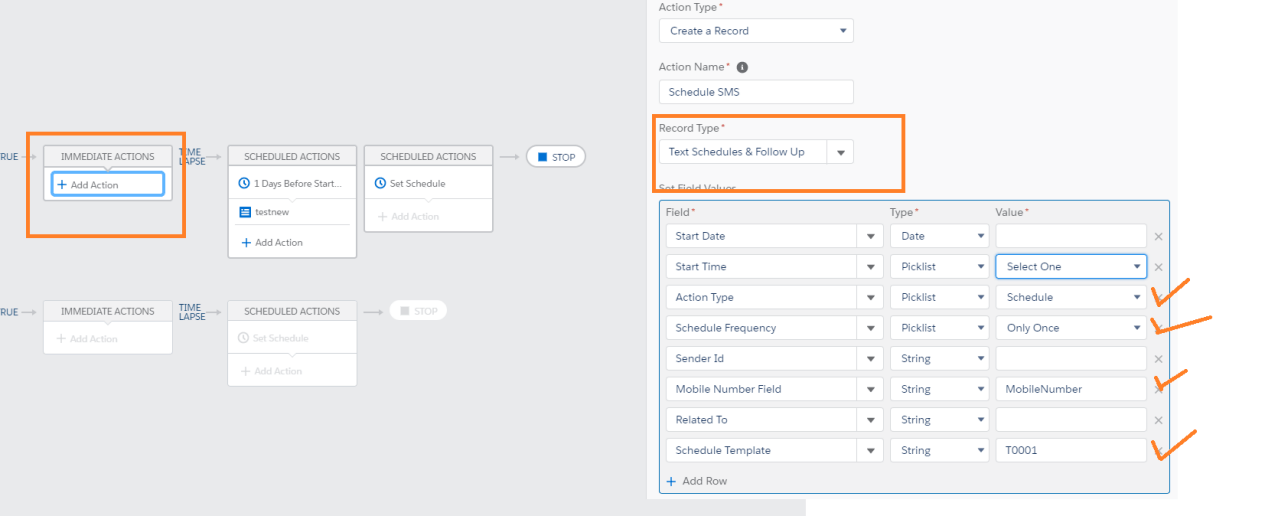
Salesforce Process Builder Edit Action panel for the time-dependent schedule, with Record Type set to Text Schedules & Follow Up and the Start Time, Action Type, Schedule Frequency, Mobile Number Field, and Schedule Template fields filled in beside the Immediate Actions and Scheduled Actions canvas.
Fig 02

Each scheduled transaction is stored in Salesforce under the related record's "Text schedule & follow up" related list.

Stop a schedule

You can stop the schedule at any time by marking the Stop checkbox on the related schedule record. Create a Process Builder action that stops the schedule this way.

Was this helpful?
← PreviousSending a Message from Process Builder Next →Omni-Channel Message Routing in Salesforce
Docs/Automation & routing/Schedule Messages via Process Builder in Salesforce

Schedule Messages via Process Builder in Salesforce

ValueText supports two types of schedules for sending messages from a Process Builder: a schedule with no specific time, and a time-dependent schedule (with or without a time zone).

Last updated 28 Nov 2025

No time-dependent schedule

This schedule uses standard Salesforce functionality: you define a number of hours or days before or after a date value. You cannot set a specific time, such as 9 AM, with this schedule type.

To create this schedule:

  1. Create an action under the Scheduled Actions section of your process.
  2. Choose record creation, select Message Bucket, and set the four mandatory fields below.
  • Sender ID (required): for now, you can use 15415161800 for testing purposes.
  • Number / To Phone (required): reference the Mobile Number field from the contact.
  • Template ID (required): must be in the format "T00001".
  • Related To (required): the related record ID used to load merge fields.
Salesforce Process Builder Edit Action panel for the no-time-dependent schedule, with Record Type set to SMS Bucket and the Sender ID, Number, Template ID, and Related To fields filled in beside the Scheduled Actions canvas.
Fig 01

Time-dependent schedule

As the name suggests, this schedule type is dependent on time. It lets you send an SMS at a specific time, such as 10:30 AM.

To create this schedule:

  1. Choose an immediate action (this must not be a Salesforce Schedule action).
  2. Choose record creation, select Text schedule & follow up, and set the mandatory fields below.
  • Sender ID (required): find your sender ID at Salesforce > ValueText from the app menu > Senders tab.
  • Mobile Number Field (required): must be an API name field. It takes the updated phone number from that API field name.
  • Template ID (required): must be in the format "T0001".
  • Related To (required): the related record ID used to load merge fields.
  • Start Time (required): choose the picklist value for the time, or write a formula to pass a dynamic value.
  • Start Date (required): choose a formula and build your own logic. For example, to send a message 2 days before a meeting date, the formula would be "API name of the field - 2".
  • Action Type (required): Schedule.
  • Frequency (required): Only once. (To set a recurring schedule, choose a different value. You must also include an end date to stop the recurring messages.)
  • End Date: required if the frequency is not "Only once".
  • Time Zone: must be a ValueText or Salesforce supported format, for example the return value of the UserInfo.getTimeZone().getID() method.
Salesforce Process Builder Edit Action panel for the time-dependent schedule, with Record Type set to Text Schedules & Follow Up and the Start Time, Action Type, Schedule Frequency, Mobile Number Field, and Schedule Template fields filled in beside the Immediate Actions and Scheduled Actions canvas.
Fig 02

Each scheduled transaction is stored in Salesforce under the related record's "Text schedule & follow up" related list.

Stop a schedule

You can stop the schedule at any time by marking the Stop checkbox on the related schedule record. Create a Process Builder action that stops the schedule this way.

Was this helpful?
← PreviousSending a Message from Process Builder Next →Omni-Channel Message Routing in Salesforce
Docs/Automation & routing/Schedule Messages via Process Builder in Salesforce

Schedule Messages via Process Builder in Salesforce

ValueText supports two types of schedules for sending messages from a Process Builder: a schedule with no specific time, and a time-dependent schedule (with or without a time zone).

Last updated 28 Nov 2025

No time-dependent schedule

This schedule uses standard Salesforce functionality: you define a number of hours or days before or after a date value. You cannot set a specific time, such as 9 AM, with this schedule type.

To create this schedule:

  1. Create an action under the Scheduled Actions section of your process.
  2. Choose record creation, select Message Bucket, and set the four mandatory fields below.
  • Sender ID (required): for now, you can use 15415161800 for testing purposes.
  • Number / To Phone (required): reference the Mobile Number field from the contact.
  • Template ID (required): must be in the format "T00001".
  • Related To (required): the related record ID used to load merge fields.
Salesforce Process Builder Edit Action panel for the no-time-dependent schedule, with Record Type set to SMS Bucket and the Sender ID, Number, Template ID, and Related To fields filled in beside the Scheduled Actions canvas.
Fig 01

Time-dependent schedule

As the name suggests, this schedule type is dependent on time. It lets you send an SMS at a specific time, such as 10:30 AM.

To create this schedule:

  1. Choose an immediate action (this must not be a Salesforce Schedule action).
  2. Choose record creation, select Text schedule & follow up, and set the mandatory fields below.
  • Sender ID (required): find your sender ID at Salesforce > ValueText from the app menu > Senders tab.
  • Mobile Number Field (required): must be an API name field. It takes the updated phone number from that API field name.
  • Template ID (required): must be in the format "T0001".
  • Related To (required): the related record ID used to load merge fields.
  • Start Time (required): choose the picklist value for the time, or write a formula to pass a dynamic value.
  • Start Date (required): choose a formula and build your own logic. For example, to send a message 2 days before a meeting date, the formula would be "API name of the field - 2".
  • Action Type (required): Schedule.
  • Frequency (required): Only once. (To set a recurring schedule, choose a different value. You must also include an end date to stop the recurring messages.)
  • End Date: required if the frequency is not "Only once".
  • Time Zone: must be a ValueText or Salesforce supported format, for example the return value of the UserInfo.getTimeZone().getID() method.
Salesforce Process Builder Edit Action panel for the time-dependent schedule, with Record Type set to Text Schedules & Follow Up and the Start Time, Action Type, Schedule Frequency, Mobile Number Field, and Schedule Template fields filled in beside the Immediate Actions and Scheduled Actions canvas.
Fig 02

Each scheduled transaction is stored in Salesforce under the related record's "Text schedule & follow up" related list.

Stop a schedule

You can stop the schedule at any time by marking the Stop checkbox on the related schedule record. Create a Process Builder action that stops the schedule this way.

Was this helpful?
← PreviousSending a Message from Process Builder Next →Omni-Channel Message Routing in Salesforce
Docs/Automation & routing/Schedule Messages via Process Builder in Salesforce

Schedule Messages via Process Builder in Salesforce

ValueText supports two types of schedules for sending messages from a Process Builder: a schedule with no specific time, and a time-dependent schedule (with or without a time zone).

Last updated 28 Nov 2025

No time-dependent schedule

This schedule uses standard Salesforce functionality: you define a number of hours or days before or after a date value. You cannot set a specific time, such as 9 AM, with this schedule type.

To create this schedule:

  1. Create an action under the Scheduled Actions section of your process.
  2. Choose record creation, select Message Bucket, and set the four mandatory fields below.
  • Sender ID (required): for now, you can use 15415161800 for testing purposes.
  • Number / To Phone (required): reference the Mobile Number field from the contact.
  • Template ID (required): must be in the format "T00001".
  • Related To (required): the related record ID used to load merge fields.
Salesforce Process Builder Edit Action panel for the no-time-dependent schedule, with Record Type set to SMS Bucket and the Sender ID, Number, Template ID, and Related To fields filled in beside the Scheduled Actions canvas.
Fig 01

Time-dependent schedule

As the name suggests, this schedule type is dependent on time. It lets you send an SMS at a specific time, such as 10:30 AM.

To create this schedule:

  1. Choose an immediate action (this must not be a Salesforce Schedule action).
  2. Choose record creation, select Text schedule & follow up, and set the mandatory fields below.
  • Sender ID (required): find your sender ID at Salesforce > ValueText from the app menu > Senders tab.
  • Mobile Number Field (required): must be an API name field. It takes the updated phone number from that API field name.
  • Template ID (required): must be in the format "T0001".
  • Related To (required): the related record ID used to load merge fields.
  • Start Time (required): choose the picklist value for the time, or write a formula to pass a dynamic value.
  • Start Date (required): choose a formula and build your own logic. For example, to send a message 2 days before a meeting date, the formula would be "API name of the field - 2".
  • Action Type (required): Schedule.
  • Frequency (required): Only once. (To set a recurring schedule, choose a different value. You must also include an end date to stop the recurring messages.)
  • End Date: required if the frequency is not "Only once".
  • Time Zone: must be a ValueText or Salesforce supported format, for example the return value of the UserInfo.getTimeZone().getID() method.
Salesforce Process Builder Edit Action panel for the time-dependent schedule, with Record Type set to Text Schedules & Follow Up and the Start Time, Action Type, Schedule Frequency, Mobile Number Field, and Schedule Template fields filled in beside the Immediate Actions and Scheduled Actions canvas.
Fig 02

Each scheduled transaction is stored in Salesforce under the related record's "Text schedule & follow up" related list.

Stop a schedule

You can stop the schedule at any time by marking the Stop checkbox on the related schedule record. Create a Process Builder action that stops the schedule this way.

Was this helpful?
← PreviousSending a Message from Process Builder Next →Omni-Channel Message Routing in Salesforce