Transfer Old Messages Between Records
A common use case is converting a lead into a contact or opportunity while pushing the lead's message history into the newly converted record at the same time.
Last updated 28 Nov 2025How Messages Link to Records
Each incoming and outgoing message is stored in the Message Bucket object in Salesforce.
The Message Bucket stores the related Salesforce record ID in its Related To field, and Salesforce automatically fills in the Message Bucket's own lookup field for that record type at the same time.
You may also see other lookup fields on the Message Bucket, such as Contact, Lead, Opportunity, and Account. You can even create a lookup field to any other object in Salesforce.
If a Message Bucket is linked to, for example, Contact A, the mini chat console shows those messages on Contact A's record.
The same Message Bucket record can be linked to more than one lookup record at once, so it shows up on every record it is linked to. For example, if one Message Bucket is linked to both a lead and a contact, that same message appears on the lead's record and on the contact's record.
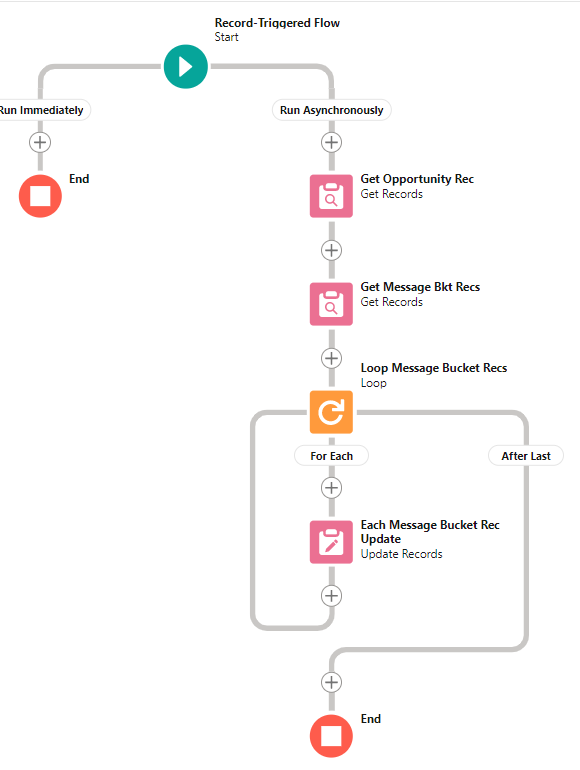
This article queries all the messages related to a lead, then updates the Related To field and the contact lookup with the newly created record.
Move Messages from a Converted Lead to Its Opportunity
Note: run your flow asynchronously.
- Create the flow. Build a new flow on the Lead object.
- Set the trigger. Configure the trigger to run when A record is updated.
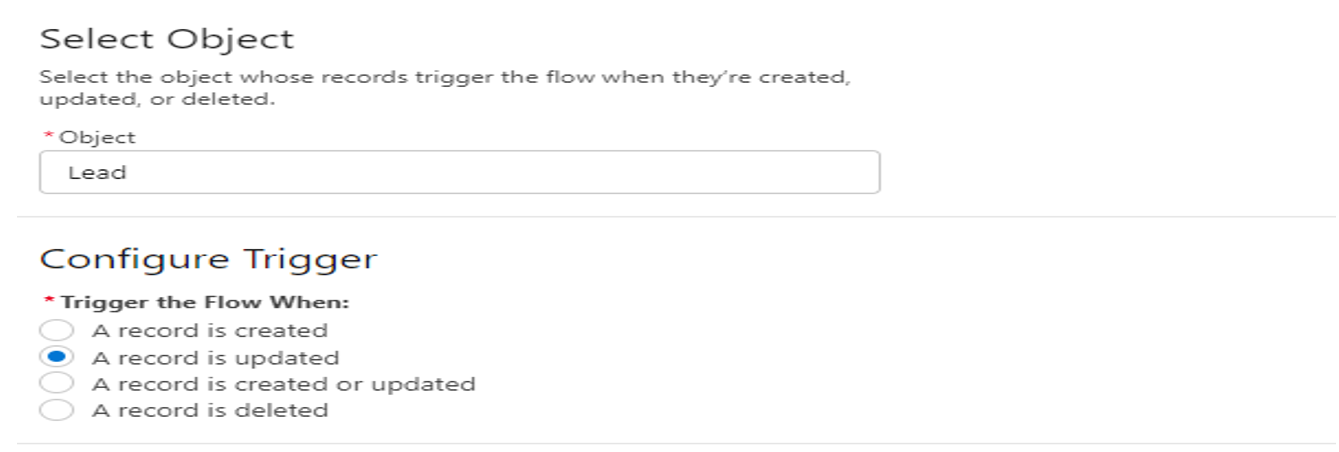
Fig 01 - Set the entry conditions. Enter the conditions shown below, then click Done.
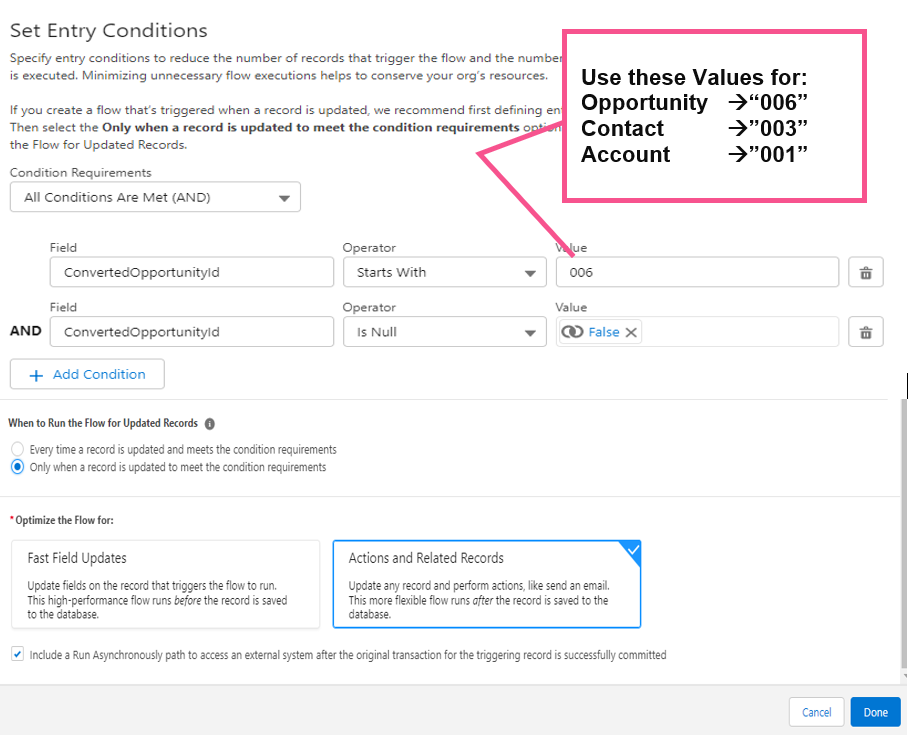
Fig 02 - Get the converted Opportunity record. Add a Get Records element and match the ID of the current record to the converted Opportunity ID. Click Done.
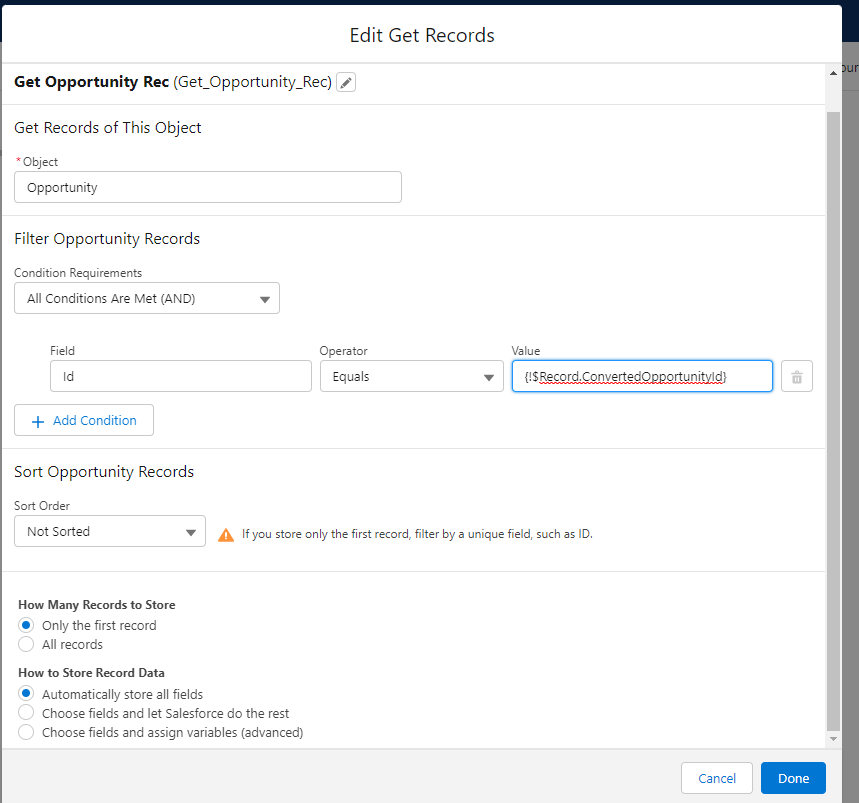
Fig 03 - Get the related Message Bucket records. Add another Get Records element to the flow, as shown below.
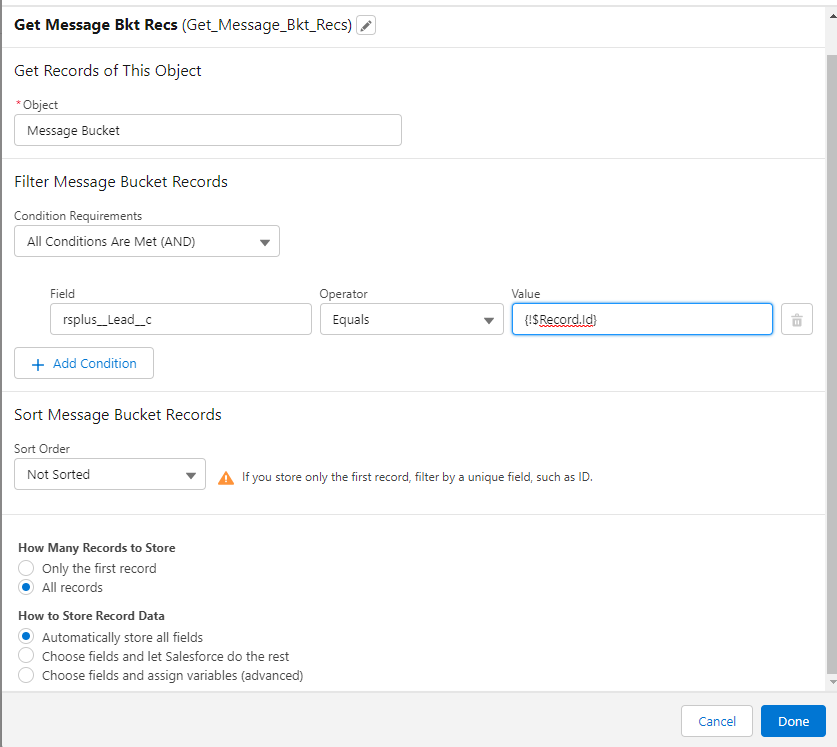
Fig 04 - Add a loop. Add a Loop element to the flow, following the image below. Click Done.
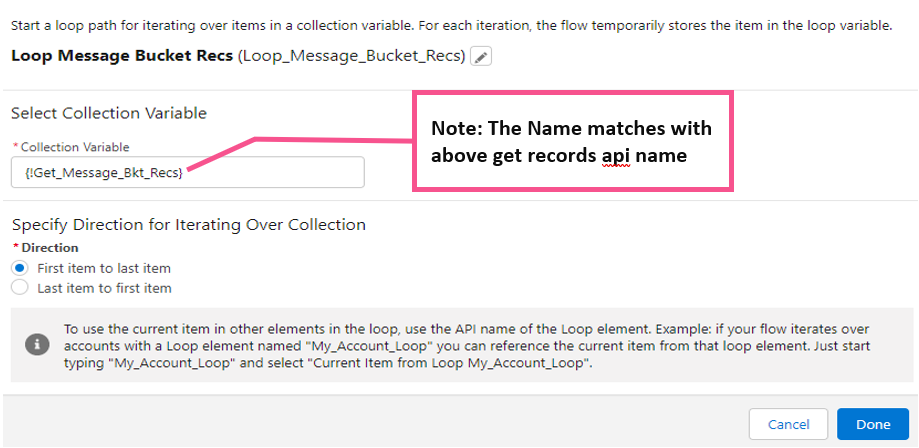
Fig 05 - Update the records inside the loop. Add an Update Records element inside the loop, as shown below. Click Done.
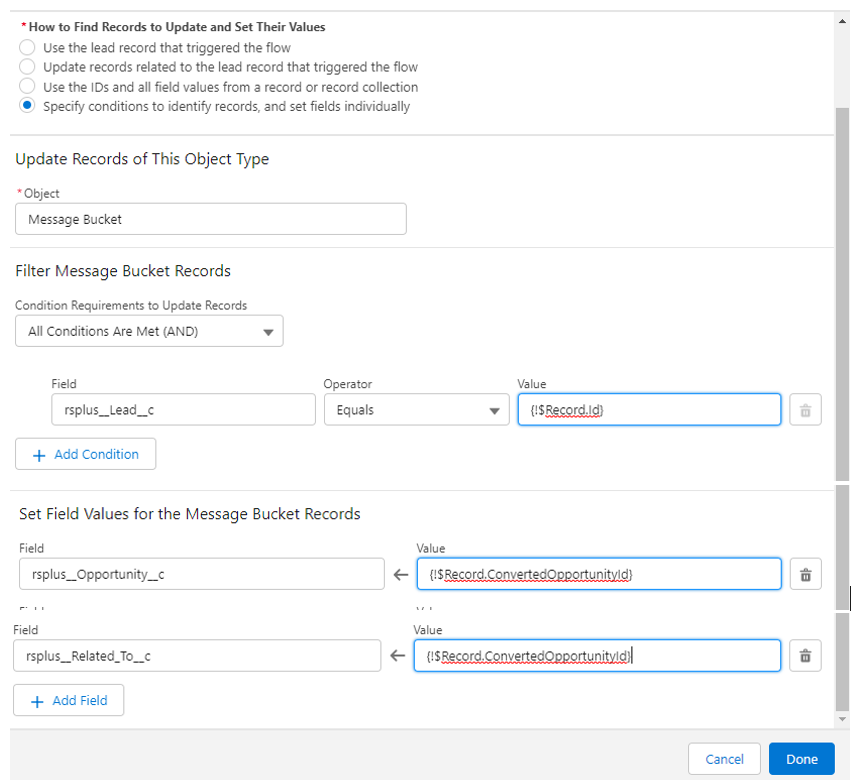
Fig 06
This is how the finished flow looks: