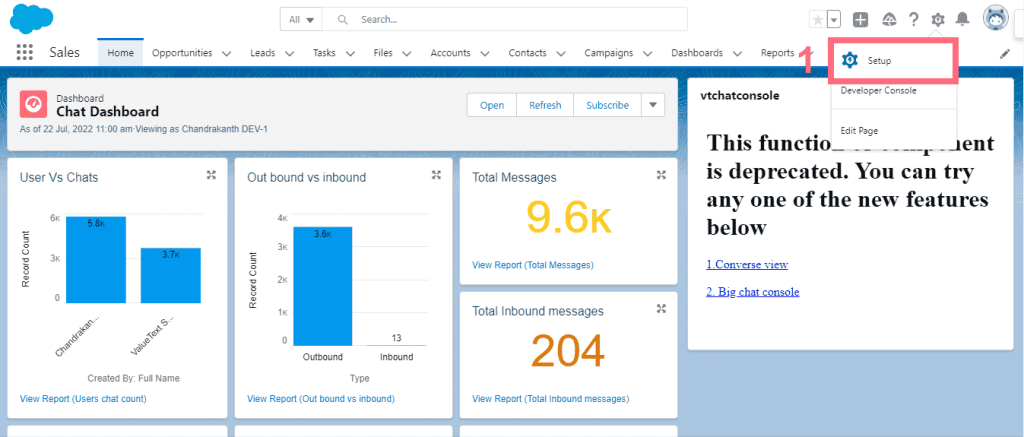
1. To setup activity history for every message, we have to create the task from a flow that will show up in the activity history of the record page,
Go to “Setup” from salesforce.
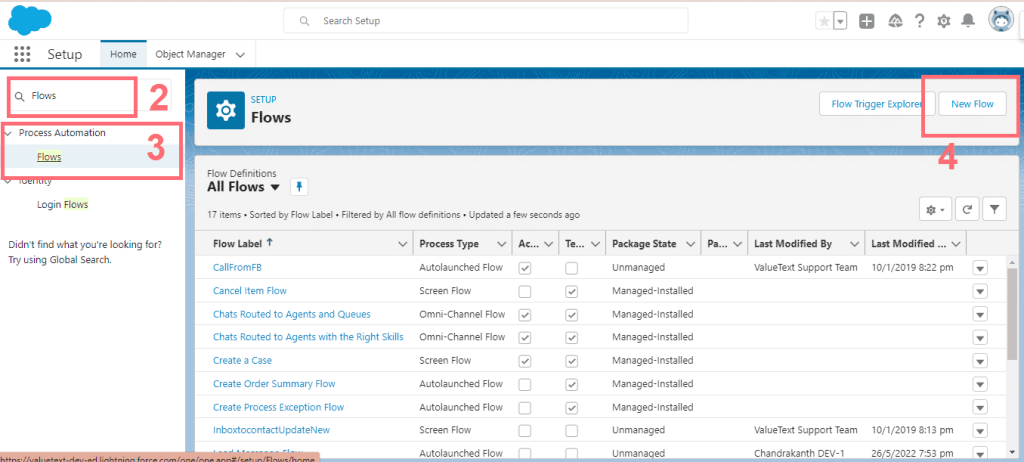
2. Search for “Flows” in Quick Find [2] and click on Flows from a section of process automation [3]; it opens the Flow page; click on “New Flow”. [4]
3. After clicking on New Flow, Pop Up should open for you to choose the Flow type and the record triggered flow, then click “Create.”
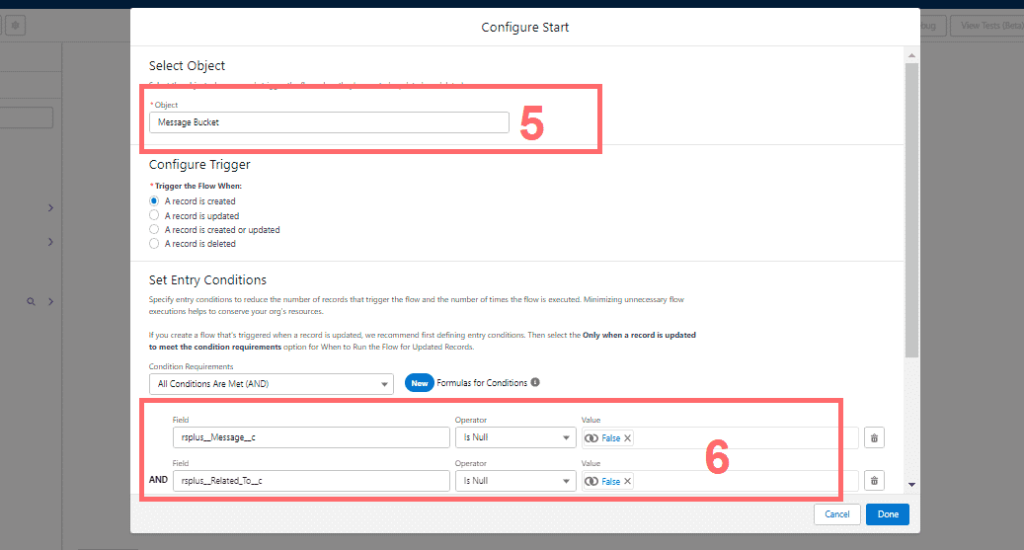
4. Next, it opens a pop-up to set up the configure start, chooses an object, and filter conditions.
- Choose “Message Bucket” Object [5]
- In configuring trigger, choose “A record is created.” Set Entry Conditions
- Message should be null to false [6].
- on Title – choose Related To Name Formula from the record
- Recipient IDs – choose resource variable.
Click “Done”.
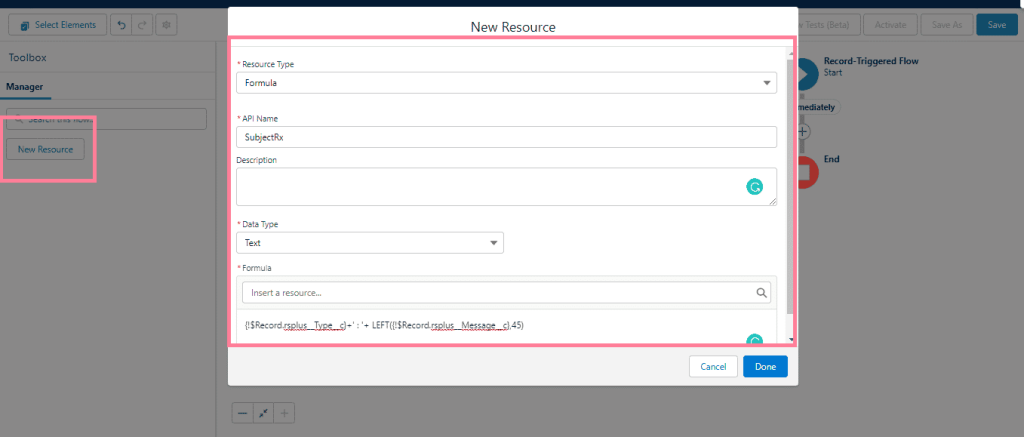
5. Create New resources with the type Formula, use the below values in the formula
- Use Type
- Message with left 45 characters
TEXT({!$Record.rsplus__Type__c})+’ : ‘+ LEFT({!$Record.rsplus__Message__c},45)
6. Next, Add the Create Records Element
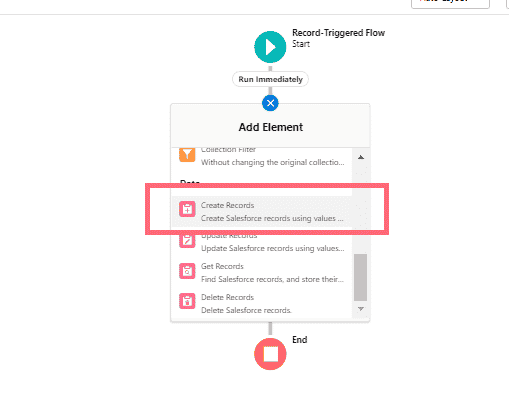
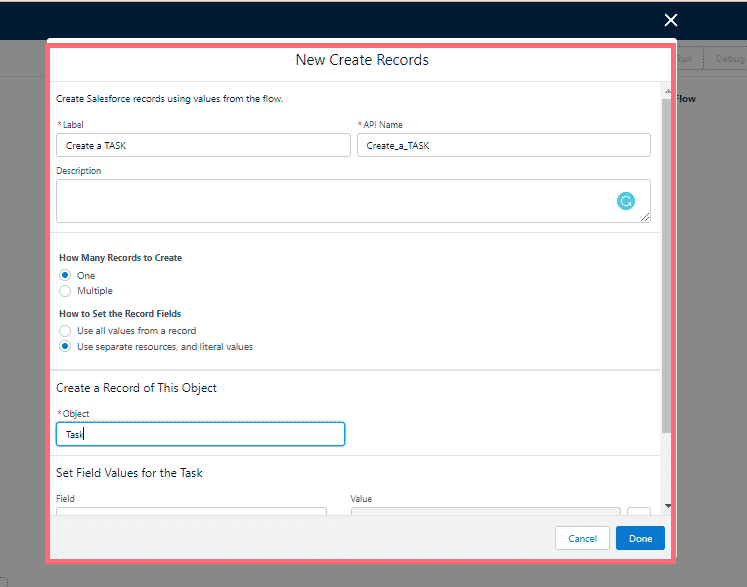
7. With adding Create Records element will open the pop-up to select options, choose as shown below
Note: Create a Record of This Object: Choose Object as a “Task”
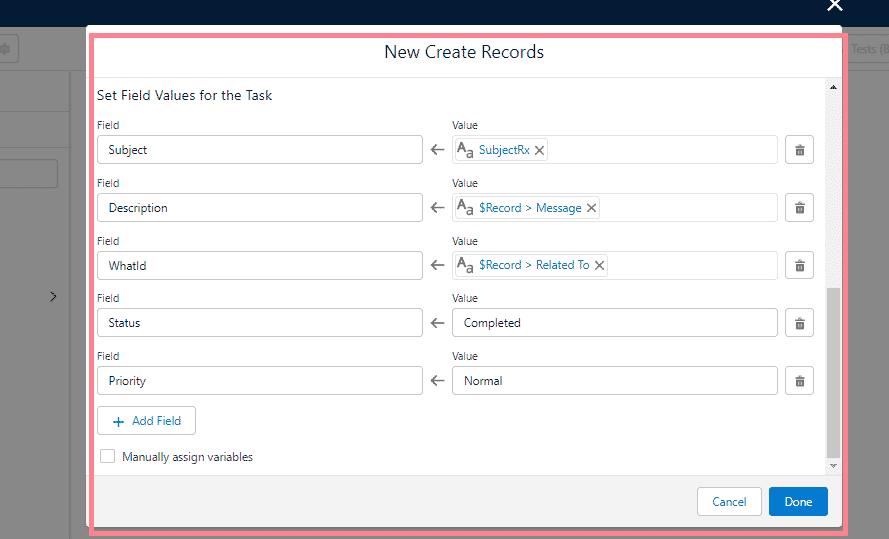
Set Field Values for the Task.
Important: Note that if you are using messages on contact or lead, you have to map [WhoId == Record Related to].
- Subject = Map the created formula resource
- Description = Record Message
- WhatId/Related To = Record Related to
- Status = Completed
- Priority = Normal
Click `’Done`’.
Save the Flow and Activate it.